
Google just like any other search engine needs to send crawlers to your website in order to index the information.
Search engines can crawl your website too fast, and you can block search engines from crawling your website.
With Google, you typically want them to crawl your site, but at a reduced rate so they aren’t slamming your server.
If you don’t already have a Google account you should read our introduction to Google Webmaster Tools article.
Changing Google’s crawl rate in Webmaster Tools
Adjusting the crawl rate for Google won’t affect ranking, just how long it takes them to index your entire website.
If you had 1,000 pages on your website, a search engine could potentially index your entire site in a few minutes.
However this could cause high system resource usage with all of those pages loaded in a short time period.
A Crawl-delay: of 30 seconds would allow crawlers to index your entire 1,000 page website in just 8.3 hours
A Crawl-delay: of 500 seconds would allow crawlers to index your entire 1,000 page website in 5.8 days
Using the steps below you can adjust Google’s crawl rate for your website using Webmaster Tools:
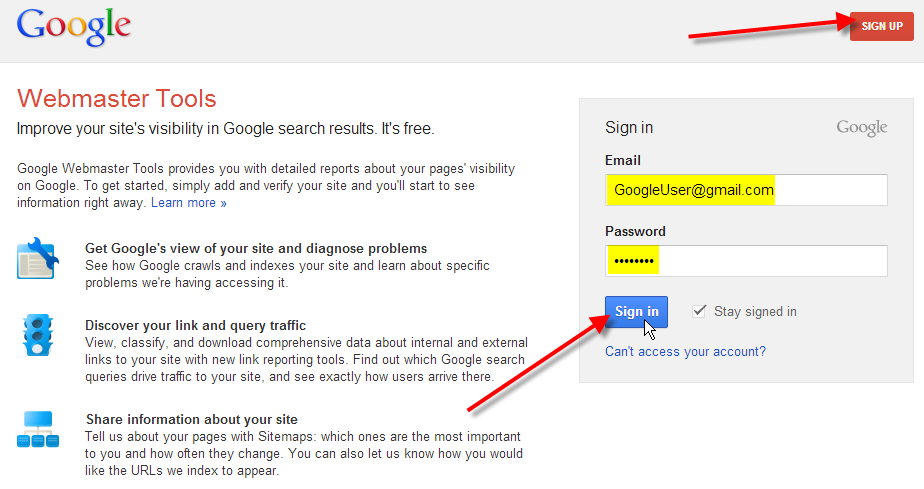
Step 1
Log in to Google Webmaster Tools
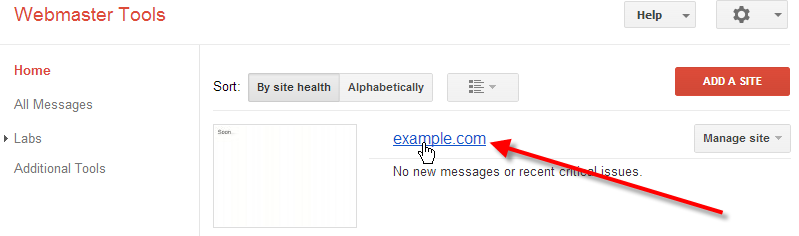
Step 2
Click on the website you’d like to manage

Step 3
Click the top-right settings cog, then Site Settings
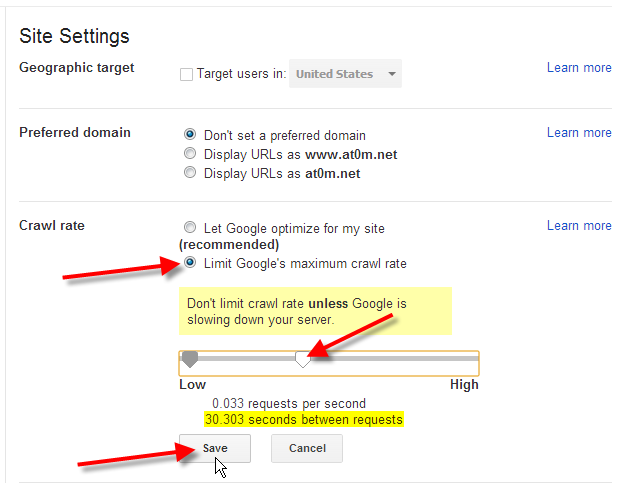
Step 4
Click on Limit Google’s maximum crawl rate
Adjust the crawl rate to at least 30 seconds apart.
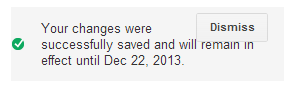
Step 5
Crawl delay settings are only saved for 90 days.
Note down the date you’ll need to set them again
Now the next time Google sends their Googlebot crawler to index your website, they’ll be sure to space out their requests at least 30 seconds in-between each other.