
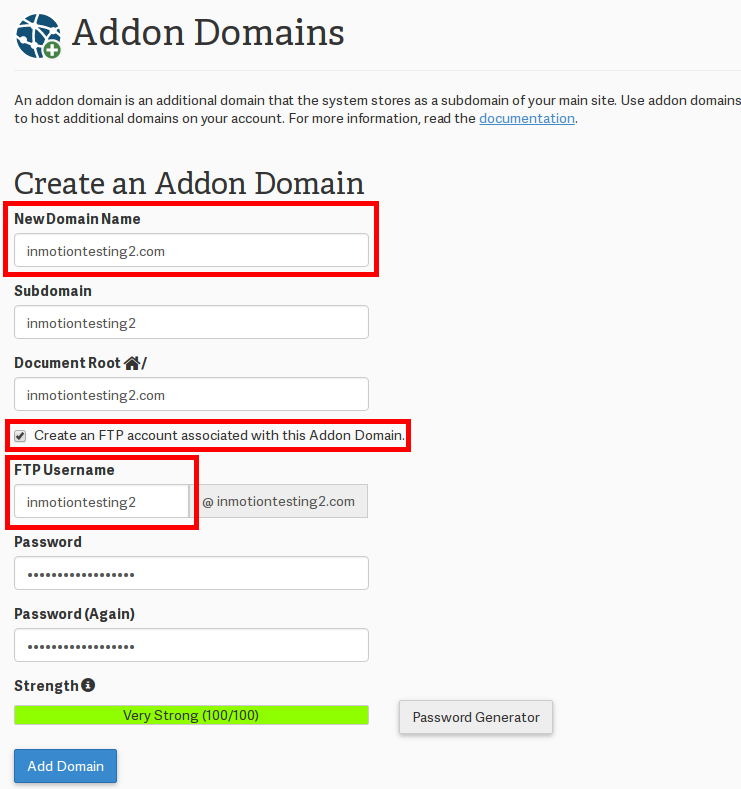
Once you’ve read our FTP Getting Started Guide, you know that your cPanel username and password can be used as an FTP account. But, did you know that if you’ve created an Addon domain that you have a separate FTP account for that domain that you can use? When you’re publishing to an Addon domain, you can choose to use either the cPanel username or the Addon domain FTP account. In fact, sometimes it’s easier to use the Addon domain’s FTP account for publishing. In this article we’ll go over directory structure and why using that Addon domain FTP account can be the best way to publish to an Addon domain. When you created the addon domain within cPanel, it automatically created the FTP account for you.
Directory Structure
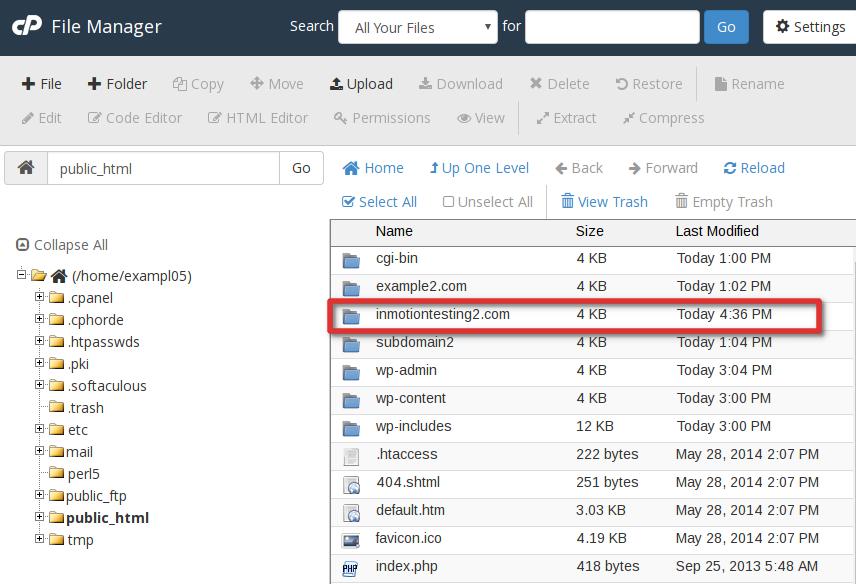
When your cPanel account is setup, a main domain was assigned to it. That main domain’s document root (by default) is the public_html folder. When you create an Addon domain in cPanel, a new folder is automatically created along with a new FTP account. By default, the new folder is given the same name as the Addon domain, but you can edit this if you prefer. That new folder is created inside the public_html so the Addon domain document root would be: public_html/addondomain.com.
Understanding Your Addon Domain’s FTP Account
When FTP accounts are created, each account is assigned to a directory or folder. When an account is assigned to a directory, it can reach that directory (and any subdirectories) but cannot go above the directory it is assigned to. When cPanel automatically creates the FTP account for your Addon domain, it is assigned to that Addon domain’s document root directory. This is helpful since it prevents publishing files to another Addon domain or to your main domain.
Here’s an example of using an Addon domain FTP account to log into FTP with a popular FTP program, FileZilla:
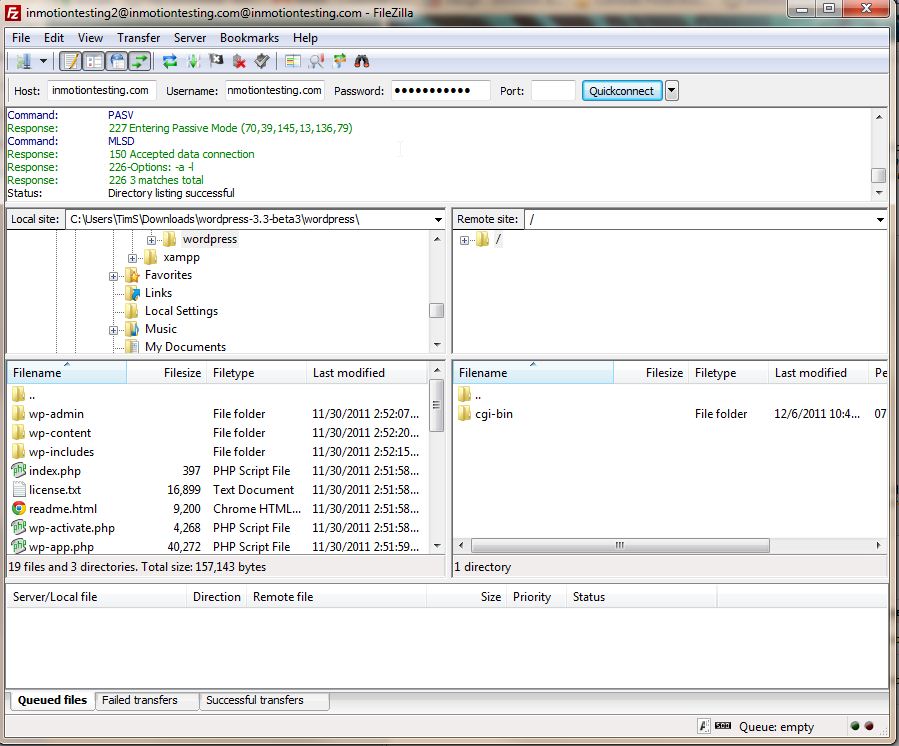
Notice that there’s not much information from the FTP client to tell you what folder you are currently in. This can be confusing from some, so if you’re ever in doubt about which folder an FTP account is assigned to, you can double check this by viewing the FTP accounts in your cPanel and clicking on the “…” link in the path column for that FTP account:
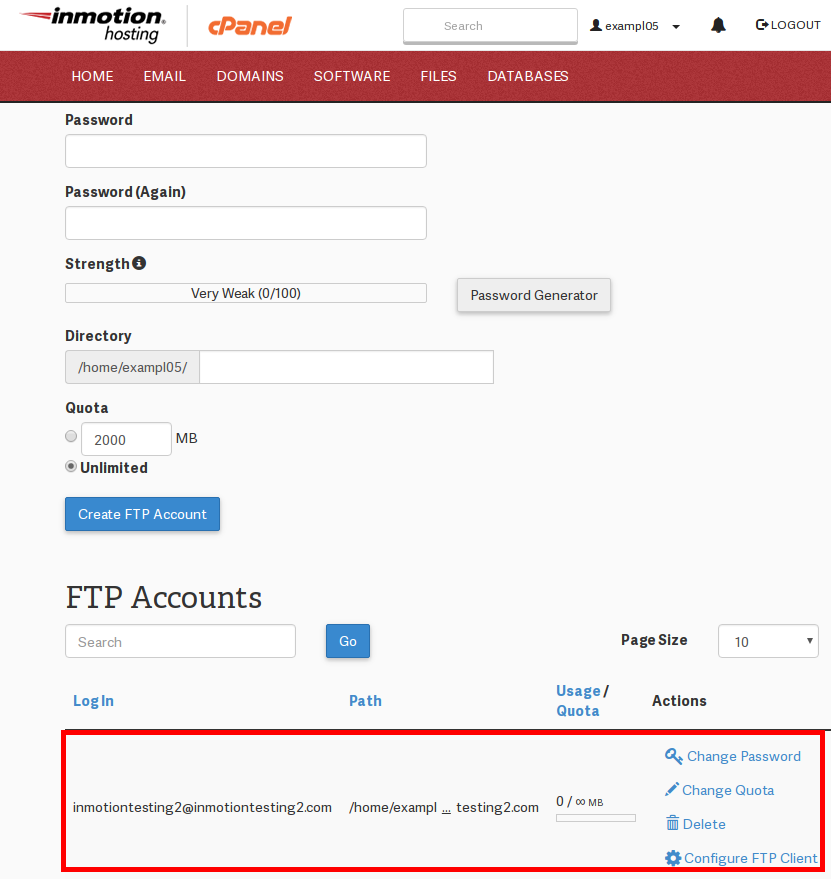

So, any time you are publishing to an Addon domain with either an FTP program or a web publishing tool such as DreamWeaver or iWeb it can be helpful to use that Addon domain’s FTP account. This can prevent overwriting another site’s file without having to input what can be a lengthy folder structure like public_html/addondomain.com in your software’s publishing settings.
If you need further assistance please feel free to contact our support department.
Did You Know That You Can Use SSH?
With a dedicated or VPS hosting plan, you can easily access your server via SSH. If you prefer to work in the command line, then these plans are right for you. Learn more about how to purchase a dedicated hosting plan.