
You can set up your iPhone or iPad to connect to your InMotion Hosting email by following the steps below. If you do not know your email settings, please see our Getting Started guide for Email. Also, if you are a web hosting Reseller, your settings will differ; you can view email settings in cPanel at any time.
Apple continually updates its iOS for iPad and iPhone. New features often include improved security, fixed bugs, and increased performance. In order to be able to send/receive messages with the email accounts created with your domain, you will need to configure the iOS Mail App corresponding with the server settings from your email provider. Follow the steps below to learn how to add an email account to your iPhone / iPad. These steps also apply to other devices using iOS.

How to Add an Email Account to Your iPhone / iPad
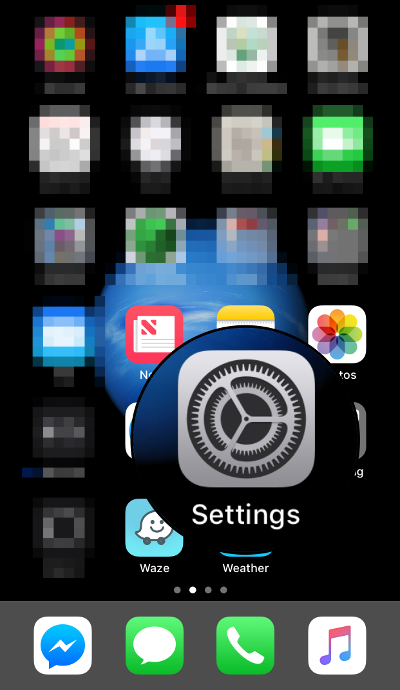
- From your home screen, find the Settings icon and tap on it to open it.
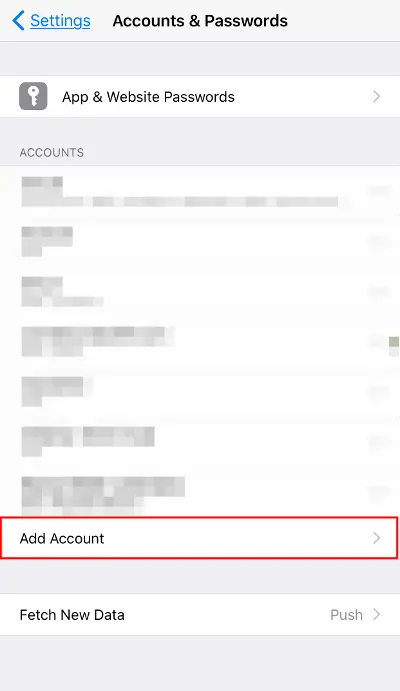
- In iOS versions 11 – 13, scroll to locate the Accounts & Passwords menu option and tap on it to proceed. In iOS 14 (or higher), you will not see Accounts and Passwords in the Settings section. You will first need to tap on Mail. Then you will see Accounts. Tap on either Accounts & Passwords or just Accounts to proceed. Passwords is now a separate section in Settings for iOS 14+.
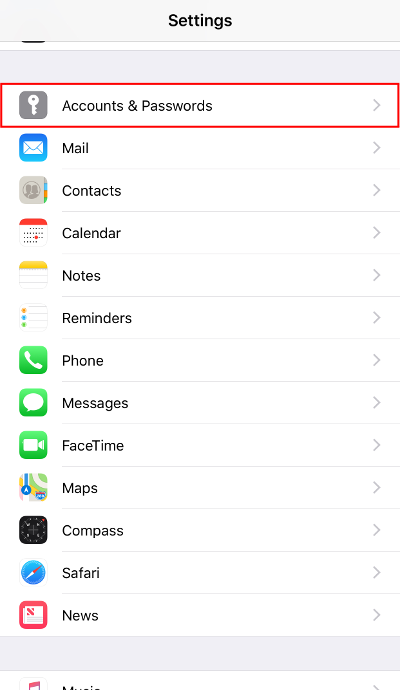
The image above applies to iOS 11-13.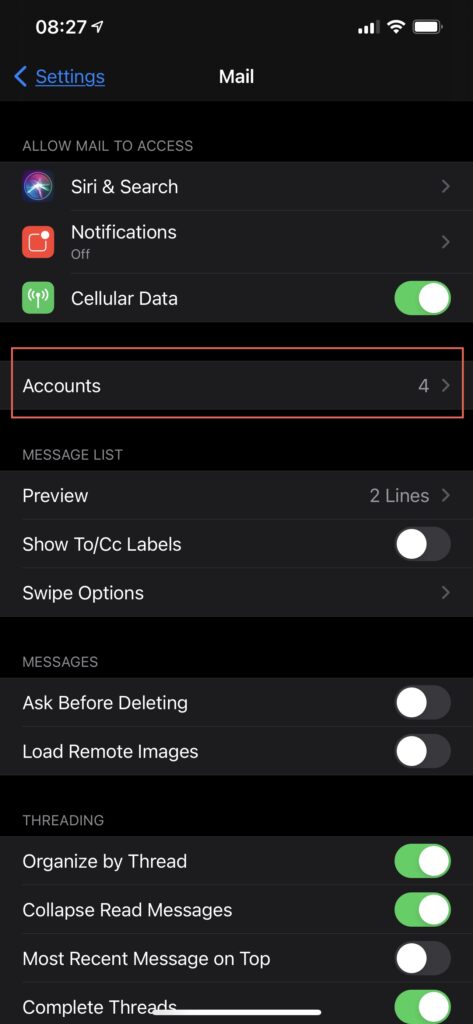
If you have version 14+, then you will simply see Accounts by itself. - In iOS 11-13 you will see a screen labeled Accounts & Passwords. There will be a list of existing email accounts and an option at the bottom labeled Add Account. iOS 14 users will see a similar screen but it will be labeled Accounts. Tap on Add Account to proceed.
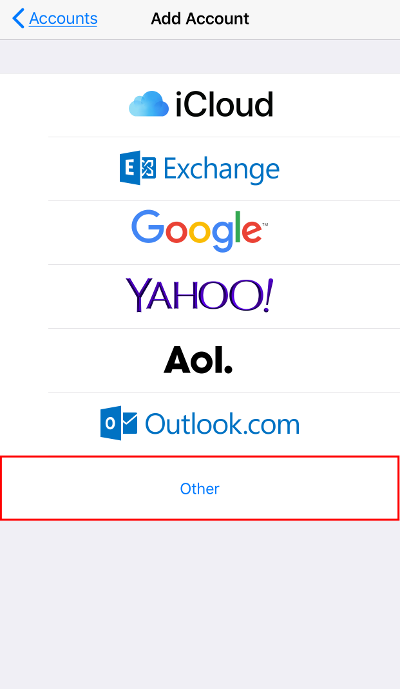
- Tap to select Other as the category of account to add.
.
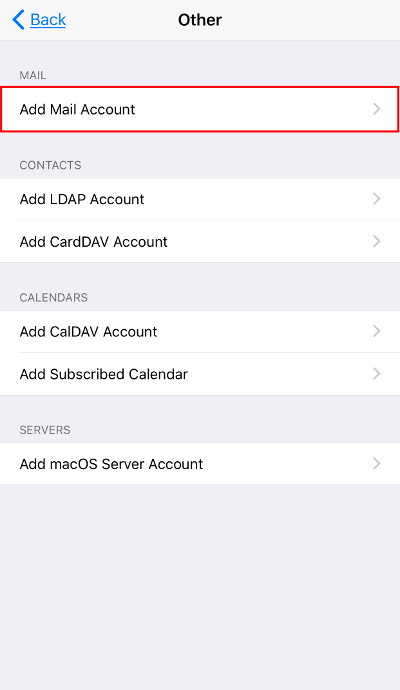
- Tap on Add Mail Account to continue.
.
- Fill in the details for each field and tap Next at the top right.

NOTE: The table below provides the fields, descriptions, and sample values to explain what values are expected.Field Description Value Name Enter your name. This name is used as the sender when addressing emails. Johnny Appleseed Email Enter the email address that you are creating this new account for. This needs to be the FULL email address. [email protected] Password Enter the password associated with your email address. P@$sw0rd123! Description Enter a description to help identify this account on your device. Example Mail - At this point, you can select which protocol to use to access your email. IMAP is selected by default, however, if you want to use POP, then you can tap on the POP tab. We use IMAP in our example, as that is recommended.NOTE: IMAP is the optimal protocol to use when accessing your email from multiple locations, especially on mobile devices. Select POP if this is the ONLY device you will access your email account from. Accessing an email account on multiple devices using the POP protocol can cause emails to be lost or removed.
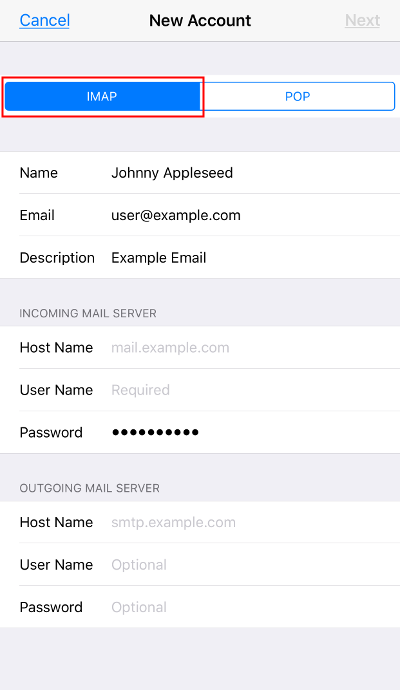
- Enter the Host Name for the Incoming Mail Server.
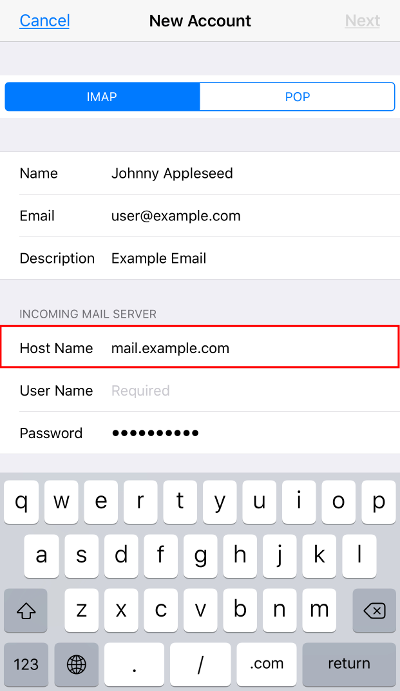
- Enter the FULL email address in the User Name field for the Incoming Mail Server.
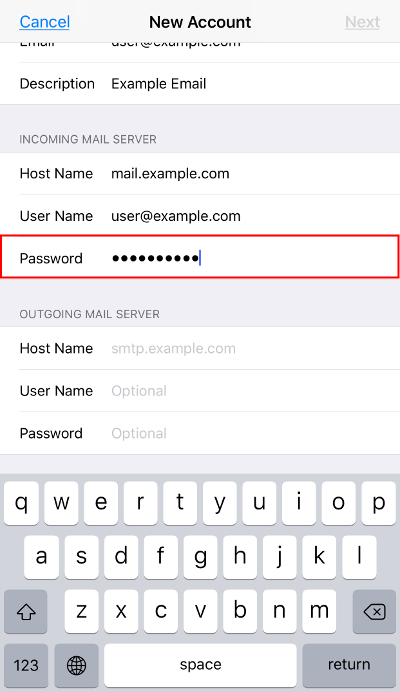
- The Password field for the Incoming Mail Server should contain the password you entered from the previous screen.
- Enter the Host Name for the Outgoing Mail Server.
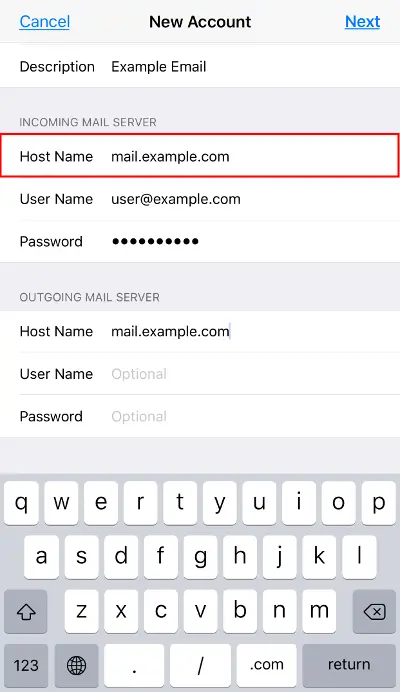
- Enter the FULL email address in the User Name field for the Outgoing Mail Server.
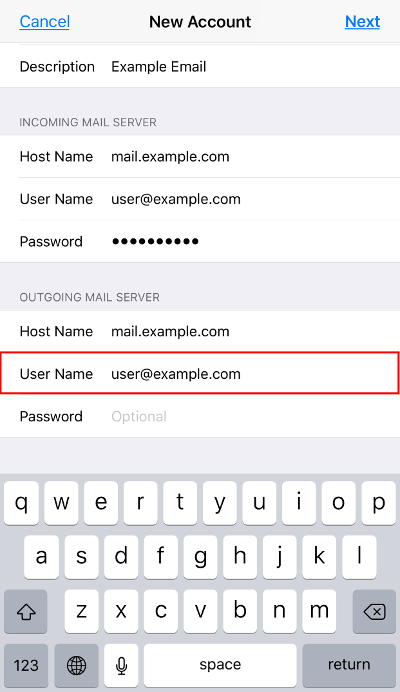
- Enter the password associated with the email address in the Password field for the Outgoing Mail Server.
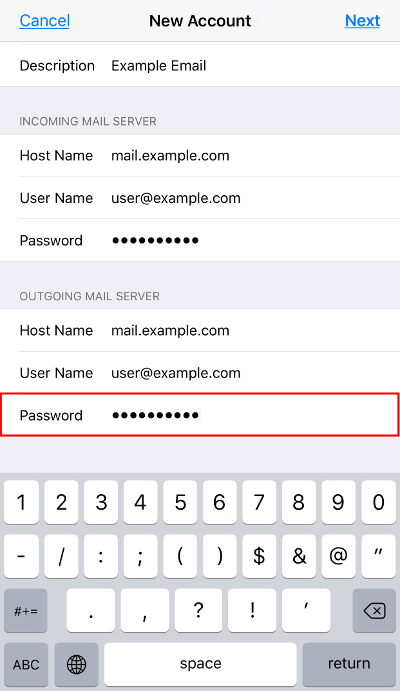
- Confirm all your settings are entered correctly, then proceed by tapping on Next at the top right.

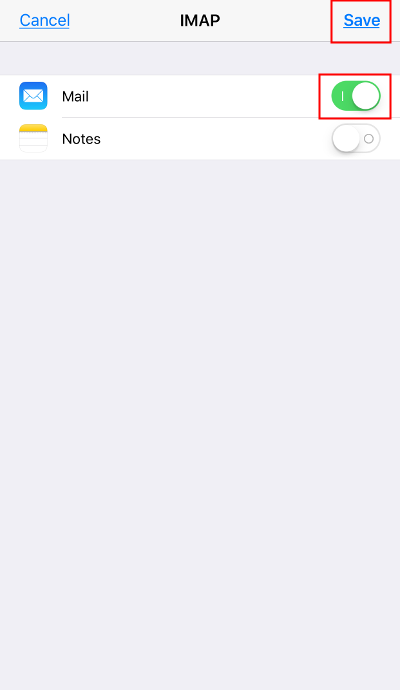
- Your iOS device will proceed to verify a connection to the mail server based on the settings entered. When successful, the next screen will allow you to add this account to your device’s additional Apps (if applicable). If you would like to setup the additional account(s), simply tap on the toggle switch to enable them. By default, Mail is enabled (since we are setting up a Mail account), so you can proceed to tap on Save at the top right.
Congratulations! You now know how to add an email account in iOS. You can begin to send and receive emails from your device. If you need to change the email server settings, check out our tutorial on How to Set the Mail Server Settings in iOS. If you are interested in accessing Webmail through cPanel’s new iOS App, be sure to check out our guide to learn How to Set Up cPanel App for iOS 11. Lastly, if you ever change your email password, be sure to update the password in your iOS mail client to avoid being accidentally blocked by fail2ban.
Check out some of our other articles on iPhone tips and tricks:
Reliable Shared Hosting for Growing Businesses
Get the performance your business website demands with NVMe SSD storage, industry-standard cPanel management, and direct access to hosting experts whenever you need assistance.
 Free Website Migration 24/7 Human Support 100% Money-Back Guarantee