You may, at some point, decide to change the domain name for your WordPress site. After changing the name, you may notice that some of the pages and posts of your site still display the old domain name. To fix this, you need to change a couple of settings within your WordPress administrative dashboard. Follow along below as we explain how to change your site name in the WP Admin section.
Changing your site name and URL in the WordPress admin
- Log into your WordPress admin dashboard.
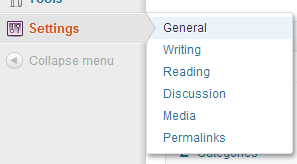
- Now that you are inside the admin dashboard, look to the left hand menu, hover over Settings, then click on the General option.
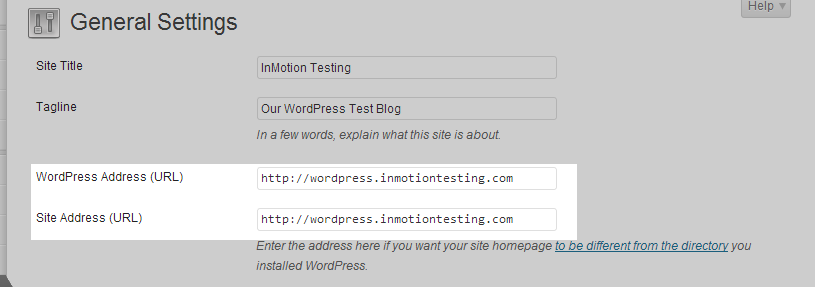
- This brings up the General Settings page. From here, look for the WordPress Address (URL) and Site Address (URL)fields. Enter your new domain name in those two fields.
- After entering the new domain name, scroll down to the bottom of the screen and click on the Save Changes button.
You should now be able to visit your site using the new domain name and navigate to all of its pages without seeing the old domain name in the address bar.
