Joomla 2.5 has reached its end of life as for 12/31/2014. Please be advised this may be a security risk to your website. You can view more information about the end of life here.
Joomla 2.5 utilizes a database to store a majority of a site’s content. For example, if you write a new article in Joomla, the article is written to the database. As the database is vital for Joomla to run, if Joomla cannot connect to your database and access information, you will see database related error messages on your site. In this article, we’ll show you a few common errors and how you can resolve them.
Common Joomla 2.5 Database Connection Error Messages:
- Database connection error (2): Could not connect to MySQL
- Database connection error (3): Could not connect to database
- MySQL server has gone away
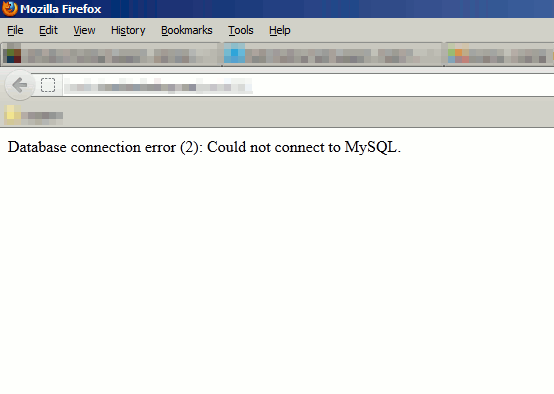
Database connection error (2): Could not connect to MySQL.
Problem:
This error message generally means that your Joomla’s configuration.php file has either the wrong database name or database username. In our testing environment, we changed both the database username and password, and in each separate occasion the same error message occurred.
Solution:
You should review your configuration.php file and ensure you are using the correct MySQL username and password. These settings will appear in the file as:
public $user = 'userna5_dbuser';
public $password = 'dbpass';
If you are sure the settings are correct, it is recommend to reset your database user’s password and update your configuration.php file with the new password. This will help ensure that you have the correct database password set.
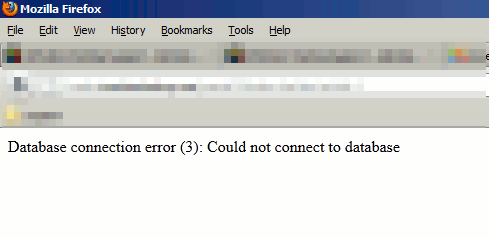
Database connection error (3): Could not connect to database
Problem:
This error message usually means that you are connecting to the wrong database server. For most Joomla installations, the Joomla files themselves and the database it connects to are on the same server. When this is the case, “localhost” should be used the database server. We recreated this error message by setting the database host to “localhosttt” (localhost spelled wrong).
Solution:
If your Joomla site is setup like most, check your configuration.php file and ensure your database host is set to “localhost”. This is setting looks like the following in your config file:
public $host = 'localhost';
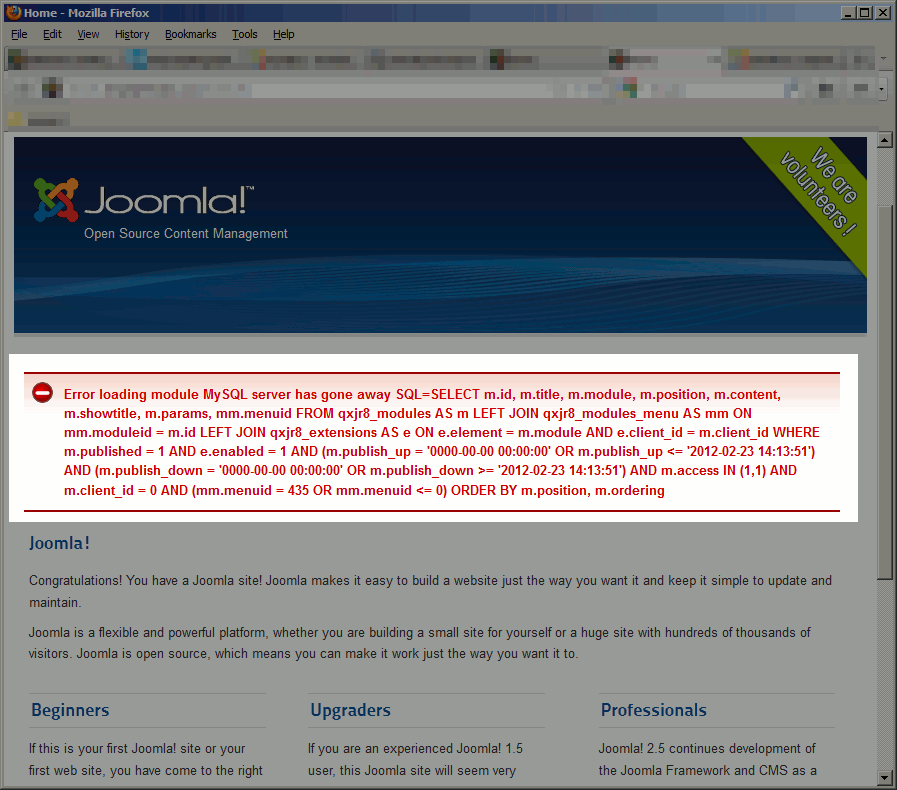
MySQL server has gone away
Problem:
The “MySQL server has gone away” error generally means that there is a problem with MySQL on the server, therefor it is unavailable for use. In our testing environment, we shut down MySQL and received such a warning.
Solution:
If you are not an InMotion Hosting customer, you should contact your current web hosting provider with the necessary details for more help with this. At InMotion Hosting, we monitor our servers 24 hours a day. If MySQL is not functioning on a server, we are aware usually seconds after the issue occurs. You can rest assured we are on top of the problem and that it should be corrected shortly. As always, you can contact our Support Team if you desire to report such a problem.
Most often, if Joomla has been working fine and suddenly stops working due to a database error, there is a problem with the database on your server. You’ll want to contact your hosting provider for further assistance. If you have recently made a change to Joomla and then you begin to see database errors, instead of contacting your host you should first check your database settings in your configuration.php file.