Editing what your RSS feed displays can be easily done from within Drupal 7. You have the option of displaying the feed by Titles, Titles and teaser, or even the entire text itself. Setting the display options for RSS feed is easy within Drupal 7 by performing the following instructions.
To set the RSS feed content display in Drupal 7:
- Log into your Drupal 7 admin dashboard.
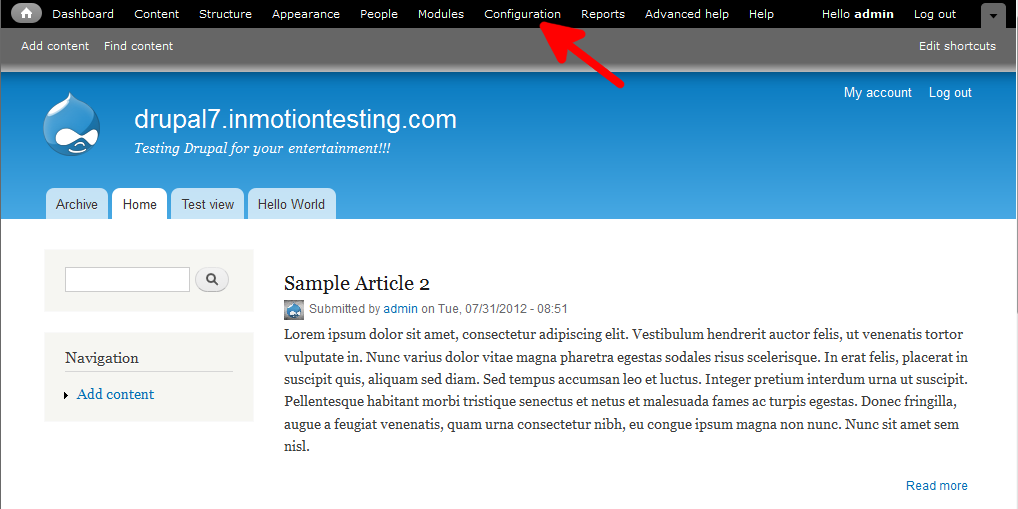
- Click on the Configuration menu option, located in the menu bar at the top of the screen.
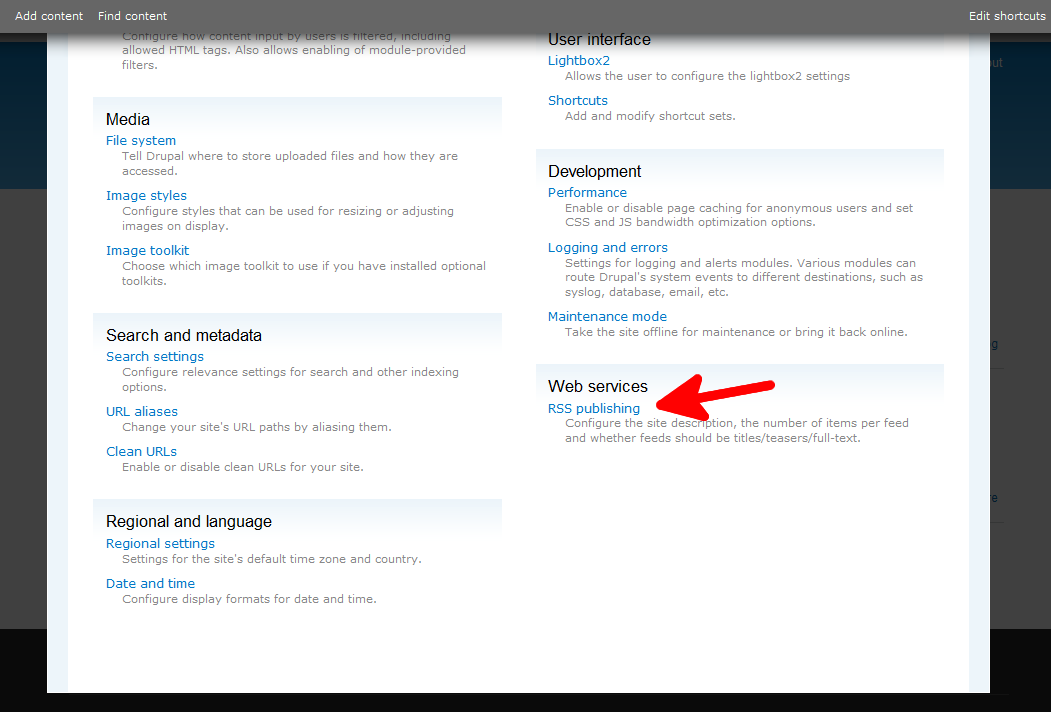
- From the lower right corner of the Configuration page, find the Web Services category and click on the RSS Publishing link.
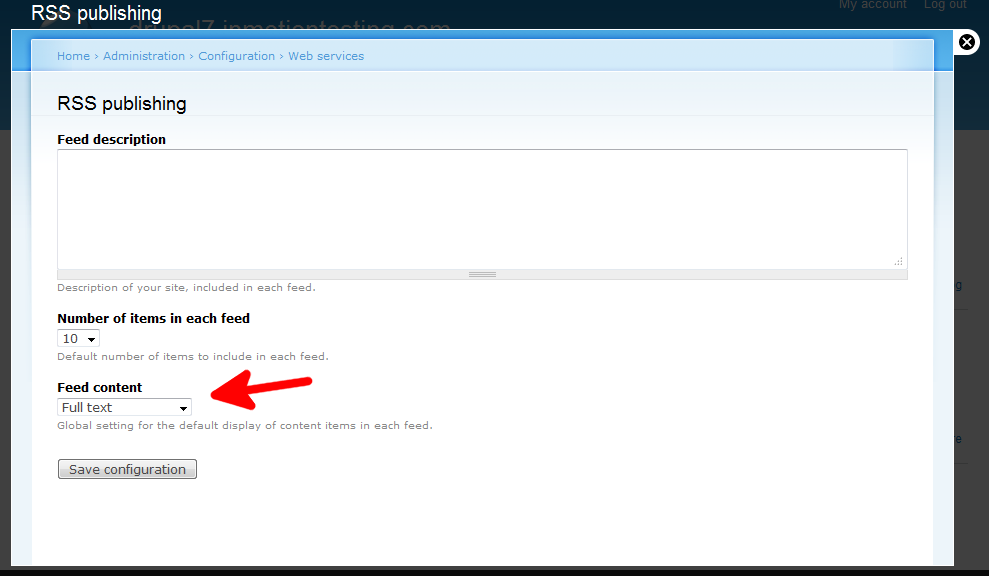
- You are now on the RSS Publishing screen. Now you want to find the Feed Content dropdown and select your setting from Titles Only, Titles plus Teaser, or Full Text.
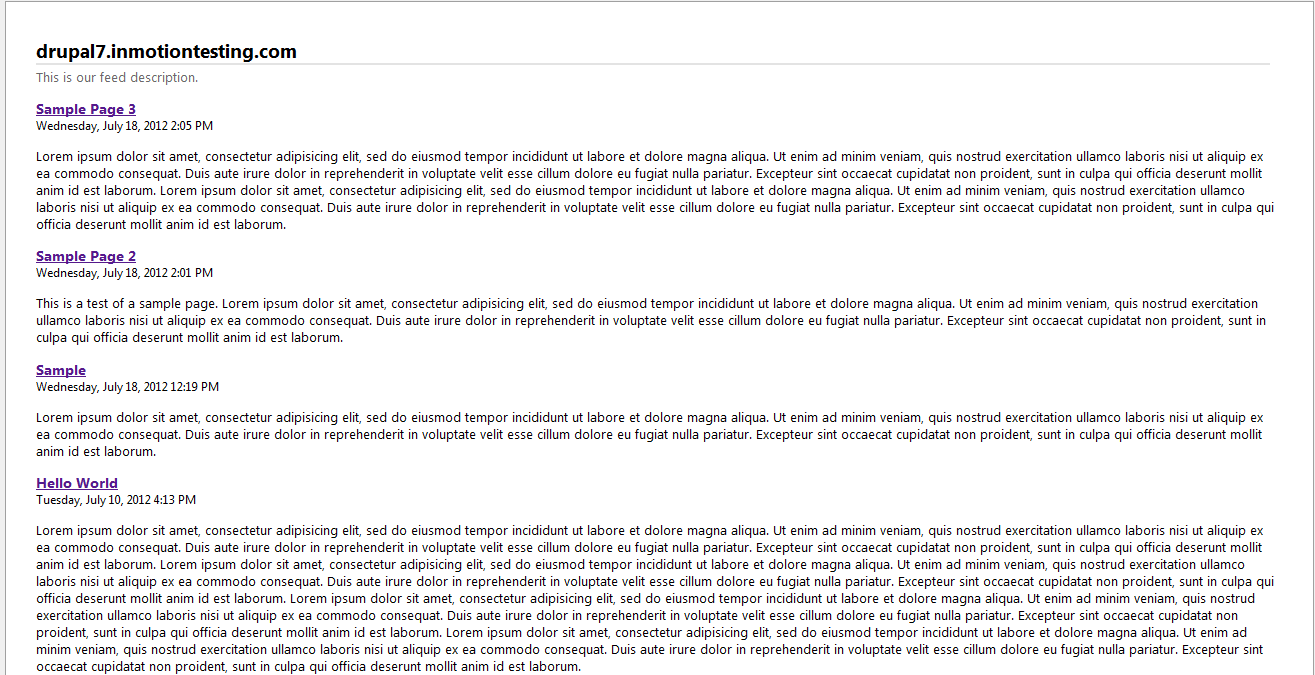
- Once selected, click the Save Configuration button at the bottom of the screen. As you can see below, the entire text of the post comes through in the feed display.