
After installing Drupal, you are ready to begin creating your new site. The vast majority of tasks are done via the administration dashboard. Follow the instructions below, or watch the video on YouTube, to learn how to log into your administration interface.
How to Log into the Drupal Admin Interface
- First, visit your site’s admin login area. This will be your site URL with /admin appended to the end. For example: https://example.com/admin
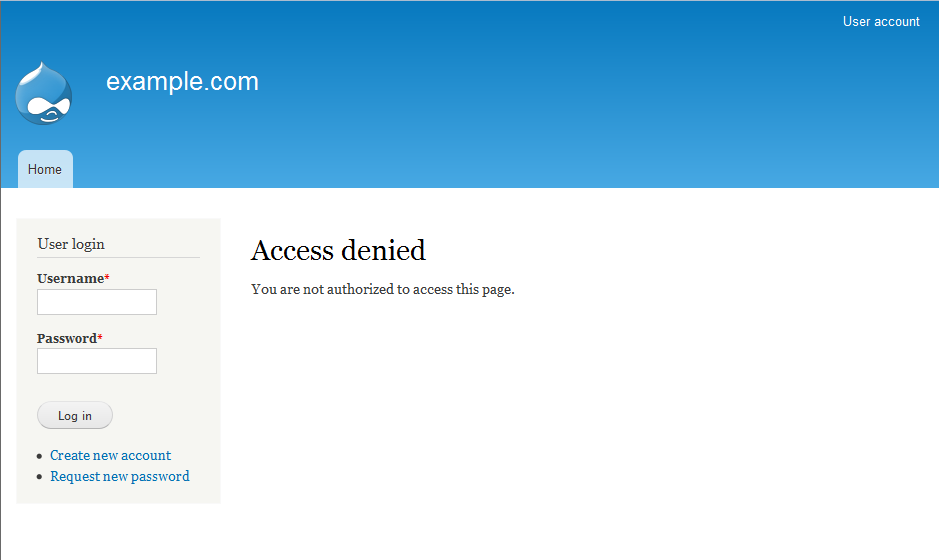
- Once you are on the login screen, enter your admin username and password in the login fields in the left hand sidebar. If you do not remember your password you can request a new one to be sent to your email address by clicking on the Request New Password link.
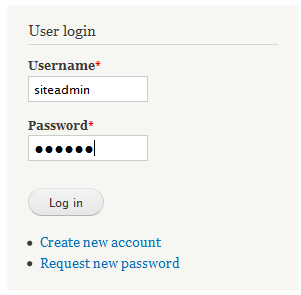
- Click Login and the admin dashboard will appear. From here you can begin to create the content for your site.



You have successfully logged into the Drupal admin dashboard.
Ignite your online presence with cutting-edge Drupal VPS Hosting. Elevate speed, security, and reliability for a seamless website experience.