
Customers who are new to reselling domain registrations through InMotion Hosting will need to create a new eNomCentral account with the AMP (Account Management Panel) interface. Follow the steps below to create the account.
Want to make money by selling web hosting solutions? Become a reseller using InMotion’s Reseller Hosting.
Find eNomCentral in AMP
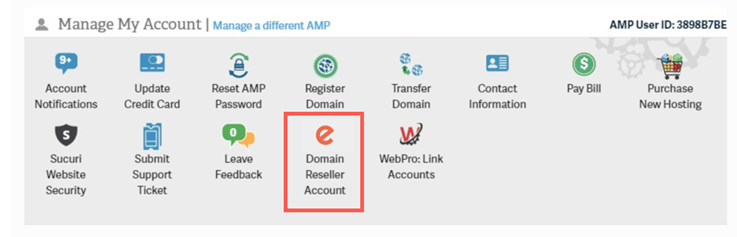
- Log in to the Account Management Panel.
- Find the section labeled Manage My Account. Click on the eNom icon as shown in the screenshot above.
Registering a New eNom Account
The following steps take you through the process of how to create a new account in eNomCentral.
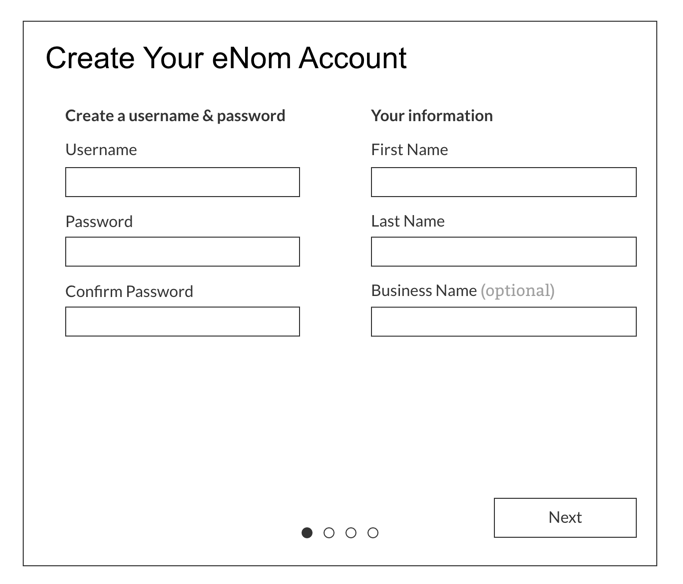
- Fill in the username, first name, last name, and password fields. The business name is optional. Remember to record a copy of your password in a secure location.
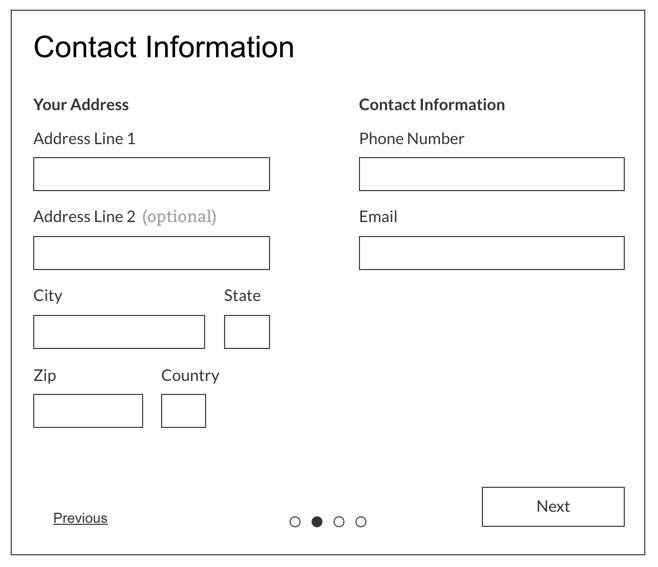
- Next, you will need to provide your contact information including your address, email address, phone number city, state, zip code, and country.
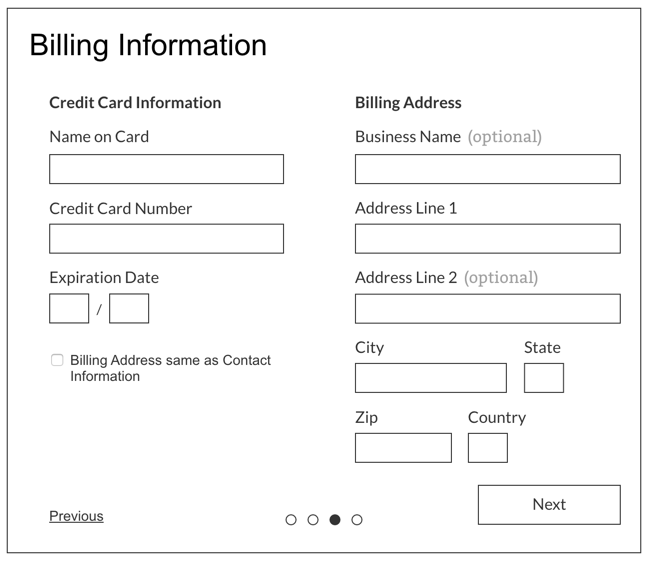
- Fill in your billing information and address associated with the credit card. Note that if your billing address is identical to your contact information, then click on the checkbox and you won’t have to type it in again.
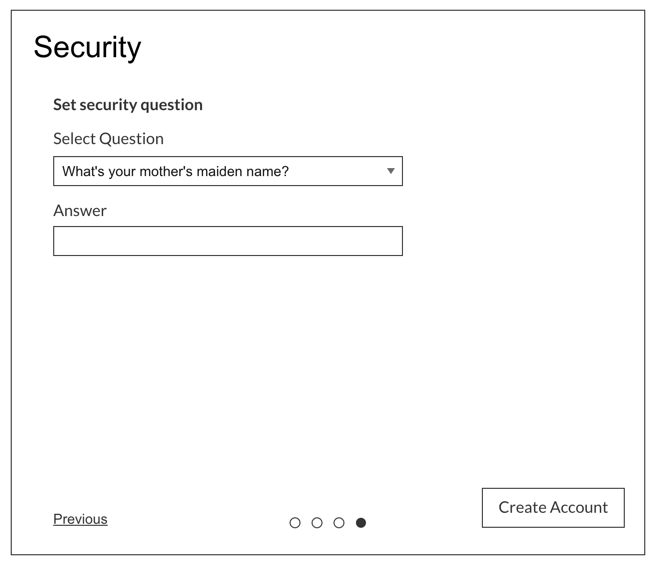
- Finally, you will be asked to select a security question. Make sure to record your answer in a secure location so that you won’t forget it. Click on Create Account once you’re finished.
And that’s it! You have created your eNomCentral account! This account is used to resell domain registrations. Note that when you finish registering you will be taken to the eNomCentral login screen. The next time the eNom icon is clicked in AMP, the user will be taken directly to eNomCentral.
To learn more about using eNomCentral check out these articles:
- How to add Credit to your eNom Account
- How to update WHOIS in eNomCentral
- Make Changes to ID Protect (Domain Privacy) in eNomCentral
- How to Edit Domain Prices in eNomCentral
- How to Login to eNomCentral
Learn more about using a reseller account by going to our Everything Reseller site.