
Softaculous makes installing the WordPress content management system (CMS) easier. Managed VPS and Dedicated server administrators can further ease the “getting started” process with installable plugin and theme sets. This allows cPanel users to install a new WordPress website with groups of plugins and/or themes for specific purposes (e.g. security, optimization, podcasting).
You can also restore WordPress sets by importing a Softaculous backup.
Below we’ll cover how to create WordPress plugin/theme sets and install plugin/theme sets.
WordPress Plugin and Theme Sets
- Log in to WHM as user root.
- On the left, select Softaculous – Instant Installer.
- On the left, select Settings, then General.
- Beside Choose Theme, change from “imh” to Default or Simple.
- Click Edit Settings below.
- On the left, select Software, then Manage WordPress Sets.
- Click Create Set.
- Add a Name of the set and click Create.
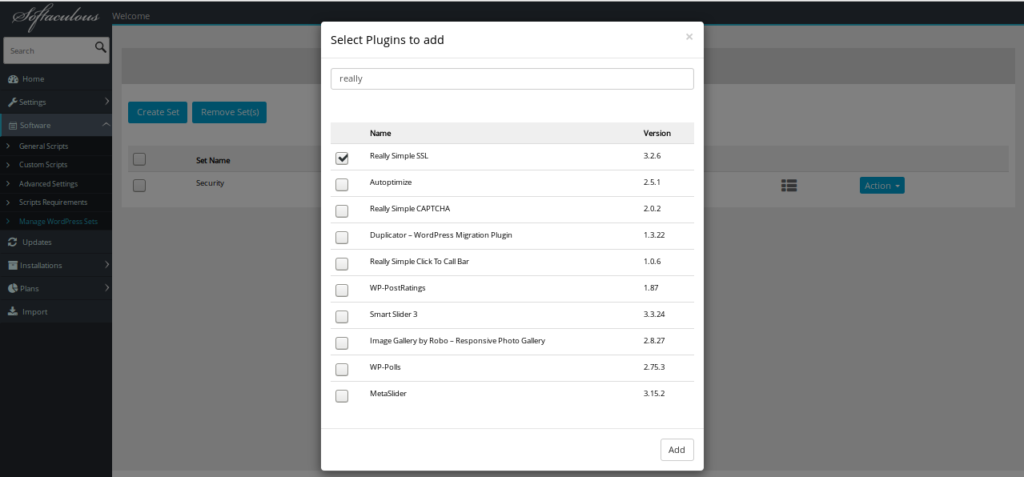
- Click Add Plugins.
- Search and check the box beside the plugin. Then, click Add at the bottom. Repeat for each plugin.
- Close the pop-up box once done.
- Click Add Themes.
- Search and check the box beside the theme. Then, click Add. Repeat for each theme.
- Close the pop-up box once done.
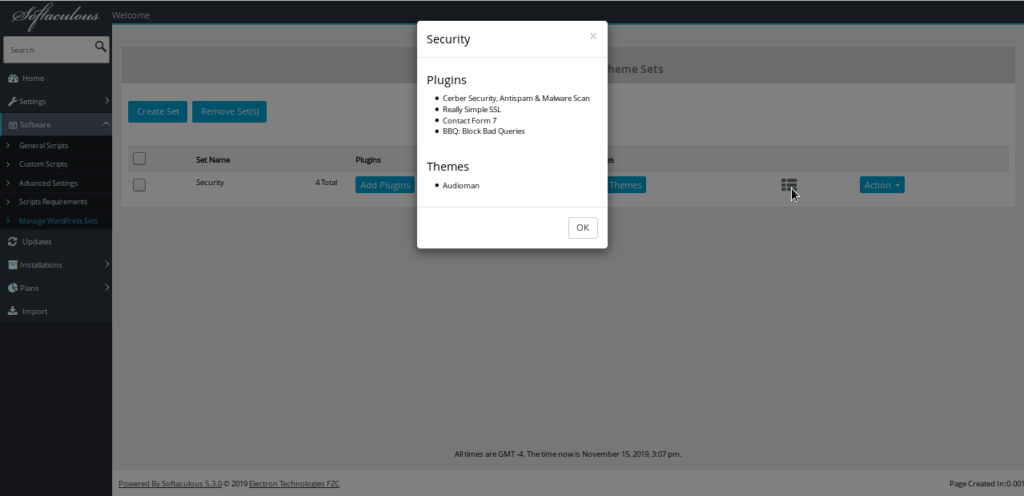
- Click the list icon to the left of the Action button to view plugins and themes included in a set.

Install WordPress Plugin and Theme Sets
cPanel users will see created sets while configuring new WordPress installation in Softaculous
- Log in to a cPanel account.
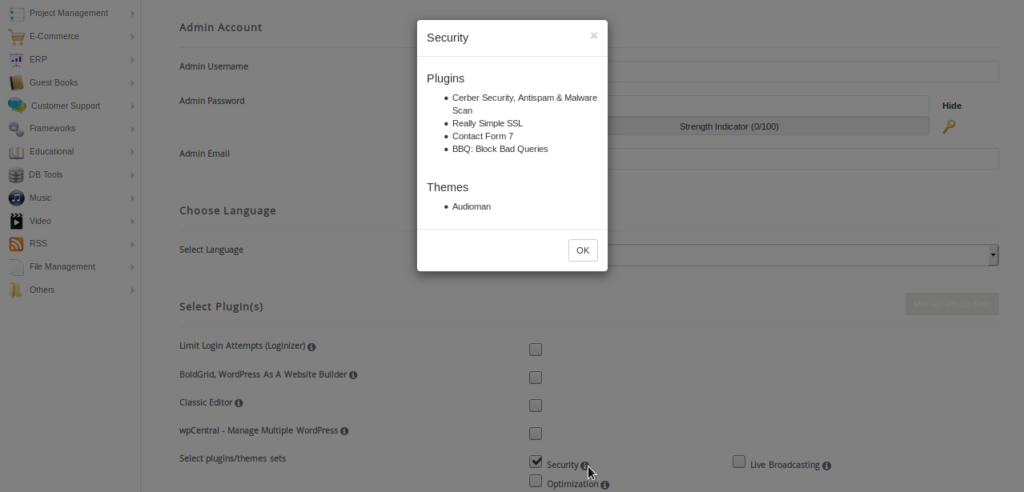
- Prepare to install WordPress using Softaculous, but at step 4, under the Select Plugins, select the set beside Select plugins/themes sets to install within the new WordPress site. Hover your cursor over the info button to see included plugins and themes.
- Log in to your WordPress dashboard to get started.
Learn more in our Softaculous Education Channel.
Install WordPress, Drupal, and other programs in just a few clicks with Softaculous Instant installer.