In this tutorial, we will show you how to assign a reseller package to an existing cPanel account in WHM. Our Reseller Hosting plans include pre-configured packages that can be used for assigning features to your cPanel accounts. This can help when upgrading or downgrading your customer’s hosting plans, by allowing you to easily change the features included in the account. After the pre-configured package has been assigned, you can always customize the packages as needed.
Assigning a Reseller Package
- Log into your WHM.
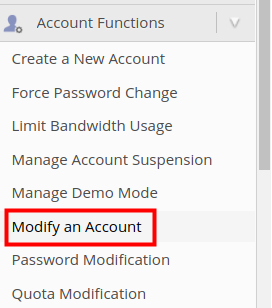
- Click the Modify an Account link in the Account Functions section of the side menu.
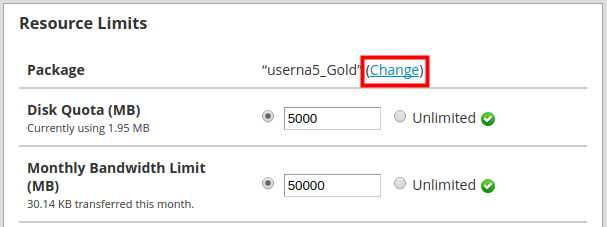
- You will then be on the Modify an Account page. Scroll down to the Resource Limits section and click the Change link next to Package.
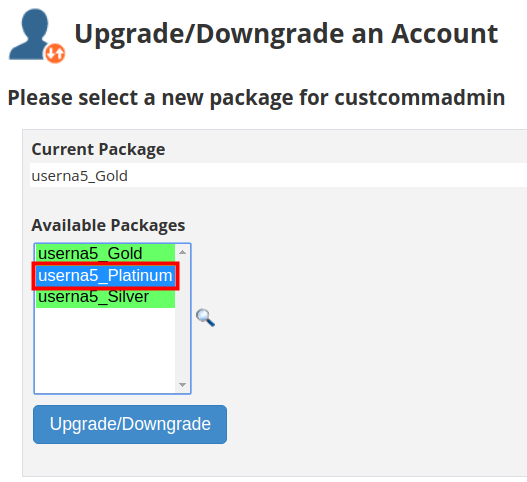
- On the Upgrade/Downgrade an Account page you will see your Current and Available packages. Choose the package you want to assign to this account. In my example, I am changing from the “Gold” to the “Platinum” option.
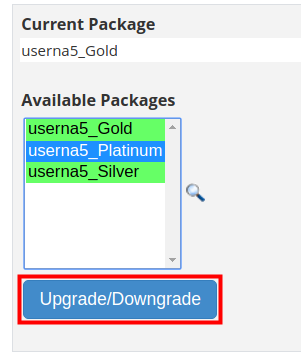
- Click the Upgrade/Downgrade button to assign this package to the account. You are finished when you see a “Account Upgrade/Downgrade Complete” message
Congratulations, now you know how to assign a reseller package to an existing cPanel account in WHM!