After installing VirtueMart 3 in Joomla, you may want to make a Menu item that takes visitors to your online store. This will help people navigate to specific pages within your VirtueMart 3 e-commerce website. We also have a guide on How to Make VirtueMart 3 your Front Page in Joomla.
Making a VirtueMart 3 menu in Joomla
- Login to the Joomla Admin Dashboard.
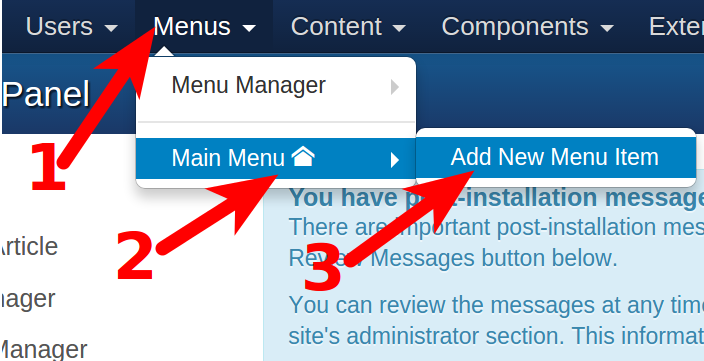
- Click Menus, roll your mouse over Main Menu, then click Add New Menu Item. See the steps outlined below.
- In the Menu Title field, enter a name for your VirtueMart menu. This will be the name of the link in your site menu.
- Next to Menu Item Type click the Select button.
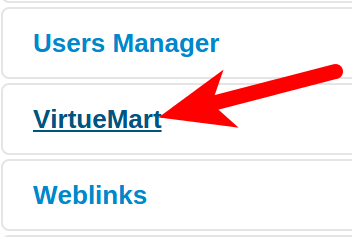
- Click VirtueMart from the list.
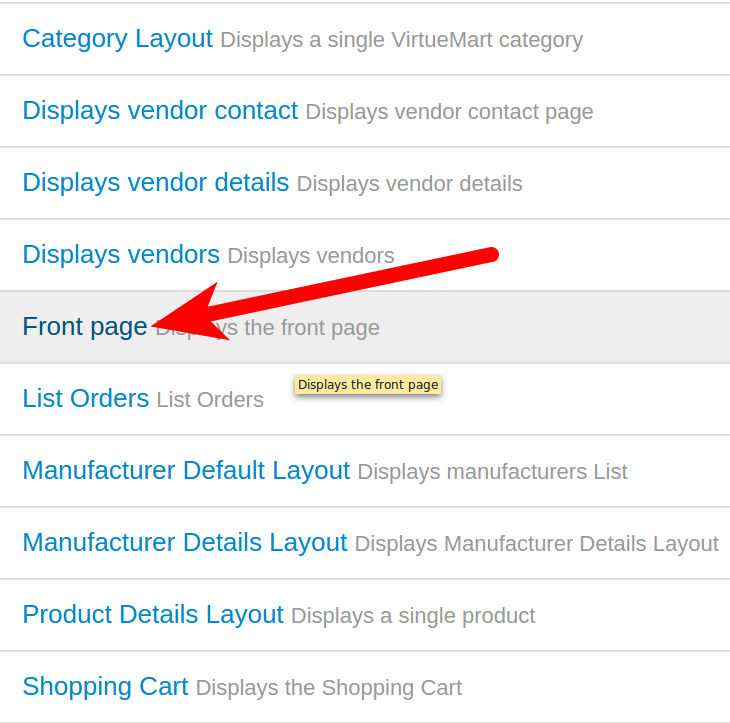
- The menu will drop-down and list VirtueMart menu options. Choose the part of VirtueMart you want the menu to link to. In my tests I selected Front Page.
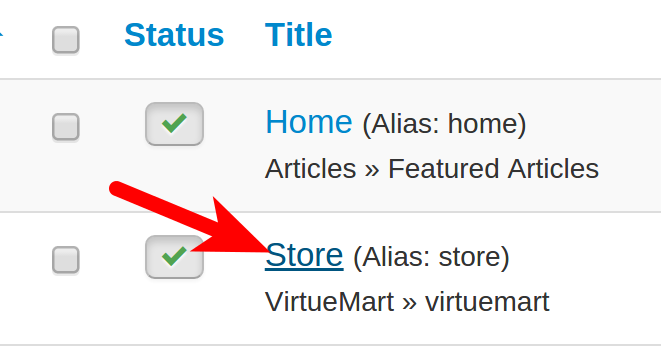
- Click the Save & Close button to create your VirtueMart 3 menu item. You will then see the new menu item listed in your Admin panel.
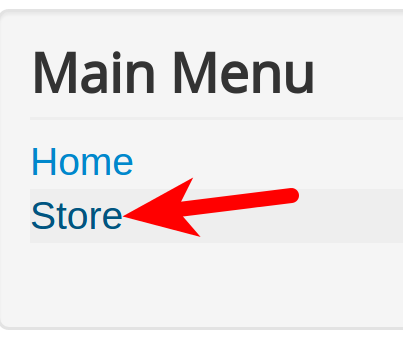
When you visit your site you will see the new menu there as well.





Congratulations, now you know how to make a VirtueMart 3 menu item in Joomla!