One way to edit files on your server is to use Notepad++. Notepad++ has a great FTP capability that allows you to edit your files directly on the server. The following will explain the steps on how to edit your files using Notepad++.
Note! Notepad++ is only available on Windows.
FTP configuration with Notepad++
- Open NotePad++.
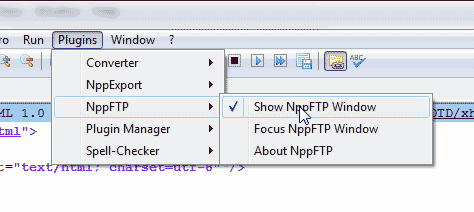
- Go to Plugins > NppFTP > Show NppFTP Window in the menu at the top of your Notepad++.
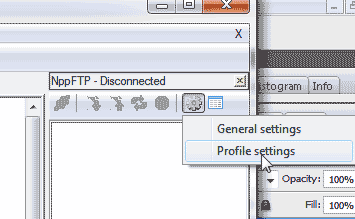
- In the NppFTP Window, click the gear and select Profile Settings.
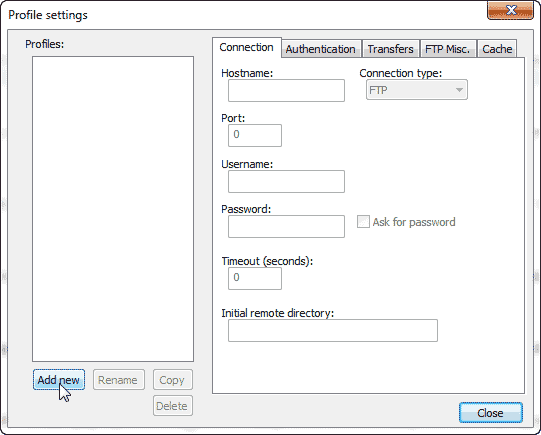
- Click Add new.
- On the “Adding profile” pop up, name the FTP Profile Connection.
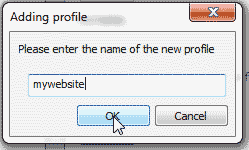
Click OK.
- Enter your FTP credentials in the Connection tab. For more information on your FTP connection credentials, please see our Getting Started Guide: FTP.
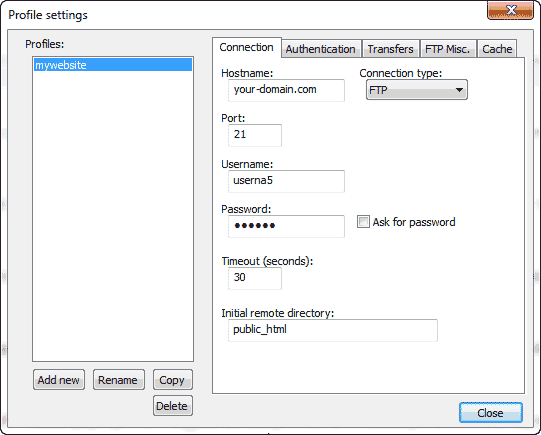
When you are done adding the FTP information click close.
- Click the (Dis)Connect icon in the NppFTP window.
Select your new Profile.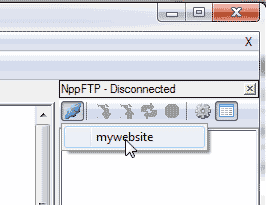
Your Notepad++ should display your FTP connection log and details at the bottom and the files on your server in the NppFTP window.
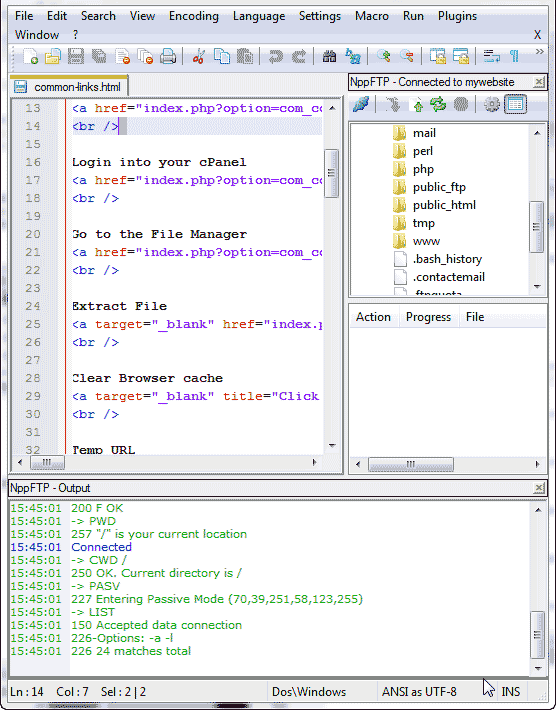







Congratulations, you learned how to connect to your server using Notepad++. For more information on FTP, please see our Getting Started Guide: FTP.