Occasionally, issues occur with files becoming corrupt when uploading through FTP. When viewing the corrupted file through the browser, the following error will be thrown.
“This image can not be displayed because it contains errors“
This is typically caused by uploading files through FTP as ASCII file transfer type. The “ASCII transfer type” will transfer the files as regular text files. The “Binary transfer type” will transfer the data in binary mode which handles the files as binary data instead of text data. Setting your FTP client to Binary will prevent your files from becoming corrupted through ftp transit. Please see the following on how to switch your FTP program to Binary.
It’s also been brought to our attention that another possible cause of file corruption during FTP transfers, could be from your local firewall. Please also check for any updates to your firewall software, and possibly restart your router as well, if switching your FTP client settings to binary doesn’t work.
Changing your ftp program to binary transfer
You can change the transfer type in your ftp program to Binary. All FTP programs should have this functionality. The following steps will demonstrate how to change the transfer type from ASCII to Binary in Filezilla.
- Open your Filezilla ftp program.
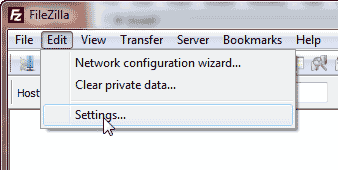
Select “Edit” and click “Settings“ from the drop Box.
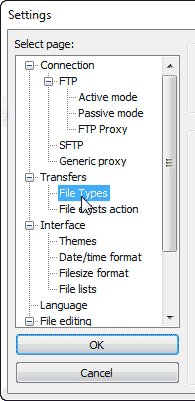
In the “Select page:” box, under “Transfers“, click “File Types“.
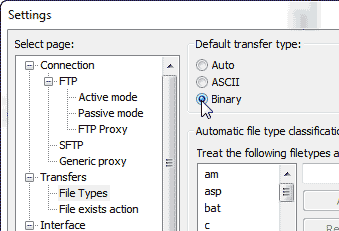
In the “Default transfer type” section, select the “Binary” radio button.
Click OK.
Now when you connect to your server with ftp, files will be treated as Binary files. This should prevent the files from becoming corrupted.


