
Matomo Analytics allows setting up automated reports and sending those reports immediately within the dashboard. Automating these customized analytics reports help users understand visitors to their websites while focusing on improving users’ experience. It also means users don’t need to fill out contact forms to request reports. You can further customize these reports by adding branding to Matomo.
Automate Email Reports
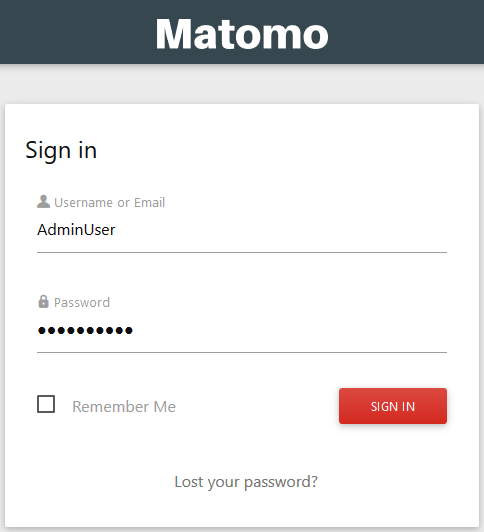
- Log into Matomo.
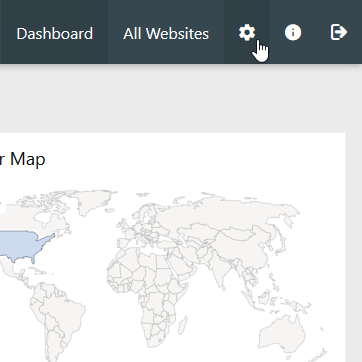
- Select the Settings icon in the upper-right corner.
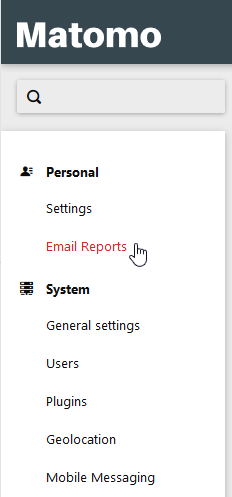
- Select Email Reports on the left.
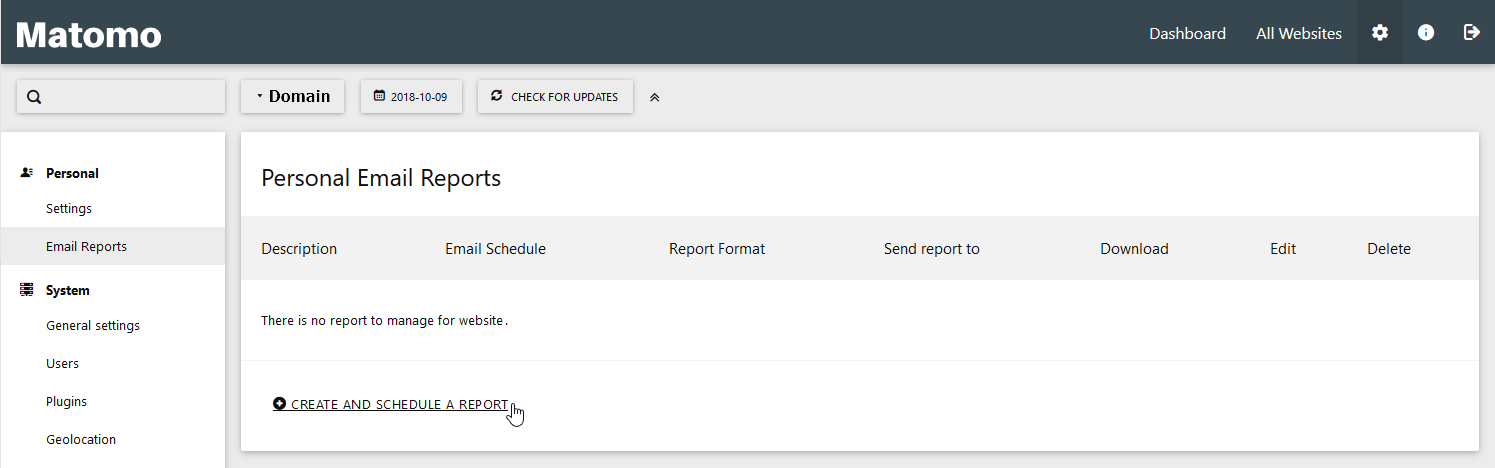
- Press Create and Schedule a Report.
- Edit your preferred email report as needed.
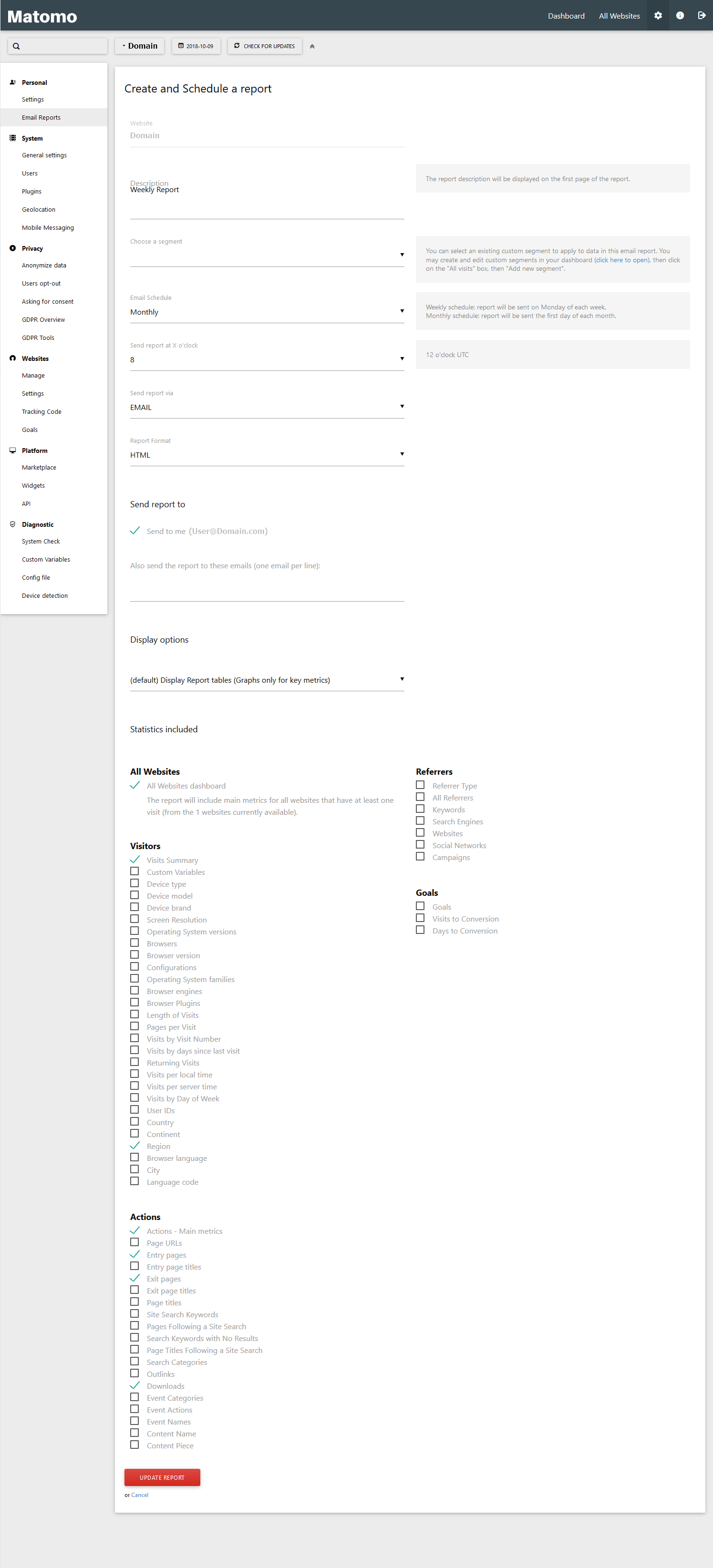
- Select Create Report once done.
Send Reports Now
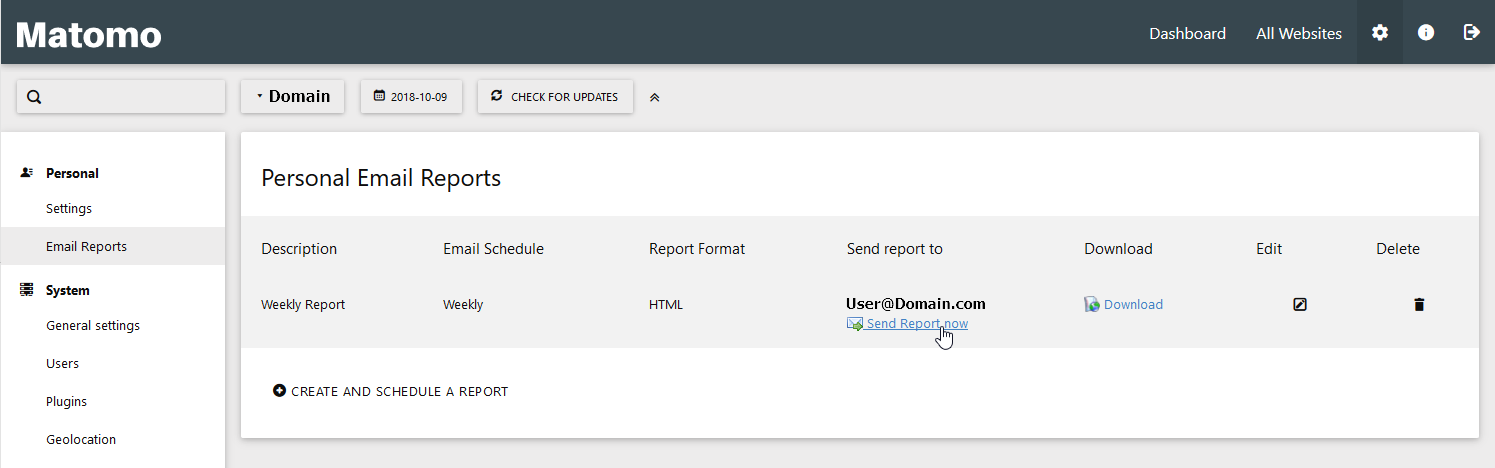
Instead of waiting on automated reports, you can also create reports on-demand if needed. To do so, while in Email Reports:
- Send Report Now to all specified email account recipients now.
- Download a new report to a new page.
You can read more about improving your web analytics in our Matomo education center and our last article on Matomo – creating a new user.