
Note: that you will require root access in order to follow these directions.
In this tutorial:
A very common task that’s often involved in moving from one host to another is the migration of databases. There are two ways to export your database if you’re using MySQL – through a client interface like phpMyAdmin or through the command line using SSH. We’ll cover both methods in the steps below.
Exporting a Database with phpMyAdmin
-
- Login to WHM as the “root” user.
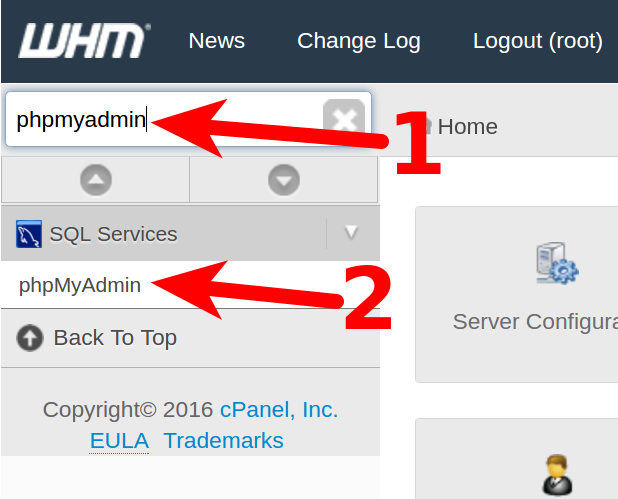
- Open phpMyAdmin. In WHM you can easily search by typing “phpmyadmin” in the search bar at the top left, and you’ll see it appear in the menu.
- Click on the button labeled Databases.
- Select the Database you want to export.
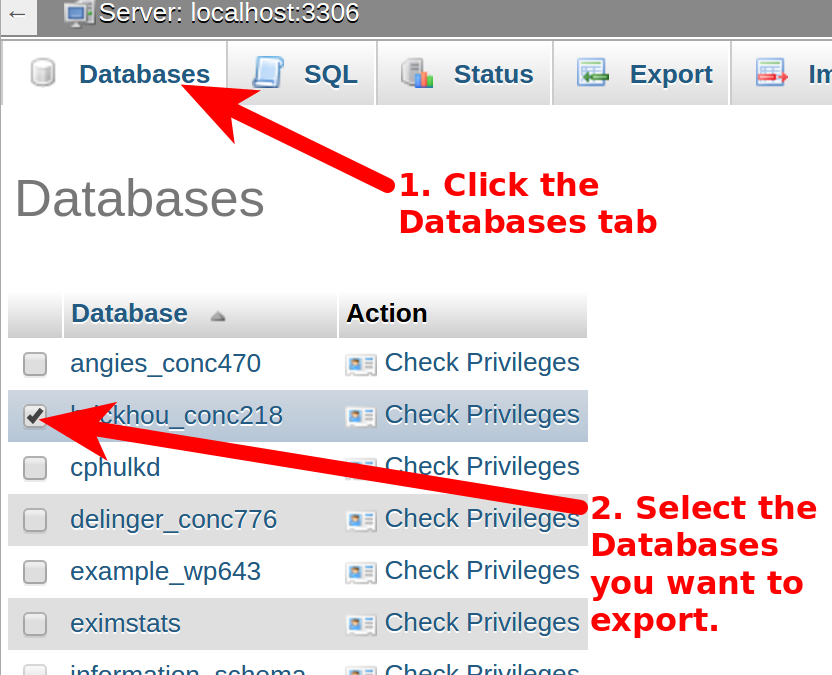
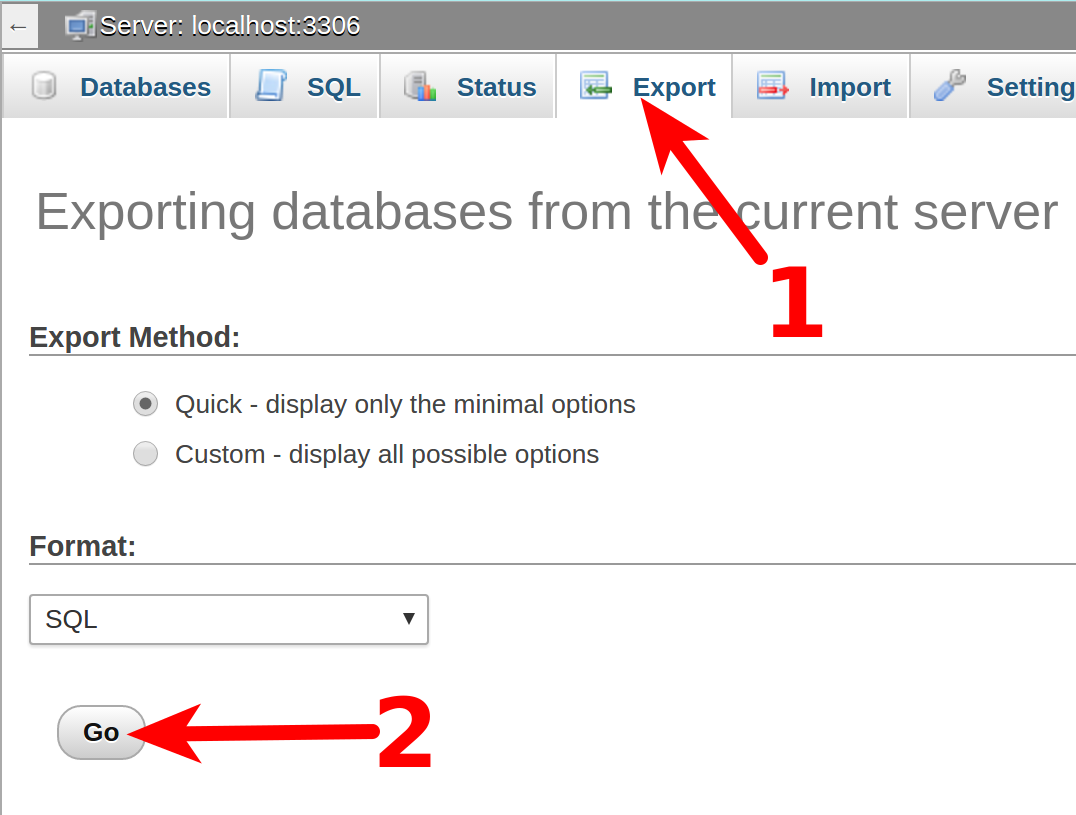
- Click on the tab labeled EXPORT.
- We will be using the QUICK options and exporting in the SQL format. This means that you don’t need to select any options. Just click GO in order to begin the export of the database. You will be required to select a location to save the file and name the saved file. Make sure you record this location as well as the name of the file so that you can find it later.



Exporting a Database using the MySQL Command Line
- Login to SSH as the “root” user.
-
Use the following command line:
mysqldump -u username -p databasename > SQLfile-created-by-export.sql
The table below breaks down the commands:
Username This is the MySQL user assigned to the database Databasename This is the name of the MySQL database SQLfile-created-by-export.sql This is the name of the SQL file created when the file is created Keep in mind that the location of your exported file will be based on where you specify the file location in the command, or, if you don’t specify the location, based on where you actually run the command. Make sure that you record the location name of the file so that you can find it later.
Congratulations, now you know how to export databases from PHPmyAdminm and command line interface!
Need terabytes (TBs) of space for your web hosting needs? Check out our Dedicated Server Hosting.