
Email bounce back errors are frustrating to everyone, especially when you don’t know why the message bounced.
These types of errors are common, whether you have Shared Hosting or a Dedicated Server, it is likely you’ll encounter an email bounce back error at least once in your life.
In this article, we will explore email bounce backs, what they are, common errors, and how you can prevent them in the future.
Whether it’s for personal or professional purposes, you’ll be able to understand and ensure your emails always reach their destination.
- What is an Email Bounce Back?
- Types of Email Bounce Back Errors
- Common Errors
- How to Prevent Email Bounce Back
- Final Thoughts
What is an Email Bounce Back Error?
An email bounce back occurs when an email doesn’t reach your recipient, and instead you get back a Non-Delivery Report (NDR).
This can happen for a variety of reasons, but in its simplest form it is a way for the sender and recipient mail servers to communicate.
These messages typically contain information on the failure, allowing the sender to take the needed steps to resolve the problem and establish communication.
Types of Email Bounce Back Errors
Types of email bounce back errors fall into two main categories, hard bounces and soft bounce, with the addition of general errors and blacklisted messages.
Hard Bounce
A hard bounce back occurs when an email is permanently undeliverable to the intended recipient.
It typically happens due to reasons like an invalid or non-existent email address, a blocked domain, or a recipient’s server that no longer exists.
Hard bounces let the sender know that further delivery attempts to the given address are likely to fail every time.
Soft Bounce
In contrast with hard bounces, soft email bounce backs suggest that there is still a possibility for a successful email delivery in the future.
A soft bounce back indicates a temporary delivery failure.
It occurs when the email cannot be delivered temporarily, often due to issues like a full mailbox, a temporarily unreachable server, or a message that exceeds size limits.
Common Errors
Now that you understand the difference between soft and hard bounce back errors, let’s take a look at the most common ones seen in email communication.
Hard Bounce Back Errors
1. Incorrect / Unknown Email Address
When a user sends an email to an address that isn’t spelled correctly, or doesn’t exist, the receiving server will bounce it back.
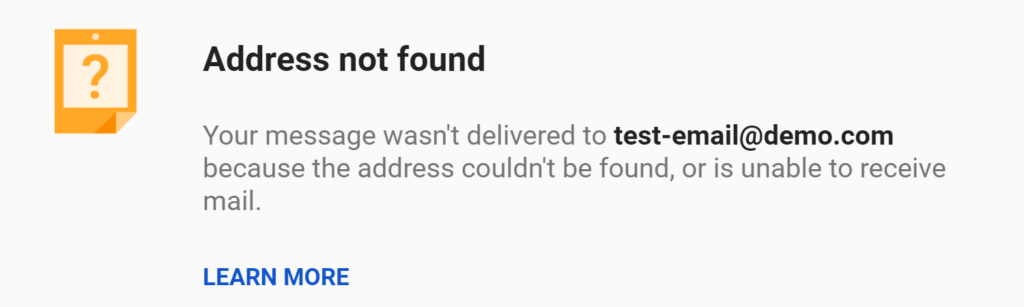
Typically this bounce back will have information such as:
- The email address you tried to reach does not exist.
- User Unknown
2. Spam Filters
If a user has a specific spam filter to reject emails from certain senders, subject lines, or keywords, infringing emails will not be delivered.
Ensure your email does not read as spam, and that your sender reputation is in good standing in order to avoid this error.
3. Blocked Sender / IP Address
When users block a specific email address or a server’s IP address, emails will be automatically rejected by their email provider.
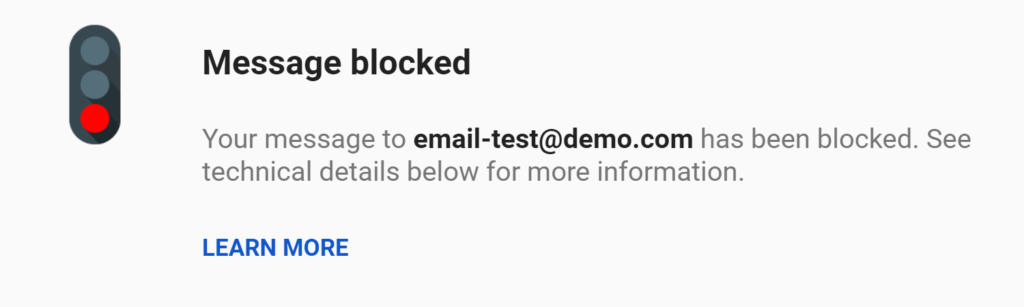
It is possible that the recipient’s email provider blocked your server’s IP address if it suspects you are sending spam. We will further discuss this under the Blacklists section below.
This is a permanent email bounce back as the only path forward to email delivery would be for the recipient to unblock or whitelist your email account or IP address.
4. Email Attachments
Email providers have varying file size and file type restrictions; however, if the host of your recipient does not approve the attachment you sent, they will reject your email.
If you need to send a specific file to someone, consider using a third-party drive like Google Drive, Dropbox, Box, or similar services.
Another option is to compress the file to make it smaller before sending it. This helps ensure smoother delivery and reduces the chances of encountering problems due to file size limitations.
Soft Bounce Back Errors
1. Inbox is Full
Most email providers have a limit to how many emails a person can store. When a recipient’s inbox is full, delivery will fail.
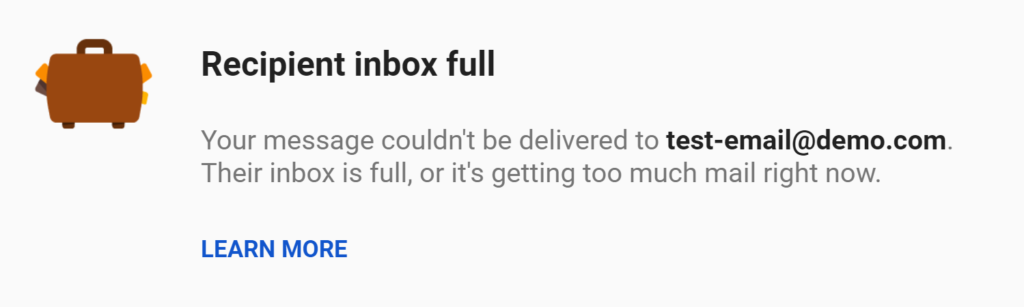
Once a user has more space in their inbox delivery will be successful.
2. Greylisting / Email Deferred
Greylisting is a style of spam filtering by a server that temporarily hinders emails from being delivered. This doesn’t mean your email was rejected, instead your server will attempt to resend this email after the deferral period is over.
The bounce back error will specify for how long the email is being deferred, this may look like the following:
- Server Error: Greylisted, please try again in X seconds
Although this issue is temporary, you can avoid email deferral by requesting your recipient to whitelist your email address.
3. Server Timeout / Connection Error
If the recipient email server is overloaded or down, emails will fail to be delivered as they have nowhere to go.
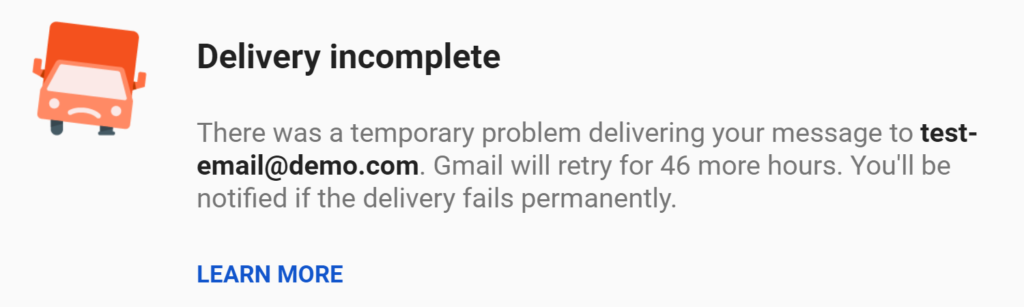
This bounce back is temporary and the only resolution is to wait for the recipient’s server to accept deliveries again.
Sometimes your email provider will try to automatically send the email again after a couple of hours and provide further information if it is not able to resend it again.
4. Server Error
Similarly to the error above, sometimes connections to the recipient server will fail, resulting in a “Message not Delivered” bounce back.
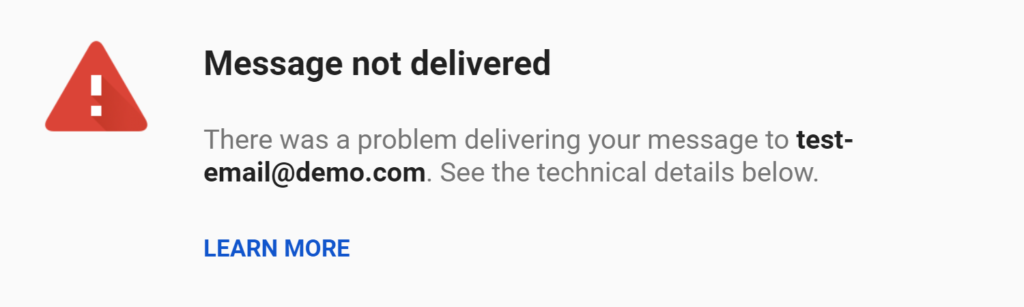
This error can occur because of a variety of reasons, but it is something that usually resolves on its own.
Technical details such as why the connection failed are usually provided in the bounce back message.
5. Send Limit Exceeded
Hosting providers may limit the number of emails an account (usually on Shared servers) can send per hour. This measure prevents the sending of spam and safeguards the entire server’s email reputation.
This type of error will specify how many emails per hour the account can currently send and the domain affected. If your business needs to send more emails than the ones allocated to your account, you can request an email extension from your email provider, though it may vary per host.
Blacklists and IP Reputation
An important aspect of your email health to keep up with is your email sender reputation and blacklists.
Blacklists
When a sender’s IP address gets blacklisted, it means it’s been labeled as sending spam or malicious content.
Email servers use a database to store these IPs, which helps prevent spam to their users and leads to bounce-back errors from the recipient server.
If your IP is on a blacklist, your email risks delivery to a spam folder or a full rejection.
IP Reputation
If your sender IP is blacklisted, or has previously been flagged as spam, this affects your IP reputation.
IP reputation refers to the overall trustworthiness and quality of an IP address.
A good IP reputation enhances the chances of successful email delivery, while a poor reputation can result in rejections.
How to Prevent Email Bounce Back
As a quick recap, here are the main five points you should follow to prevent email bounce back errors.
Keep in mind that some of these errors can occur outside of the user’s control, such as server connectivity issues.
- Double-check email addresses
- Maintain a clean email list
- Monitor your sender reputation
- Avoid excessive attachments or large files
- Monitor bounce back reports
Fortunately, there are also tools such as our bounce back parser tool and blacklist checker to keep up to date with your email server’s reputation.
Final Thoughts
Email communication is crucial for businesses and personal relationships alike, so understanding errors and their causes is crucial.
Bounce back errors are a form of feedback, as they aid in the process to successfully get in contact with your recipient.
Remember to double-check email addresses, avoid excessive attachments, and maintain a healthy sender reputation to minimize bounce backs.
I have a client who is trying to forward me attachments that they received that have invoices or receipts and they are not able to. They keep getting rejection emails from my Google and Outlook. This is the following message they get:
Your message did not reach some or all of the intended recipients.
This message could not be sent. You do not have the permission to send the message on behalf of the specified user.
I left out some information to keep it private but I was just wanting to know if it is something on my end or on their end. I am not seeing that I blocked their email or contents so I am not sure what to do to resolve this issue. He is able to send me an email without attachments so it must be something about those particular attachments.
Hello Natalie,
This is difficult to troubleshoot without the full bounceback. If you could, please reach out to our Technical Support team directly with that information through chat at https://inmotionhosting.com