


InMotion Hosting’s new Professional Email solution, powered by Titan, delivers a reliable, professional way to manage your business email. You can easily purchase and set up your email plan directly through your Account Management Panel (AMP).
Note: InMotion Hosting Professional Email is not available for temporary domains.
How to Purchase Professional Email in AMP
Follow these steps to purchase and activate your InMotion Hosting Professional Email plan:
- Log in to AMP. Go to the AMP login page and sign in with your account credentials.
- Access the Marketplace. In the main navigation menu, click on Marketplace.
- Find Professional Email. Under Email/Other, locate InMotion Hosting Email and click Add Email.

- Choose Your Email Plan. Under Add a New InMotion Hosting Email Plan, select your preferred email package by clicking the green Choose Email button.

- Configure Your Purchase
At the checkout screen:
– Select your domain (must be an active domain).
– Choose your term length (billing cycle).
– Specify the number of mailboxes you need.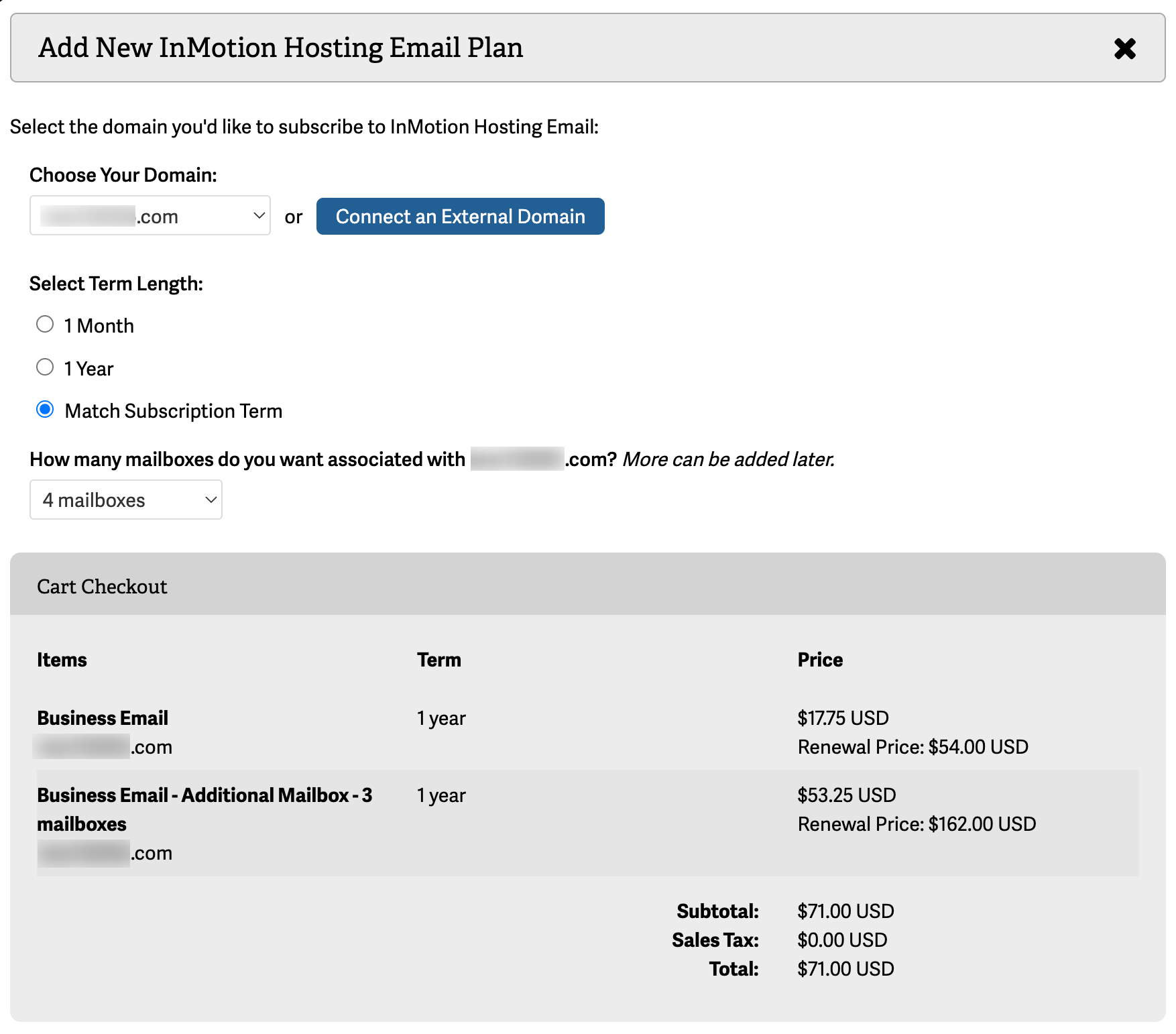
- Confirm Your Purchase
Scroll down to the payment section:
– Select your payment method.
– Review the order agreement and check the “I AGREE” box.
Next Steps
Once your purchase is complete, your Professional Email plan will be active and ready to configure. You can begin creating mailboxes and setting up your email clients immediately.
Additional guides – coming soon:
- Getting Started with Professional Email
- Managing Professional Email in AMP
- Set Up MX and SPF Records for InMotion Hosting Professional Email
You’ve now successfully purchased your Professional Email plan and are ready to enjoy secure, professional communication with Titan-powered email!