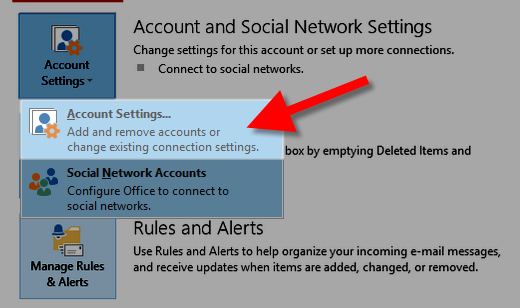
Outlook 2013/Office 365 – Subscribing to your Inbox Updated on April 23, 2026 by InMotion Hosting Contributor 0 Minutes, 36 Seconds to Read After setting up Outlook 2013/Office 365 as IMAP, you will most likely need to subscribe to your Inbox. In this guide we will show you how to accomplish that, so you can see your folders such as Sent, trash, etc. How to Subscribe to Your Inbox: Open Outlook, click File, then Account Settings. Choose Account Settings… Click your email account, then click the Change button. Click the More Settings button, then the Advanced tab. In the Root folder path field, enter INBOX (with all caps). Then click the Ok button to save your changes. Congratulations, you are now subscribed to your INBOX folder, it will take some time to display your folder contents. The time-frame depends how many emails are stored in the folders. Share this Article IC InMotion Hosting Contributor Content Writer InMotion Hosting contributors are highly knowledgeable individuals who create relevant content on new trends and troubleshooting techniques to help you achieve your online goals! More Articles by InMotion Hosting Related Articles How to create an email signature in Outlook 2010 Outlook 2010 Error: Security Certificate Cannot Be Verified Outlook: Leaving a copy of the message on the server using POP3 Outlook 2010: Server Rejected your Login How to subscribe to specific IMAP folders in Outlook 2010 How to Setup Outlook 2013 to Check Your Email Creating an email account in Outlook 2003 Prevent Outlook from Sending the Winmail.dat File How to Setup Outlook 2016 for Windows How to Set Up your Email in Outlook 2011 for Mac