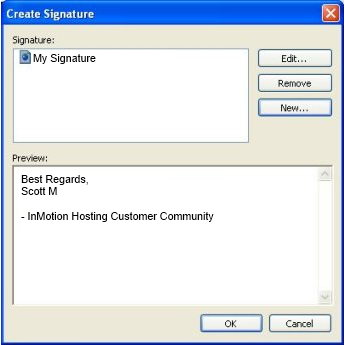
Email signatures are traditionally used to display the sender’s name and contact information at the end of an email. Some people find furhter use for them and use them to give website links, insert logos, or even memorable anecdotes. It is much easier if this information is automatically added to the end of every email by default instead of having to add it manually each time you create and send an email. Below are instructions that teach you how to create and add your own custom email signature within your Outlook 2003 email client.
Creating an email signature in Outlook 2003
- Launch your Microsoft Outlook 2003 application.
- From the main window, click on the Tools menu, then Options.
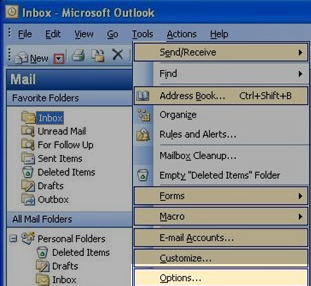
- This brings you to a popup menu with several tabs on it. Click the Mail Format tab to continue.
- Under the Message Format seciton, look for the Compose in this message format dropdown list, click the message format that you want to use the signature with. In this example, we have HTML selected.
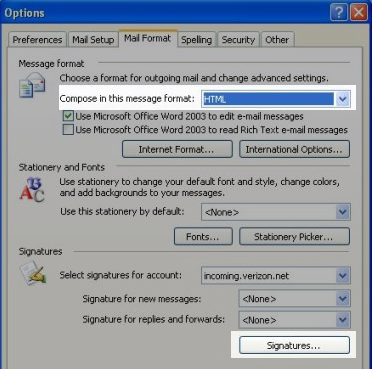
- Under Signature, click Signatures, and then click New.
- In the Enter a name for your new signature box, enter an indentifying name.
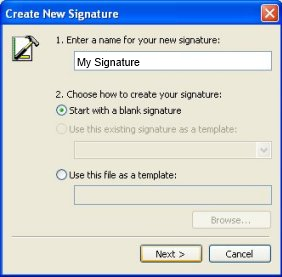
- Under Choose how to create your signature, select the option you want and then click Next.
- In the Signature text box, type the text you want to include in the signature.

- Click Finish to complete and save your signature. You will be taken to a screen to see your signature listing.