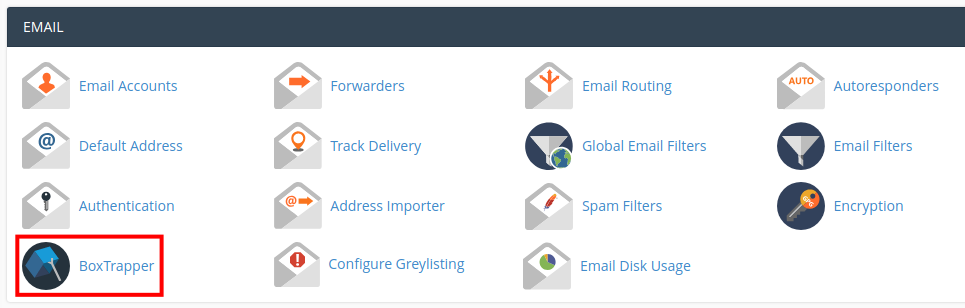
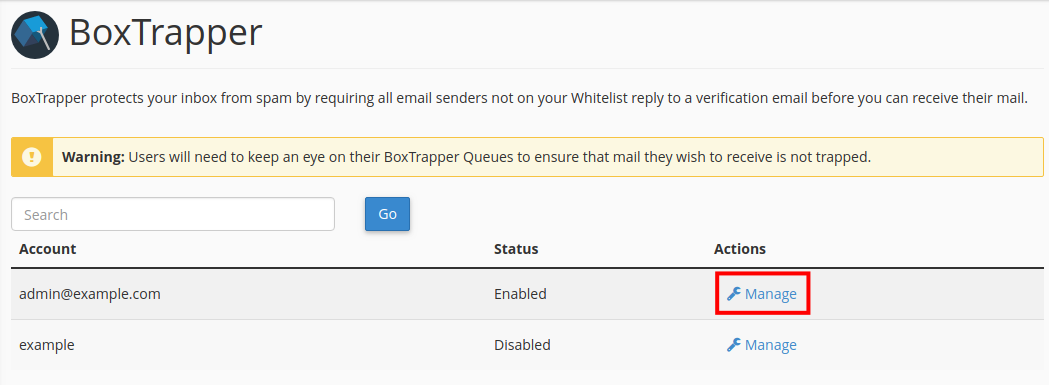
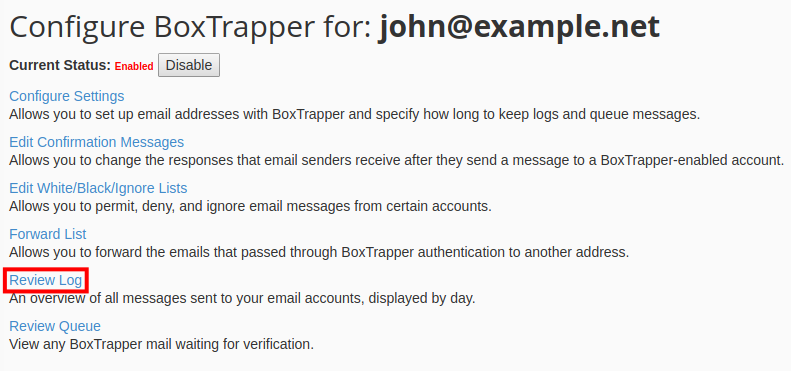
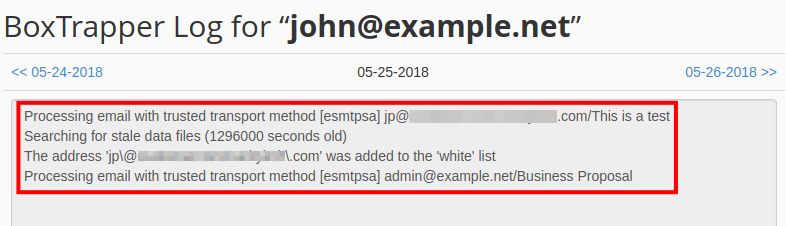
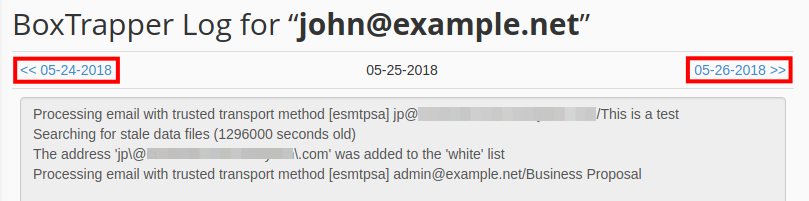
How to Review Email Logs in BoxTrapper Updated on August 16, 2021 by InMotion Hosting Contributor 0 Minutes, 41 Seconds to Read As we continue our series on the BoxTrapper email tool, we will now show you how to review BoxTrapper mail logs. The logs are organized by day and can be helpful when investigating lost or delayed email. Note: BoxTrapper must be enabled before you can complete this guide. Reviewing Mail Logs Log into your cPanel. Click the Boxtrapper link in the Email section of cPanel. On the Boxtrapper page click the Manage link next to the email account you want to modify. Click the Review Log link on the Boxtrapper Configuration page. You will then see a log of today’s email transmissions. Click the dates to view the mail logs from other days. Congratulations, now you know how to review BoxTrapper mail logs! In the next guide we will show you how to review the mail queue in BoxTrapper. Share this Article IC InMotion Hosting Contributor Content Writer InMotion Hosting contributors are highly knowledgeable individuals who create relevant content on new trends and troubleshooting techniques to help you achieve your online goals! More Articles by InMotion Hosting Related Articles How to Backup Emails from cPanel Webmail Creating a Contact Form with FormMail How to use the Horde Notepad Managing the Horde Address Book How to Use InMotion Email with Gmail (2026 Update) SpamAssassin: Fighting Spam How to Configure Mailbox Quota Notifications How to Import Email Accounts and Forwarders into cPanel How to Login to SquirrelMail Set Up MX and SPF Records for InMotion Hosting Professional Email