
In this article I’ll show you how you can manage your Exim mail queue on your VPS (Virtual Private Server) or dedicated server in WHM (Web Host Manager). Here you can check for any messages that might be held up for delivery for a variety of reasons.
Exim is the mail software that runs on your server to control email delivery, there are mail queue management options you can use with Exim directly via the command line. However below we’ll cover how you can use the Mail Queue Manager in WHM to simplify the process of tracking down deliveries.
In order to follow along with the steps below you’ll need to have root access to either your VPS or dedicated server.
Using the Mail Queue Manager in WHM
For this example, let’s say we’ve emailed [email protected], but they are saying they haven’t received our message yet.
- Log into root WHM.
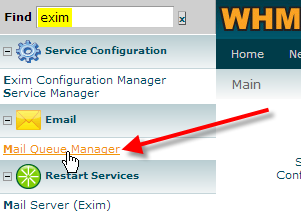
In the top left Find box, type in exim, then click on Mail Queue Manager

In the Search… box type in [email protected]
From the Select Query drop-down, select Search Recipients
For the Search Type, you can leave Begins With selected
Specify the Start Date and End Date to search between. You can manually type these in, or click on the calendar icon that displays a 17
Also specify the Start Time and End Time to search between
Finally click on Run Report

In this case we can see that our messages to [email protected] are Frozen. This means that Exim has detected an error trying to deliver the message, and it is going to hold the message and try again later.
You can click on the magnifying glass icon to view the message in a new window.
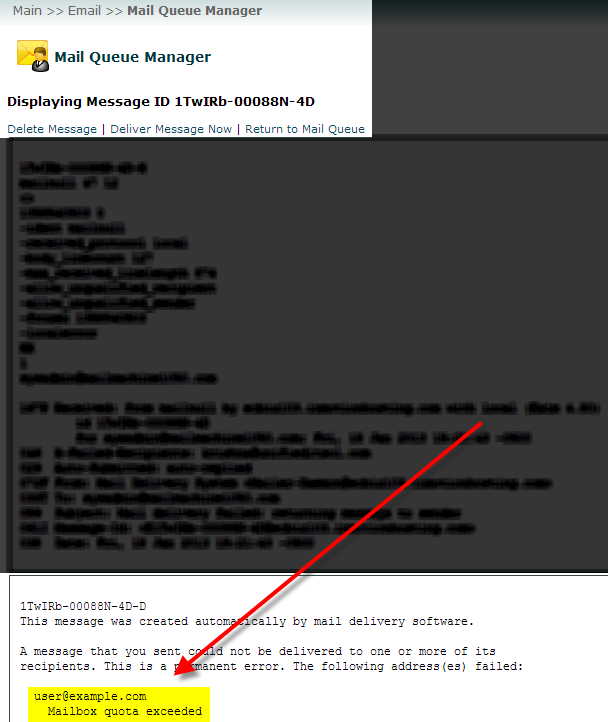
Reviewing the message we can see that it’s not delivering to [email protected] because their mail server is giving us back the error of Mailbox quota exceeded.
- At the top of the message you’re viewing you can choose to Delete Message which will completly remove it from the mail queue. Or you can choose to Deliver Message Now which will attempt to send the message again, in this case if the user has freed up some space on their email account it should go through successfully now.




You should now understand how you can use the Mail Queue Mananger in WHM to manage your Exim mail queue.