There may be times when you have to regenerate thumbnails in your WordPress site. Typically, this should be done after modifying a theme or changing image dimensions. In this tutorial, we will show you how to regenerate thumbnails in WordPress using the free Regenerate Thumbnails plugin.
Install Regenerate Thumbnails Plugin
The first step is installing the Regenerate Thumbnails plugin.
- Log into your WordPress Dashboard.
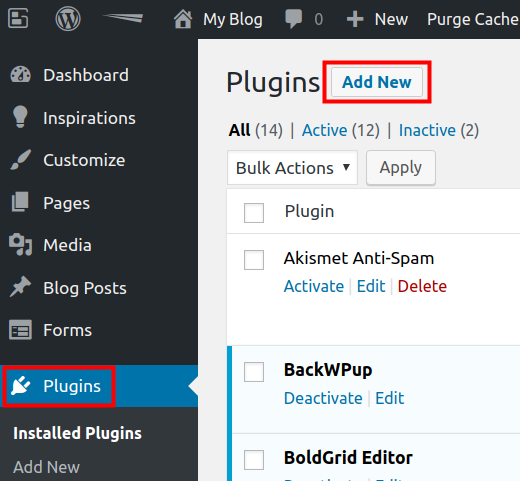
- Click Plugins, then Add New.
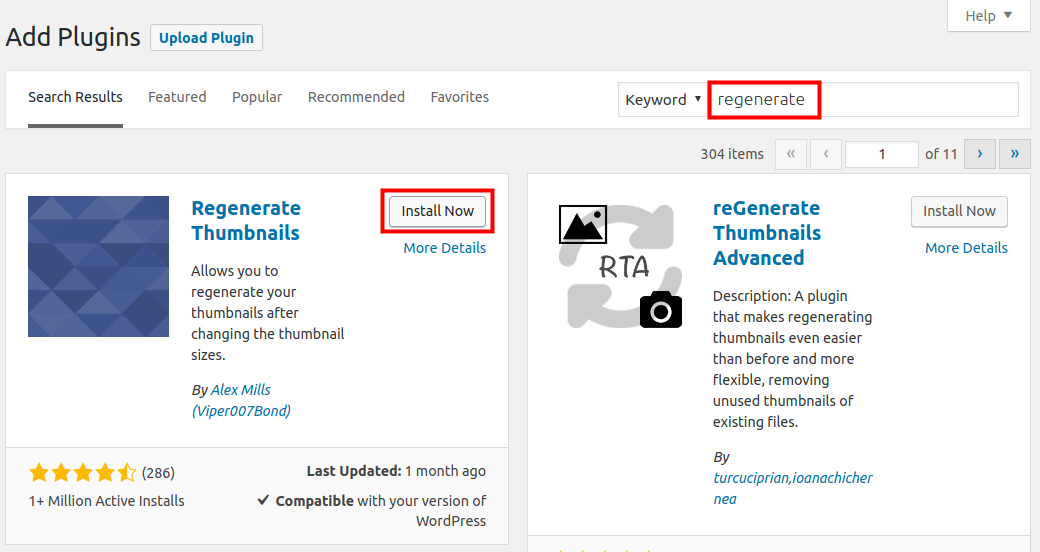
- Type ‘regenerate’ in the search field. Click the Install Now button next to the Regenerate Thumbnails plugin by Alex Mills.
- Once installed, click the Activate button to enable the plugin.
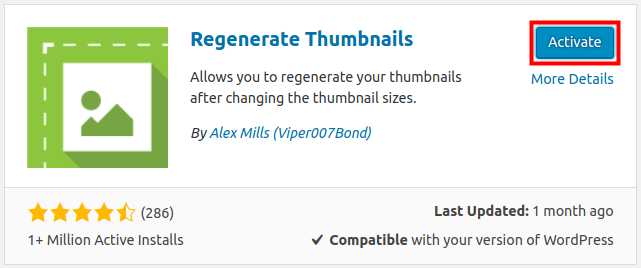
You are finished when you see a “Plugin activated” message.
Regenerate Thumbnails
Now that you have installed the plugin, we will show you how to regenerate thumbnails.
- You should already be logged into your WordPress Dashboard.
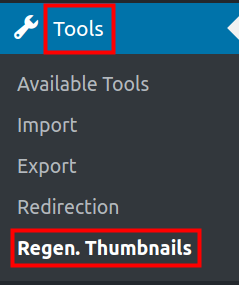
- Click Tools, then Regen. Thumbnails in the navigation menu.
- Click the Regenerate All Thumbnails button.
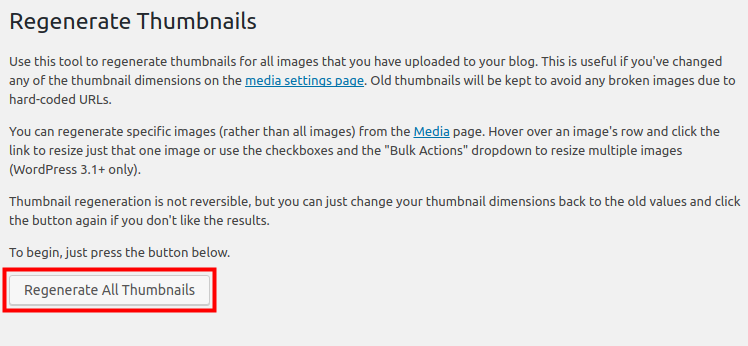
It will then begin regenerating your thumbnails. This will take some time to complete, depending on how many images your site has.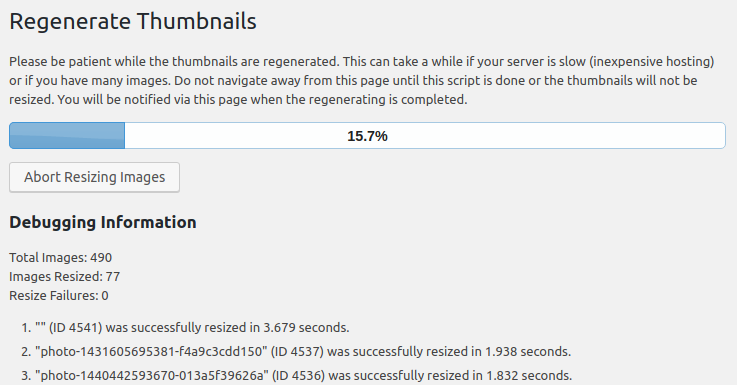
You will see an “All done!” message when it completes.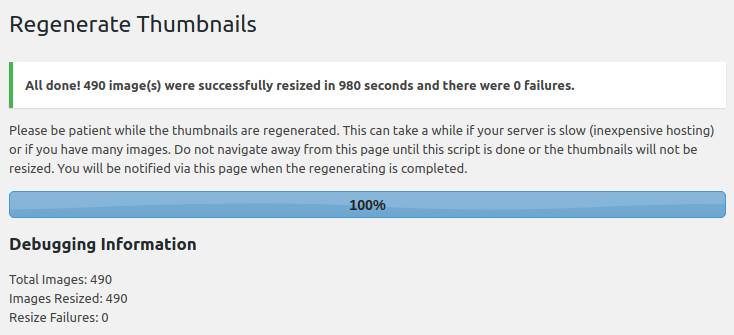
Congratulations, now you know how to regenerate thumbnails in WordPress!
