BoldGrid provides a convenient way to see how the website would be seen in a Tablet or Phone. The option to view with these modes are found in previewing Inspirations or within Editing a Page or Post. Each template or theme is designed with the different device views in mind. The following tutorial shows you how to use them within the editor for a Page or Post.
How to use the Desktop, Tablet, and Phone Views in the Editor
- Log into your website admin interface.
- Click on either Pages or Blog Posts
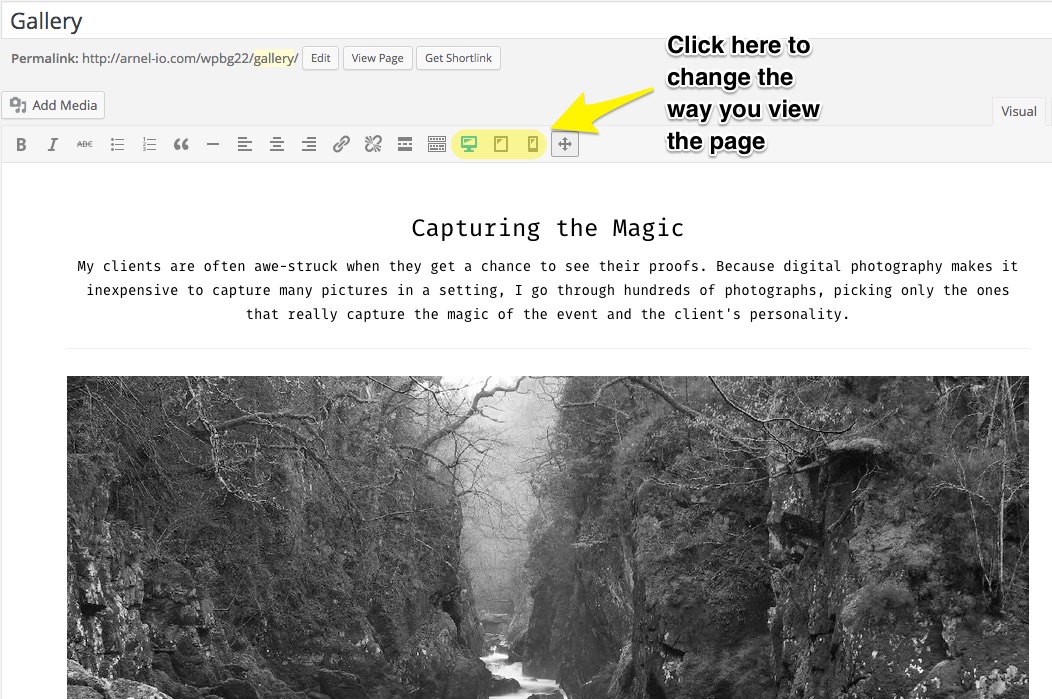
When you edit or add a new page/post you will see the option to view the content with the Tablet or Phone. By default, the view is set to a desktop view. Click in the tool bar to change the view.
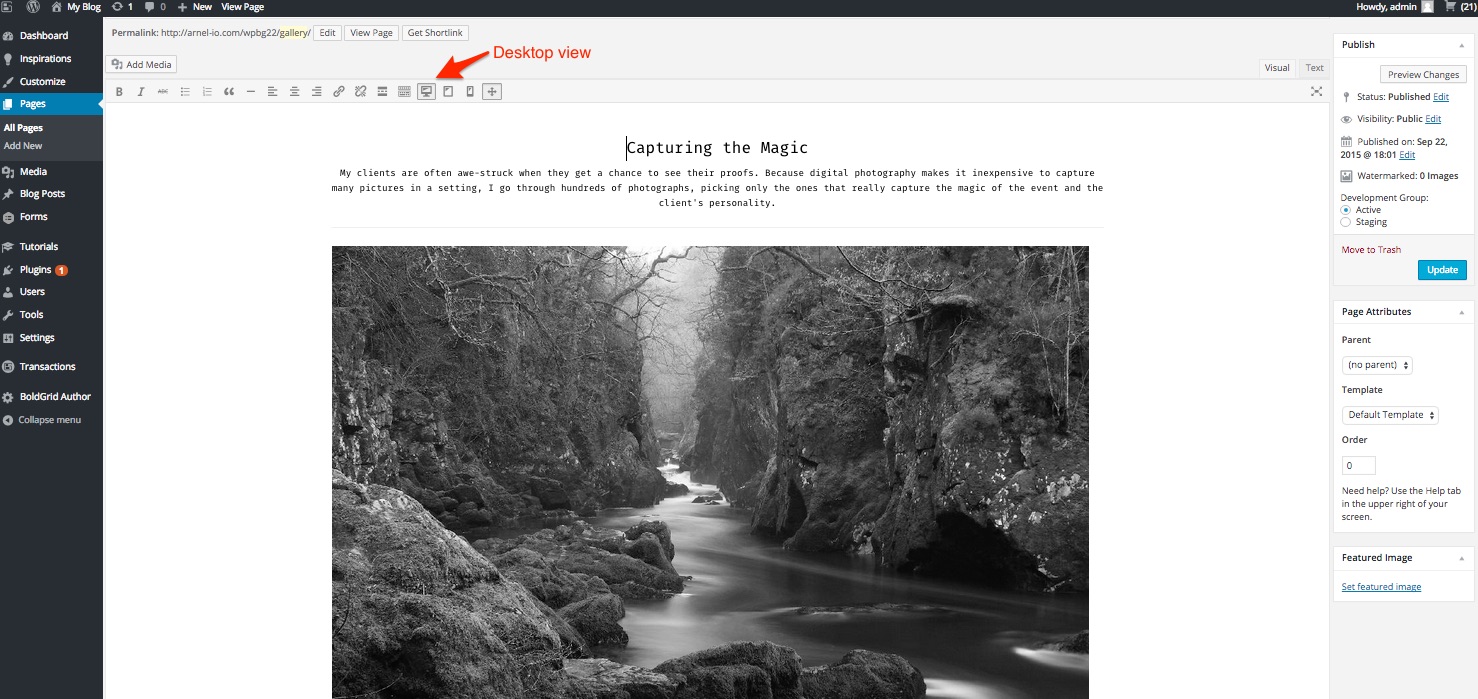
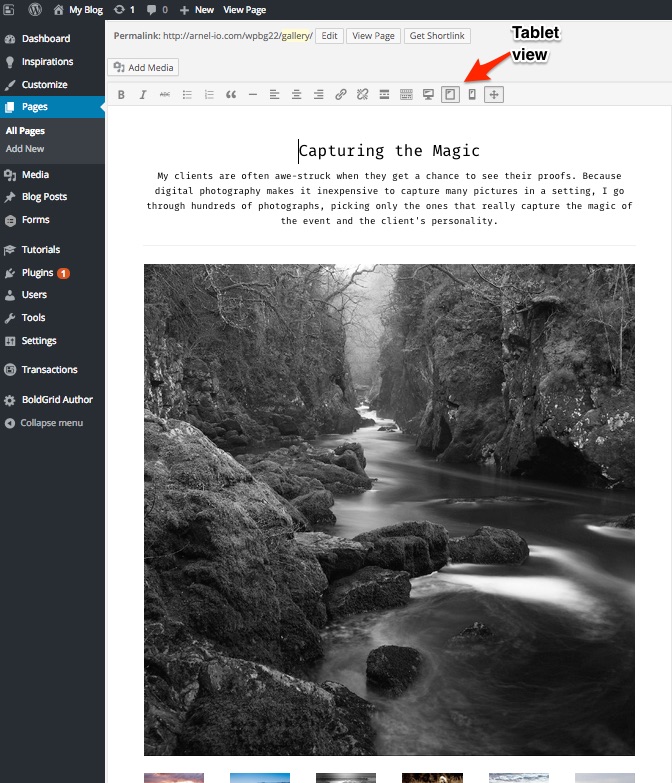
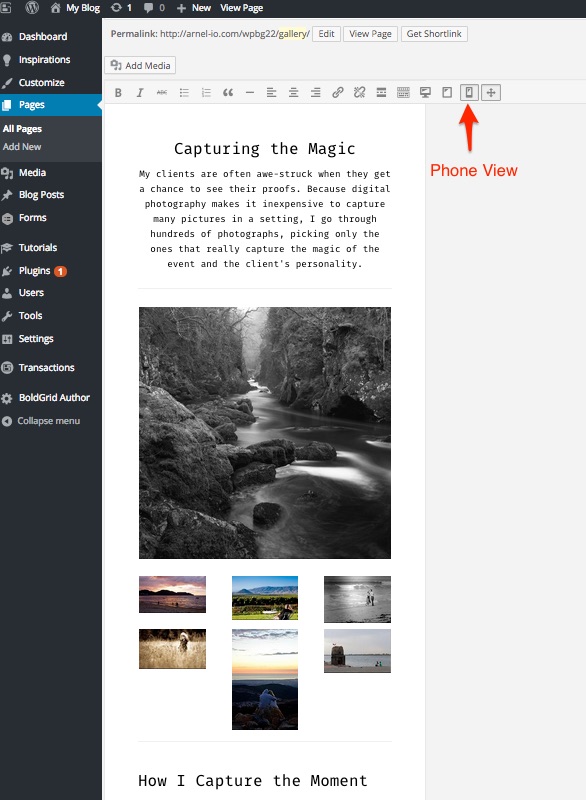
Below is an example of the different views:
Desktop View
Tablet View
Phone View
Congratulations, now you know how to use the Desktop, Tablet, and Phone Views in the BoldGrid Editor for WordPress!
