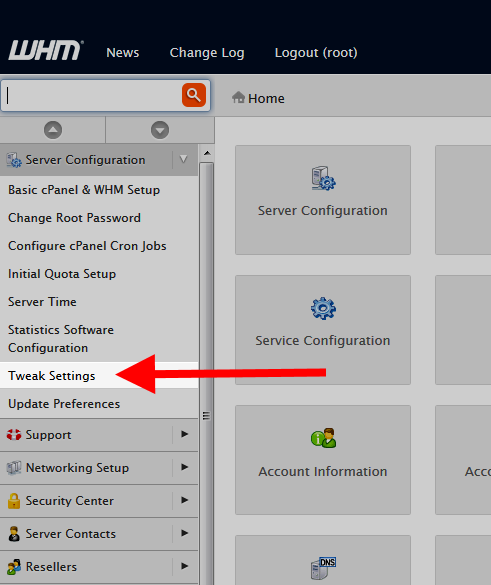
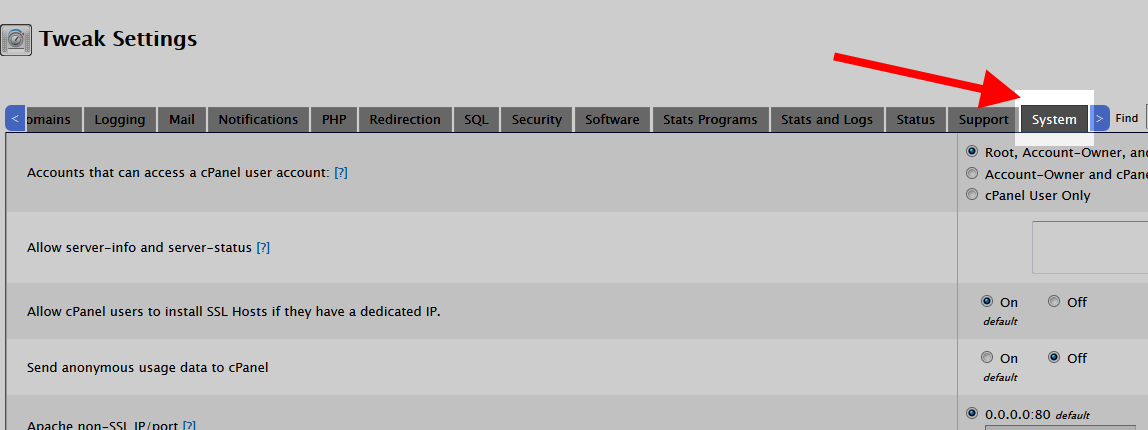
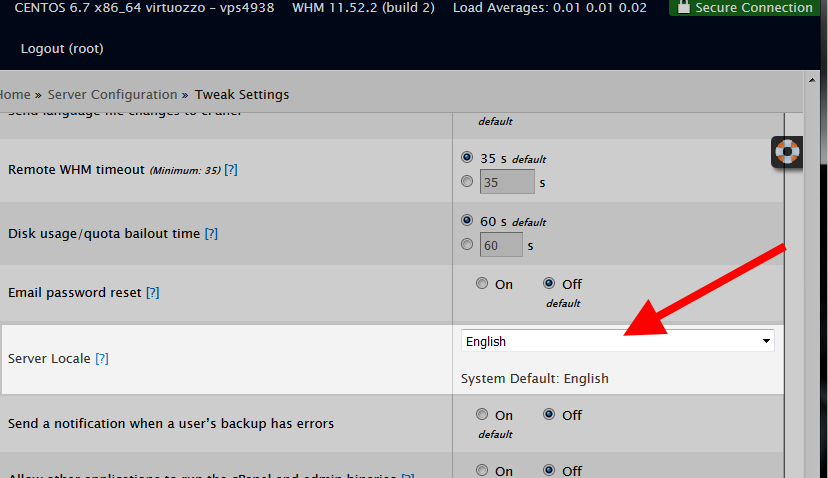
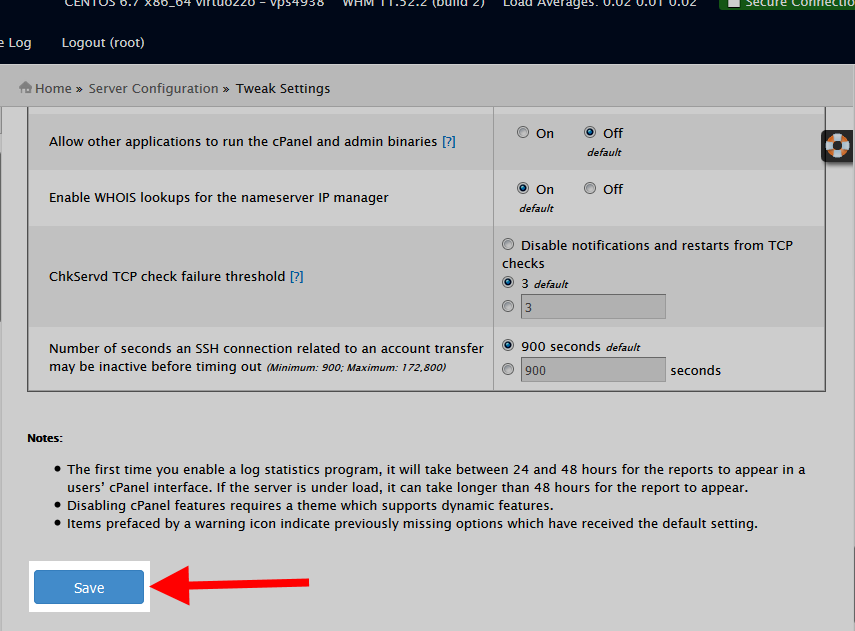
How to Change the Language in Your WHM Scott MitchellUpdated on January 14, 2016 1 Minute Read Just like in the cPanel, you can change the default language in your WHM. This article shows you how to quickly make that change. Change Default Language in WHM Log into your WHM Admin interface. Once in the WHM, locate and click on the Tweak Settings option from the left hand menu. Next, click on the System tab. Scroll down and find the Server Locale dropdown setting. From here, select your default language from the list. Scroll down to the bottom of the page and click on the Save button to activate your change. Share this Article Related Articles Assign Custom Welcome Email to a Product in WHMCS AutoSSL and WHM: Use Web Host Manager to Automate Your SSLs How to Enable SSH (Shell Access) Through WHM How to Monitor Server Load in WHM How to Create a New cPanel in your Reseller WHM WHM Email Troubleshooter Guide How to Change your sub-users to PaperLantern via WHM How to Configure cPanel in WHM Resetting the cPanel Password in WHM Getting your WHMCS License Key