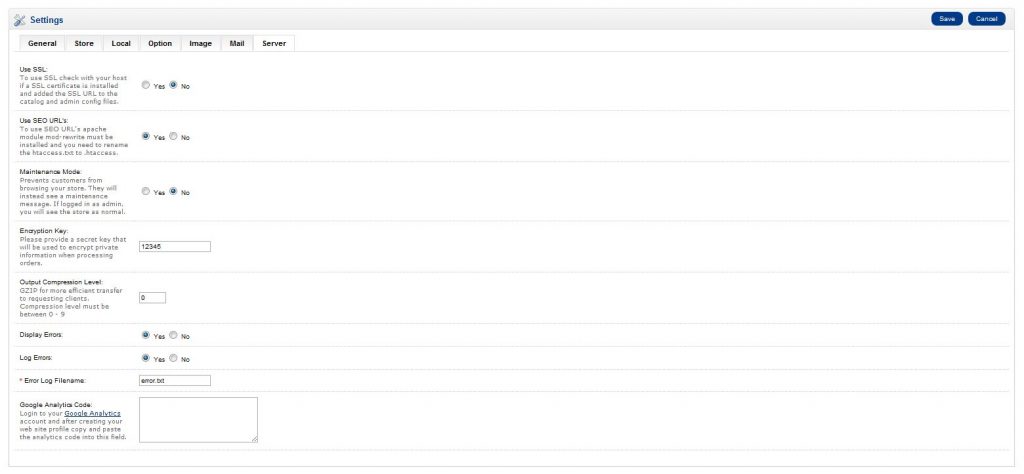
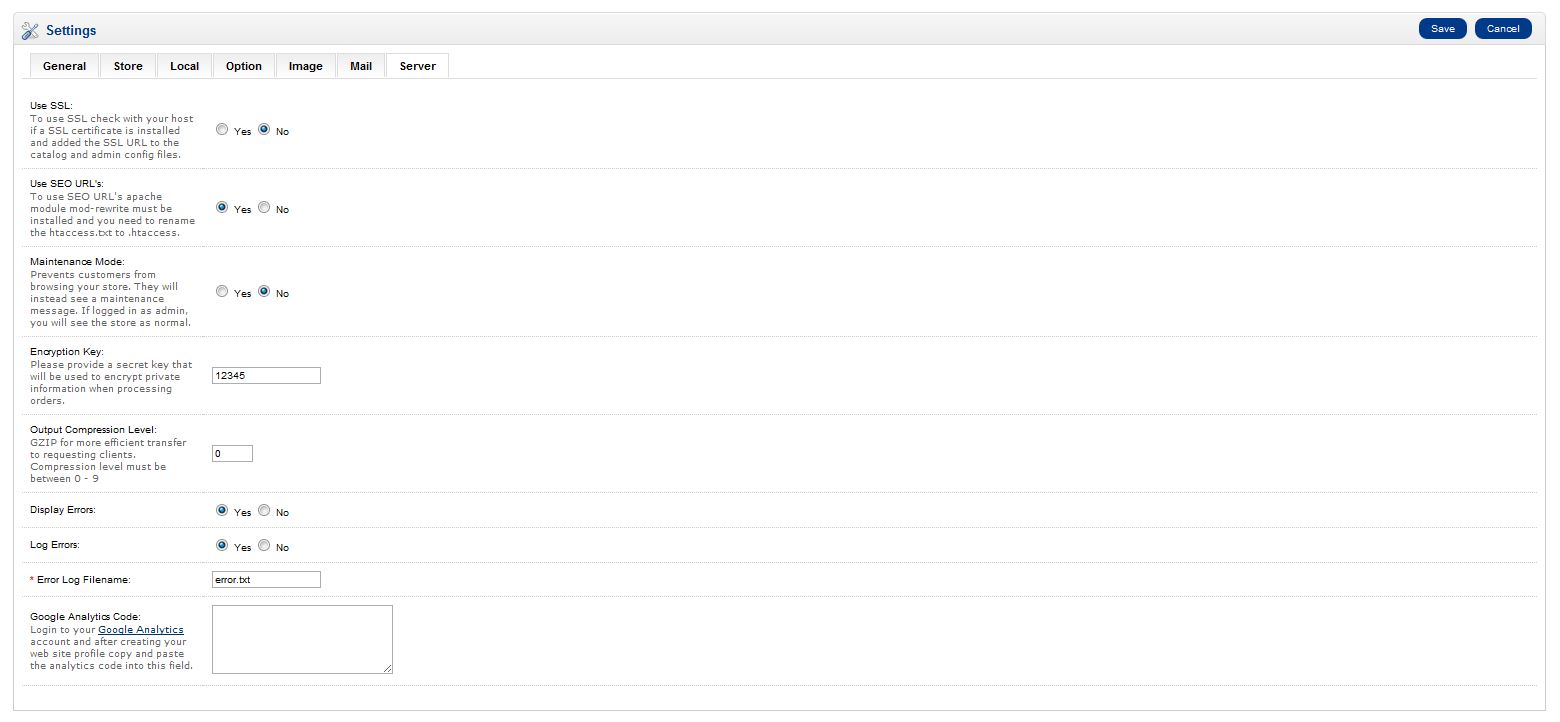
Adding the Google Analytics code to OpenCart 1.5 Carrie SmahaUpdated on March 11, 2022 1 Minute Read Google analytics provides in-depth data into who’s visiting your website and what they are doing once they are there. If you have not already set up a Google Analytics account, you’ll need to do so. Once you have your Google Analytics code log into your OpenCart Dashboard Go to System > Settings Choose your store and click “edit” Go to the server tab and scroll to the bottom Find the Category for Google Analytics Code and paste your code in the text box If you are not familiar how to get your Google Analytics code please see our article on Installing Google Analytics Click “Save” You’ve now added Google Analytics to your OpenCart Website and Google can start collecting data about your website’s visitors. If you need further assistance please feel free to ask a question on our support center website. Share this Article Carrie Smaha Senior Manager Marketing Operations Carrie Smaha is a Senior Marketing Operations leader with over 20 years of experience in digital strategy, web development, and IT project management. She specializes in go-to-market programs and SaaS solutions for WordPress and VPS Hosting, working closely with technical teams and customers to deliver high-performance, scalable platforms. At InMotion Hosting, she drives product marketing initiatives that blend strategic insight with technical depth. More Articles by Carrie Related Articles Editing the Information Pages in the Footer of OpenCart My OpenCart 3 Contact Form Won’t Send Emails Resetting your OpenCart Admin Password with the Forgot Password link Using Free Cloudflare for SSL on OpenCart 1.5 Adding your store logo to your OpenCart 1.5 website Changing your Admin Password in OpenCart 1.5 Restoring a Database Backup in OpenCart 1.5 Sending Emails to Customers through OpenCart 1.5 How to Enable SSL Connection in OpenCart 1.5 Creating a 404 error page for OpenCart