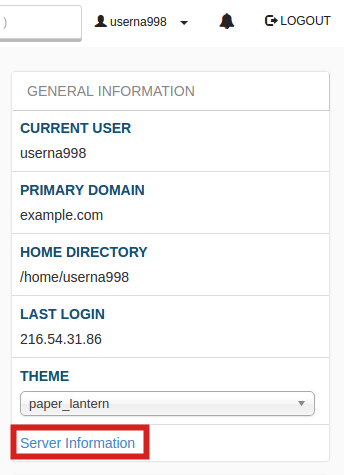
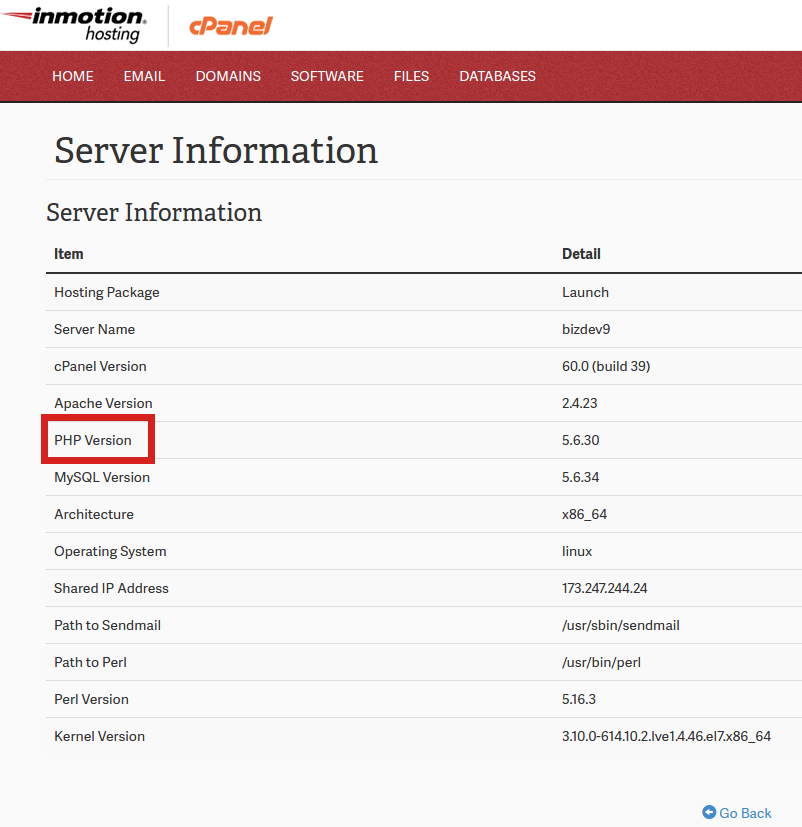
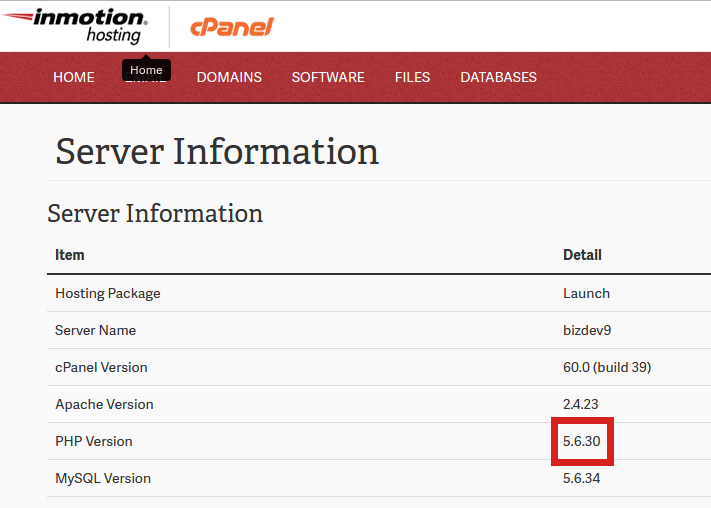
How to View Your PHP Version in cPanel InMotion Hosting ContributorUpdated on July 7, 2023 1 Minute Read When you are managing a website, there may be times when you need to know what version of PHP your server is running. For example, you may be installing a new software, and want to make sure your server meets the minimum PHP website hosting requirements. In this tutorial we will show you how to view your PHP version in cPanel. Viewing Your PHP Version in cPanel Log into cPanel Under General Information on the right panel, click Server Information Under the Item column, find PHP Version In the Detail column, note the version number Congratulations, now you know how to view what version of PHP your server is running in cPanel! Share this Article IC InMotion Hosting Contributor Content Writer InMotion Hosting contributors are highly knowledgeable individuals who create relevant content on new trends and troubleshooting techniques to help you achieve your online goals! More Articles by InMotion Hosting Related Articles How to Manage AutoSSL Certificates in cPanel How to Migrate Your Website Using cPanel How to Setup an Email Forwarder in cPanel & Webmail How to Create an Email Account in cPanel An Introduction to Branding cPanel for Your Users How to Modify MX Records Using cPanel Setting Domain MX Records to Remote Settings in cPanel Engrampa Archive Manager for Linux How to Create a New cPanel in your Reseller WHM How to Upload a File With cPanel File Manager