When creating a website, occasionally there will be a need to hotlink to a file on the server. Hotlinking (or direct linking) is when a link uses the url to link, as apposed to linking to the directory relative to the file. An example of this is show in the following:
Link relative to the file location on the server:
<img src=”image.jpg” />
File Hotlinked or Directly linked to the server:
<img src=”https://www.example.com/image.jpg” />
This is especially useful when using the Premium Web Builder. The Web Builder has the File download link; however, the problem with the File download link is that the file is accessible by everyone on the web. Hotlinking to the file allows the folder to be password protected, preventing people from accessing the file. This is common for those selling books in PDF format that only want people who paid for the book to download it. Lets learn how to directly link a file to the website.
Directly linking to a file on the server
- Log into cPanel

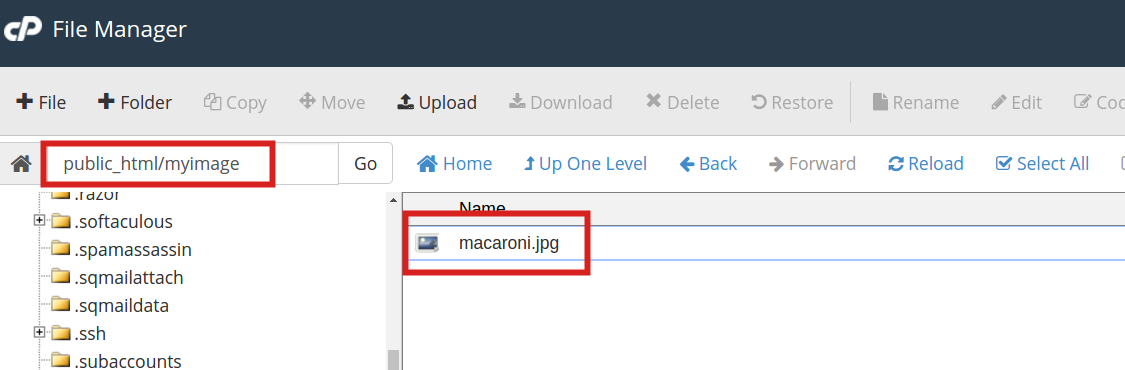
Go to the File manager and navigate to the folder where the file will be uploaded.
In this tutorial, a .jpg image will be uploaded to the myimage directory. If there is no directory to upload the file to, create the directory and upload the file there. Upload the file to the folder.
For information on how to upload files through the cpanel File Manager click here
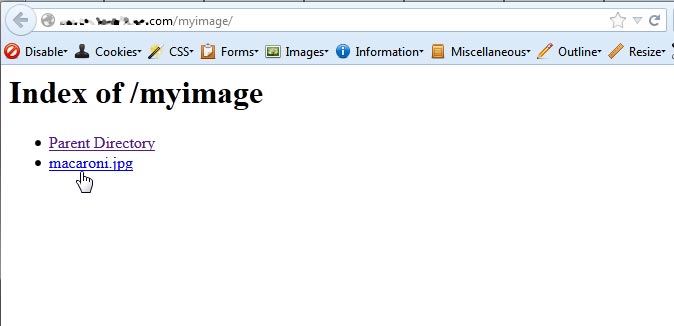
Now that the file is uploaded, the file directory can be accessed. If visiting the directory in the browser With indexing set to default On, the directory will list the file on the page. See snapshot to the right.
Visit the file through the browser by going to:
https://example.com/foldername/filename.file
Where the “foldername” is replaced with the folder name on your server and the “filename.file” is replaced with the file that was uploaded to that directory.
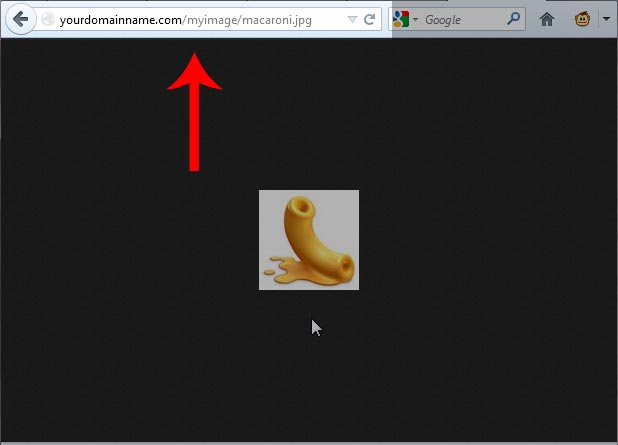
Get the url from the address bar of the browser. In this example the url will look like the following:
https://example.com/myimage/macaroni.jpg
The url can be used in anchors, images, and other HTML tags where files can be linked to. Below are some examples of code that can be used.
A download link or hyper link will use the following:
hyper linkHotlinking an image to your website uses the following:
<img src=”https://yourdomainname.com/myimage/macaroni.jpg” />



If you missed the last article, please see the tutorial on Anchor Links and How to Create Them. For more information about articles with a similar topic, please visit Inserting Links into a Website.