
GoAccess is a light-weight free open source log analyzer. Matomo and other self-hosted website analytics applications use PHP and a SQL database to manage web analytics data. Other applications including Google Analytics and Mixpanel store the data externally.
GoAccess uses your pre-existing server logs to provide web analytics data you can easily manipulate within your web browser, spreadsheet application, or command-line interface.
There are a few advantages to this:
- Faster, easier configuration with automated CLI tasks
- More security on cloud servers since system administrators (sysadmins) don’t need to install PHP and MySQL
- Another option for users on cPanel servers wanting to know how to check server error logs outside of cPanel with a sleek GUI
Below we cover:
- How to install GoAccess on Debian
- How to configure GoAccess for Apache
- How to create a GoAccess Report
Experienced sysadmins may not want cPanel. You may only need secure, Debian Cloud Server Hosting.
Install GoAccess
- Log into SSH
- Create a file for the official GoAccess repo:
echo "deb http://deb.goaccess.io/ $(lsb_release -cs) main" | sudo tee -a /etc/apt/sources.list.d/goaccess.list
- Download the GoAccess GPG key to ensure you install a verified GoAccess application:
wget -O - https://deb.goaccess.io/gnugpg.key | sudo apt-key --keyring /etc/apt/trusted.gpg.d/goaccess.gpg add -
- Update your system repositories:
sudo apt-get update
- Install GoAccess:
sudo apt-get install goaccess
Configure GoAccess for Apache
There are multiple ways to configure GoAccess reporting for your server environment. If the time format is configured wrong, or not at all, you’ll likely receive the following error with GoAccess log parsing commands:
GoAccess - version 1.4 - May 18 2020 01:28:37
Config file: /etc/goaccess/goaccess.conf

Fatal error has occurred
Error occurred at: src/parser.c - parse_log - 2777
No time format was found on your conf file.
The easiest way to quickly get started with GoAccess is use --log-format=COMBINED:
goaccess /var/log/apache2/access.log -a -o /var/www/html/report-07172020.html --log-format=COMBINED
Below we’ll cover the manual method for configuring GoAccess permanently so that you can use less options when producing GoAccess reports.
- Edit your GoAccess configuration file:
nano /etc/goaccess/goaccess.conf
- Un-comment (meaning remove the
#in the beginning of) line 13, underApache/NGINX's log formats below:time-format %H:%M:%S
To jump to line numbers with Nano, type Ctrl + Shift + _, then the line number, and Enter.
- Un-comment line 36, under
Apache/NGINX's log formats below:date-format %d/%b/%Y
- Un-comment line 70, under
Common Log Format (CLF):log-format %h %^[%d:%t %^] "%r" %s %b
- Un-comment line 330, under
priority over -f from the command line:log-file /var/log/apache2/access.log
- Exit the file and save changes: Ctrl + X , Y, then Enter
Create a GoAccess Report
GoAccess allows you to create reports in multiple formats – terminal, HTML, CSV (for spreadsheets), and JSON (for APIs).
Create a GoAccess Report in the Terminal
- Specify a log file with the
-coption:goaccess /var/log/apache2/access.log -c
- Scroll down and select
[ ] Common Log Format (CLF)with the space bar, then Enter - Scroll through the different sections of results with the up and down arrows
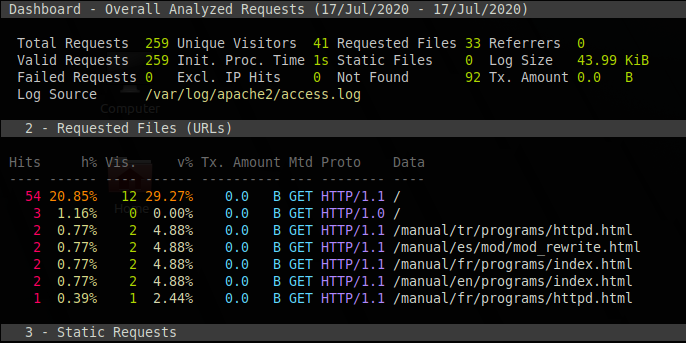
Create a HTML GoAccess Report for the Web Browser
If you haven’t configured your GoAccess configuration file, you can use the following commands to create an HTML report:
goaccess /var/log/apache2/access.log -a -o /var/www/html/report.html --log-format=COMBINED
If you’ve configured your GoAccess configuration file, you can omit the log format:
goaccess /var/log/apache2/access.log -a -o /var/www/html/report.html
If you wish to use all access log files available, not just for the current day, you can use zcat to feed archived log files into your GoAccess log parse:
zcat -f /var/log/apache2/access.log.* | goaccess -o /var/www/html/report.html
Below is a completed HTML report example.
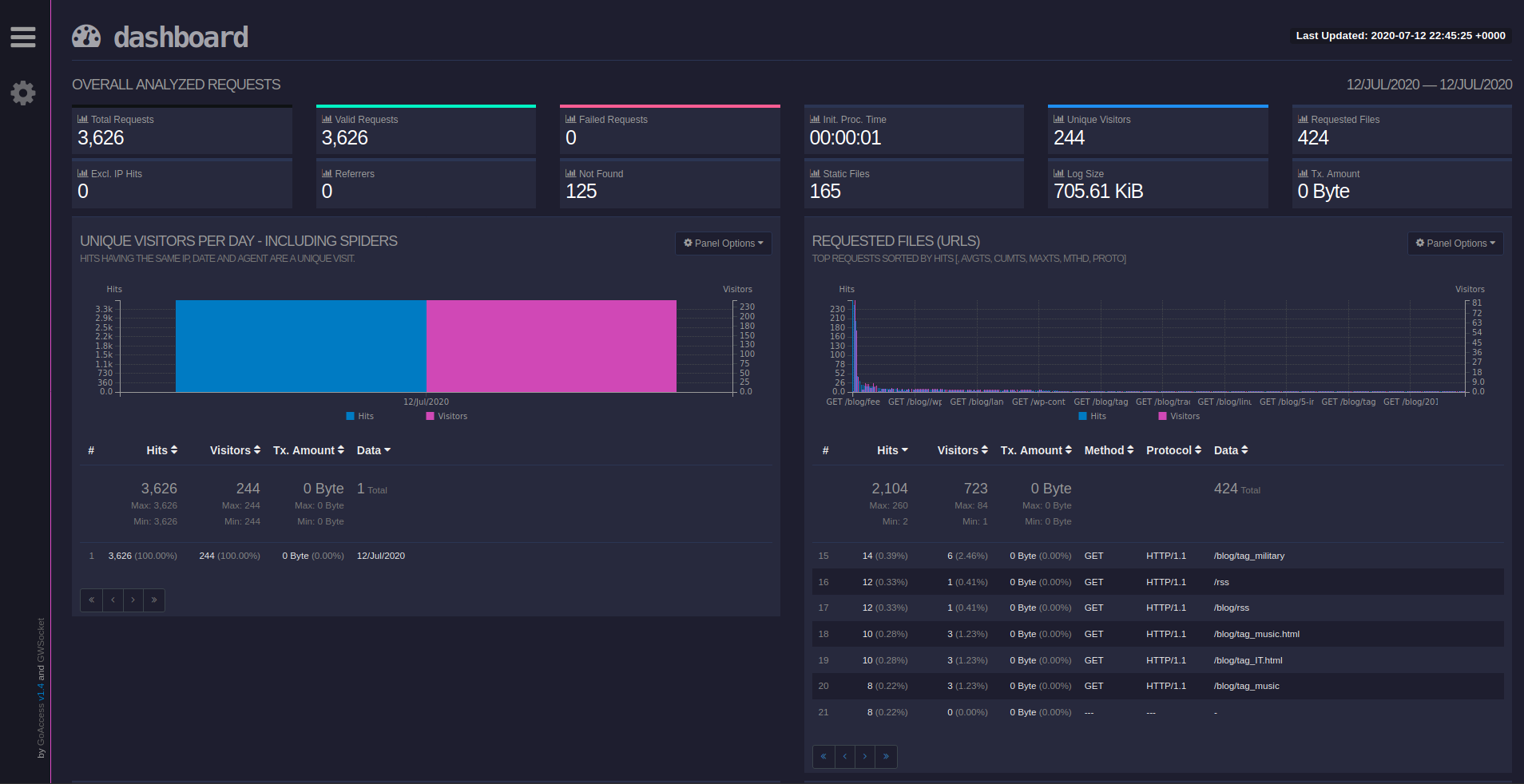
The two buttons on the left serve two major functions:
- Skip to different panels (log sections)
- Change the report appearance – color theme, items (rows) shown at once in each section, and more
Learn how to do more with your logs in the online GoAccess manual.