
After you install Webmin on CentOS or another operating system (OS), you’ll need to understand how to manage root and Webmin user passwords. Just like cPanel and other alternative control panels, Webmin grants privileged users access to important data, analytics, and more on the server with a graphical interface. You need to use best practices for password strength and security. In this article:
Don’t prefer CentOS? Use Debian or Ubuntu instead with our scalable Cloud Server Hosting plans.
Log into Webmin
- Visit your Webmin at
https://hostname:10000orhttps://ServerIP:10000with your root user credentials - Login with your username and password
Reset Webmin Admin Password
There are multiple ways to reset your Webmin password. By default, your Webmin password uses your server root credentials (Unix authentication). Setting a root password for Webmin disconnects your Webmin user credentials from your server root user.
We recommend using separate user credentials for Webmin, at least until you’ve taken steps to harden Webmin security. Remember, this is base free software that has not been configured for your server.
Can’t log into Webmin?
- Log into SSH as root
- Reset your Webmin password with the changepass program:
/usr/libexec/webmin/changepass.pl /etc/webmin root Re@lly$trongP@SsWOrdUbuntu users, add a space before the command so it doesn’t save in your bash history.
- Login with your new password
- Change your password with the steps below if the command shows within your bash history –
history
Change Webmin Root Password
- Log into Webmin
- On the lower-left, select root
- Beside Password, select the drop-down and choose Set to .. from the drop-drown menu
- Add a new password
- Save at the bottom
You can also reset your server root user password in AMP.
Change Other User Passwords
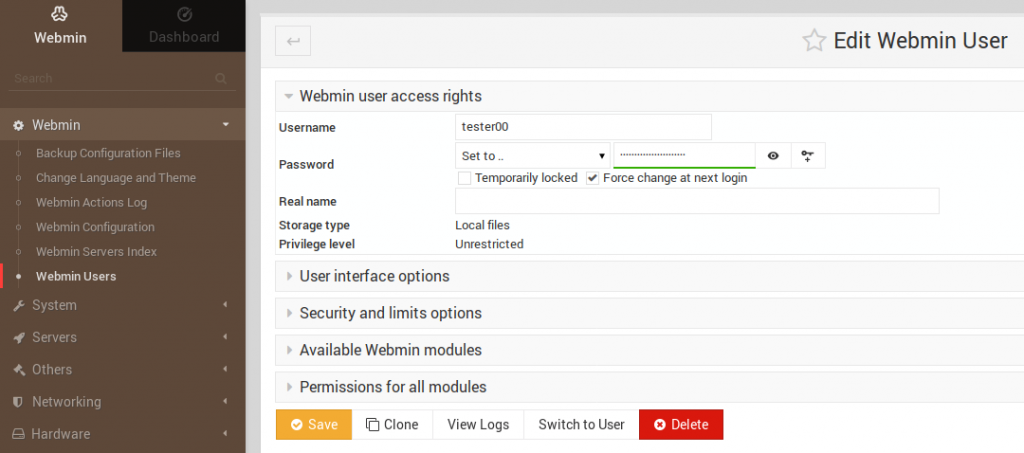
- On the left, select Webmin, then Webmin Users
- Select an user
- Beside Password, select Don’t change and choose Set to .. from the drop-drown menu
- Check Force change at next login
- Save at the bottom
Have questions about Webmin? Let us know in our Community Support Center.