
VPS Hosting and Dedicated Hosting offers more opportunities to improve security with root access. One of the easiest ways to improve security is to uninstall out-of-date software. The Softaculous auto-installer eases the process of installing over 300 different web applications. Many of them haven’t been updated in months or years.
If no one on your server needs those outdated web applications, uninstall the Softaculous scripts in WebHost Manager (WHM). But some web applications aren’t outdated, but require older or less secure features to work correctly.
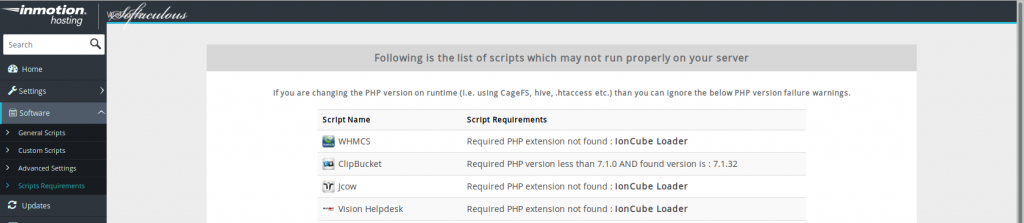
Softaculous has an option to view outdated Softaculous-imported websites throughout your server. Below we will cover how to view scripts that require customized server configurations.
View Scripts
- Log in to WHM as root
- Click Softaculous – Instant Installs on the left
- Click Software, then Scripts Requirements. This scan may take up to 5 minutes to complete
Taking Action
You can use this list to figure out the following changes that may need to be made to your server. The following are common requirements you may need to address following this scan:
- Install IonCube Loader – e.g. fix the WHMCSIonCube Loader error
- Install a previously uninstalled older PHP version (not recommended unless needed)
- Update PHP extensions with MultiPHPINI Editor in WHM or cPanel – e.g. exec, proc_open, show_source
- Disable an outdated script which requires an outdated PHP version
- Advise cPanel users to install an up-to-date version of the software
Remember, there are many ways to empower cPanel users to contribute to your defense in depth security stance. Share the following articles with cPanel users:
- How to Uninstall unneeded programs in Softaculous
- How to Upgrade a Program Installed with Softaculous
- How to Create Website Backups with Softaculous
- Website Security – Preventative Measures
- ClamAV Virus Scanner
- Hotlink Protection
- ModSecurity
Learn more about Softaculous in our Support Center.