
No one wants their legitimate email to be marked as spam by recipients. No one wants to receive spam in their inbox. Dealing with a domain on an email blocklist is time-consuming for website owners and email subscribers. Below we cover how to improve email authentication for emails sending from your domain and server while reducing the amount of spam your email accounts receive in the inbox.
DKIM & SPF
Domain Key Identified Mail (DKIM) and Sender Policy Framework (SPF) ensure an email hasn’t been modified since departing the original sender and only approved servers are sending emails from a domain respectively. You can read more about how both work to block spam in our more in-depth article. To enable each requires the press of a button.
- Login cPanel.
- Select Authentication.
- Enable DKIM and SPF.
Shared, WordPress, and Reseller Hosting customers should keep include:relay.mailchannels.net in the SPF record so email sent through MailChannels passes SPF checks. Keep any existing entries, such as include:smtp.servconfig.com, in place. If your DNS is hosted outside of InMotion Hosting, see How to Update DNS Records for MailChannels.
Enable DKIM & SPF by Default on VPS
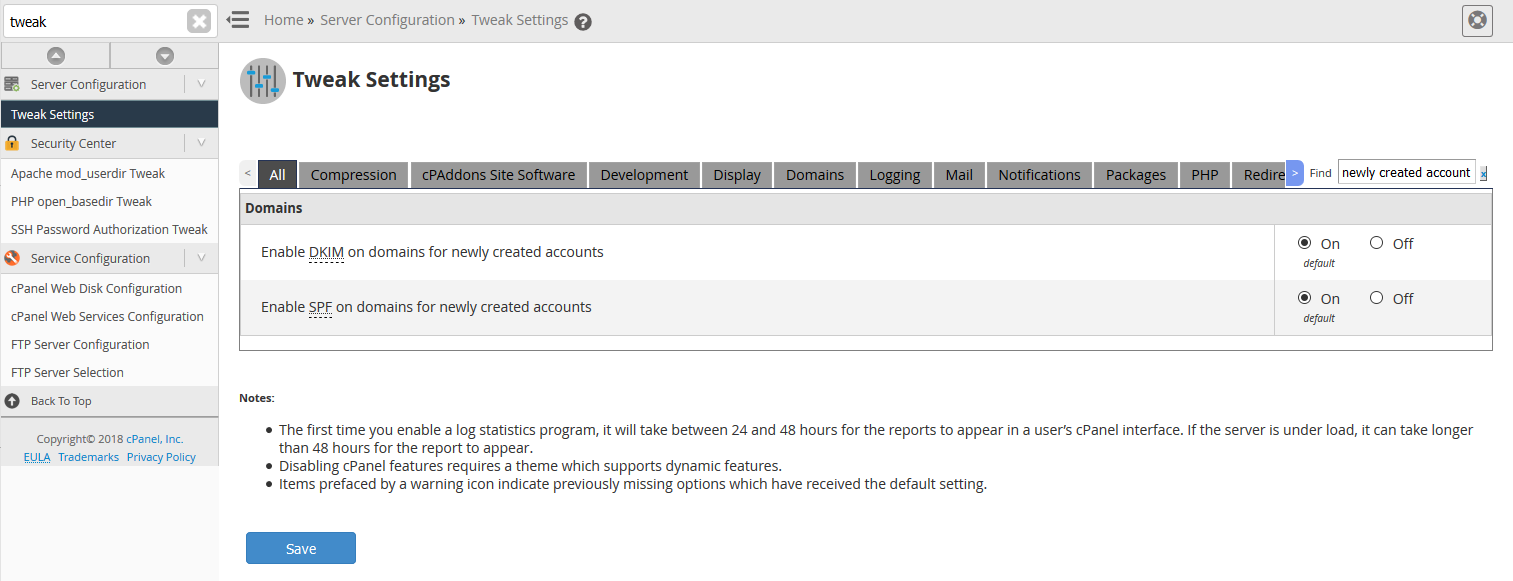
VPS users can set SPF and DKIM to be enabled by default in WHM Tweak Settings for newly created cPanel accounts.
- Login WHM as root.
- Select Tweak Settings.
- The easiest way to find both settings is to search “newly created account.” Once you Select On for DKIM and SPF, press Save.
DMARC
Domain-based Message Authentication, Reporting and Conformance (DMARC) ensures email is properly authenticating against DKIM and SPF standards and blocks any fraudulent activity. Its an easy way for email senders and receivers to determine whether a given message is legitimate and what to do with spam emails. For example, a strong DMARC record prevents Mail Delivery Failed emails stating you attempted to email accounts you’ve never emailed and that look illegitimate.
- Login cPanel.
- Search and select Zone Editor. Older cPanel accounts may instead have Advanced Zone Editor.
- Select Add Record to create a TXT record to enter the DMARC record.
Below is a basic addition added to the Zone Editor:v=DMARC1; p=reject; sp=none; rf=afrf; pct=100; ri=86400For the highest authentication, add the following:v=DMARC1;p=reject;sp=reject;adkim=s;aspf=s;pct=100;fo=0;rf=afrf;ri=86400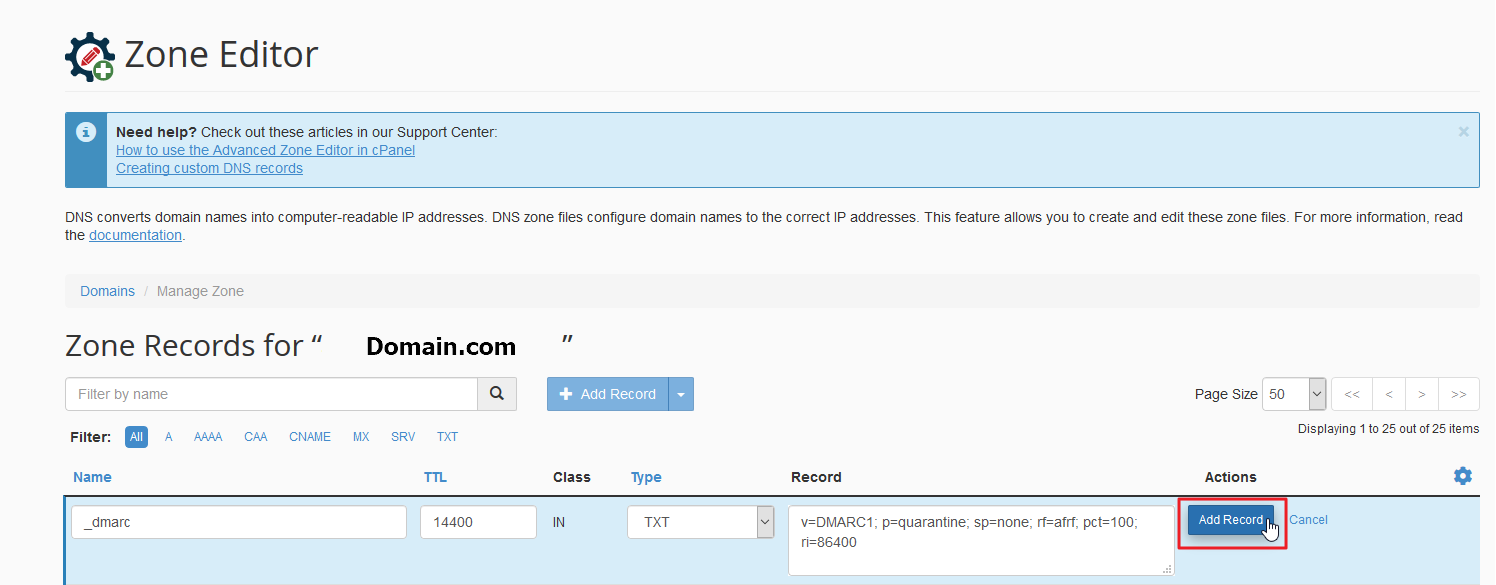
PTR / Reverse DNS Record
An IP address Pointer (PTR) Record looks like a subdomain but is the best way for VPS / Dedicated customers to authenticate email from your server. The PTR would replace anything using your current server hostname – cPanel / WHM URLs and email settings. For example, vps12345.inmotionhosting.com could become secure.domain.com or semail.domain.com.
To start the process, read the section “Changing Your Server’s Hostname” in our VPS as a Mail Server guide and decide on a PTR name which would apply to the entire server. You should contact our Live Support for additional assistance. The PTR request takes up to 24 hours to complete. If you have issues logging into cPanel or WHM during that time, you can do so via AMP.
Note: All above DNS changes may require ~4-24hrs for propagation. Updating the Start of Authority (SOA) in WHM Edit DNS Zone (for VPS/Reseller accounts) can also ensure DNS records update within 24 hours.
Spam Filters / SpamAssassin
SpamAssassin, or Spam Filters on newer cPanel accounts, filters incoming spam received by email accounts with a score rating system determining how many suspicious items are allowed in an email before marking it as junk. You can also blocklist email addresses.
- Login cPanel.
- Select SpamAssassin or Spam Filters.
- Press Enable for the process and the Spam box.
- Edit the Score settings.
These changes are immediate but don’t affect already received emails.
MailChannels Outbound Spam Filtering
Shared, WordPress, and Reseller Hosting plans include MailChannels, an outbound email filtering and SMTP relay service. MailChannels scans email leaving your server, which protects your domain’s sending reputation and improves deliverability. It is enabled automatically, so there is nothing to sign up for or turn on.
Note: MailChannels filters outgoing email only. Use Spam Filters (SpamAssassin) and Email Filters in this guide to manage incoming spam.
If your domain’s DNS is hosted outside of InMotion Hosting, update your SPF record and add the MailChannels TXT record by following How to Update DNS Records for MailChannels.
Email Filters
Sometimes it’s helpful to set email filters in cPanel to redirect emails to spam. Common examples include emails with explicit words or the subject Mail Delivery Failed. Email filters allow more customization and shouldn’t be confused with forwarders.
Feel free to read our more in-depth article covering how emails can be labeled as spam internally or externally by other email providers.
For more information, check out our Email Knowledge Base.
Reliable Shared Hosting for Growing Businesses
Get the performance your business website demands with NVMe SSD storage, industry-standard cPanel management, and direct access to hosting experts whenever you need assistance.
 Free Website Migration 24/7 Human Support 100% Money-Back Guarantee