In this tutorial we will show you how to change the color palette of your Reseller Advantage site. This allows you to further customize your online store.
Changing your Color Palette
- Login into BoldGrid.
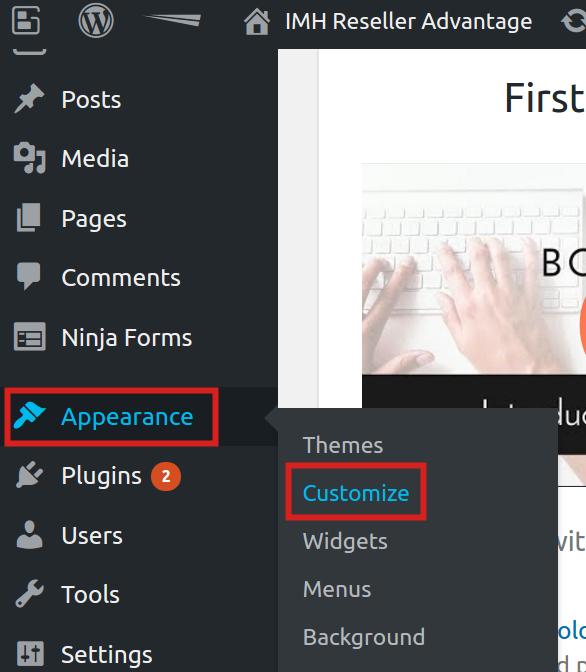 Roll your mouse over Appearance, then click the Customize link.
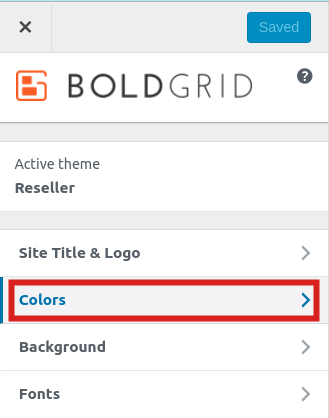 Click the Colors link in the Customizer menu.
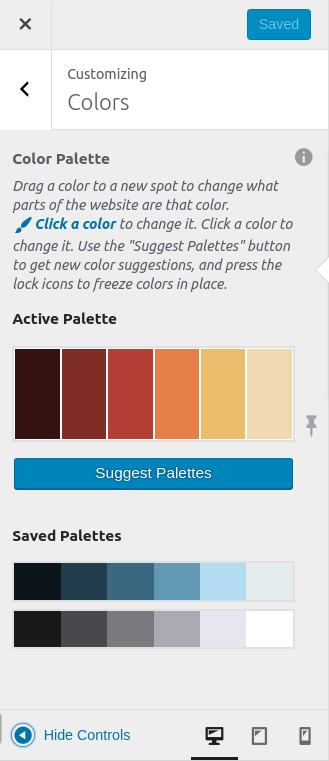 The tab will expand to allow you to see the different settings you can change.
Active Palette Here you will see several pre-made color combinations, called palettes. Click on a palette to change your site to that specific one. Suggest Palettes Clicking here will design other custom palettes you can select from. Saved Palettes A list of palletes to select from, clicking on a suggested palette will save it to the list so you can create your own custom list. 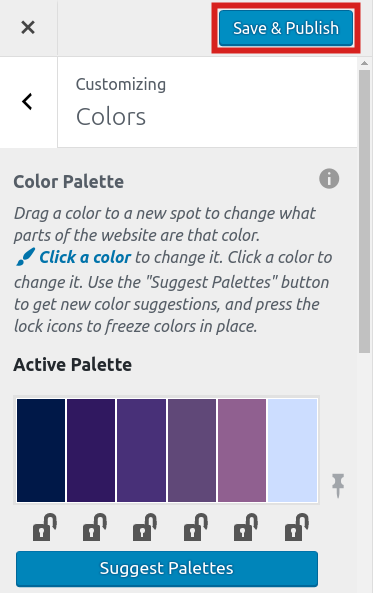 After making your color selections, click the Save & Publish button.

Congratulations, now you know how to change the color palettes of your Reseller Advantage site!
