When you create a cPanel as a web hosting Reseller, you have an option to copy some standard files to the account, such as a default landing page. For example, you may want a “coming soon” page as a placeholder on new accounts, then when your customer uploads their own website files they can remove the existing page.
In this article, I will show you how to upload a custom default landing page via the cPanel File Manager. You can also upload files using FTP, or SSH.
For a file to load by default, it must be named: default.htm, default.html, index.htm, index.html, or index.php
How to Use a Custom Default Page
- Login to cPanel
- Click the File Manager button under Files

- In the left navigation window, click the cpanel3-skel folder, then click the public_html folder.
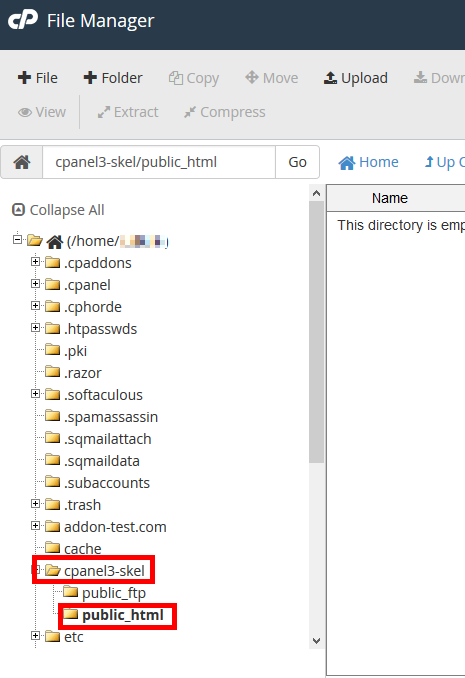
- Click the Upload button, then click the Browse button and select your custom default page, and click the Open button. The file will then be uploaded.
Now, when you create a new cPanel account, it will include the default landing page you just uploaded.


Congratulations, now you know how to use a custom landing page for the cPanels you create.