Welcome to another tutorial in our guide on using banners in Joomla 3.0. In this article we will discuss banner clients.
What is a banner client?
Most banners are going to be advertisements of some sorts. When you display a banner for a customer of yours, well, you’re showing a banner for a client.
Why should I create banner clients?
Organization
If you’re only going to have one or two banners, you may not need to create a banner client. Assigning a banner to a particular client will help in the long run if you’re working with several clients (ie. customers).
Custom Banner Placement
When you create a banner module to show banners on your pages, you can decide to show only banners from a certain client. For example, If your website is about the Joomla content management system and one of your clients is joomla.org, you can show setup your banner module to only show banners from joomla.org on pages focusing on them.
This setting we are referring to can be found under the Basic Options tab when creating a new banner module. The setting is called Client, and allows you to choose one or more clients to show banners from.
Steps for creating a new client
To setup a new banner client, follow the steps below:
- Log into your Joomla 3.0 dashboard
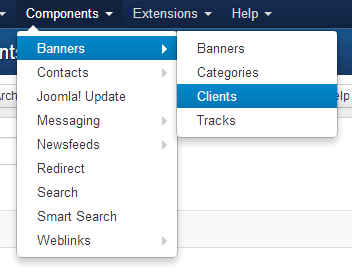
- In the top menu, click Components and then click Banners
- In the left menu, click Clients
- Click the New button in the top left of the page
- On this page you will enter all of the details for your new banner client. After doing so, click Save in the top left of the page. In our testing, we are creating a client, WordPress.org. We are only entering the required fields:
Client Name Enter a name for the client We entered WordPress.org
Contact Name Enter the name of a user as contact As the contact name we entered Matt Mullenweg, a founding developer of the WordPress software
Contact email Enter a valid contact email We’re not sure of Matt’s real email address, but we entered [email protected] as his contact email.
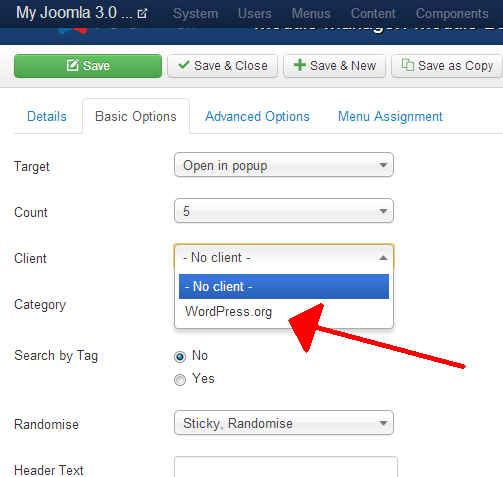
After saving this new client, we can now use this client as a part of our setup when creating banner modules. As you can see in the screenshot to the right, our WordPress client now shows under the Basic Options tab next to Client:
