
In our last few articles, we introduced you to the idea of Search Engine Friendly URLs and walked you through the steps for enabling clean URLs in Drupal 7. At this point we have all the right settings in place, and we just need to setup our custom aliases! Continue reading to learn how to create custom URLs for your Drupal 7 pages.
Please note!
When we showed you how to create basic pages and articles in Drupal 7, we touched based on how you can setup a URL alias right from those pages. If you didn’t setup aliases at that time, you can instead follow the steps below. Either way, you will be accomplishing the same task.
To set up a URL alias in Drupal 7:
- Log into your Drupal 7 Dashboard
- Go to Configuration
- Click on URL aliases located under the Search and metadata category.

- Click “Add alias”
- Fill in the Existing Path and the Path alias. If you do not know the current path of the page, you can bring up the page in your browser and see the URL in the address bar.Also, when separating words, Google recommends using dashes ‘-‘ over underscores ‘_’
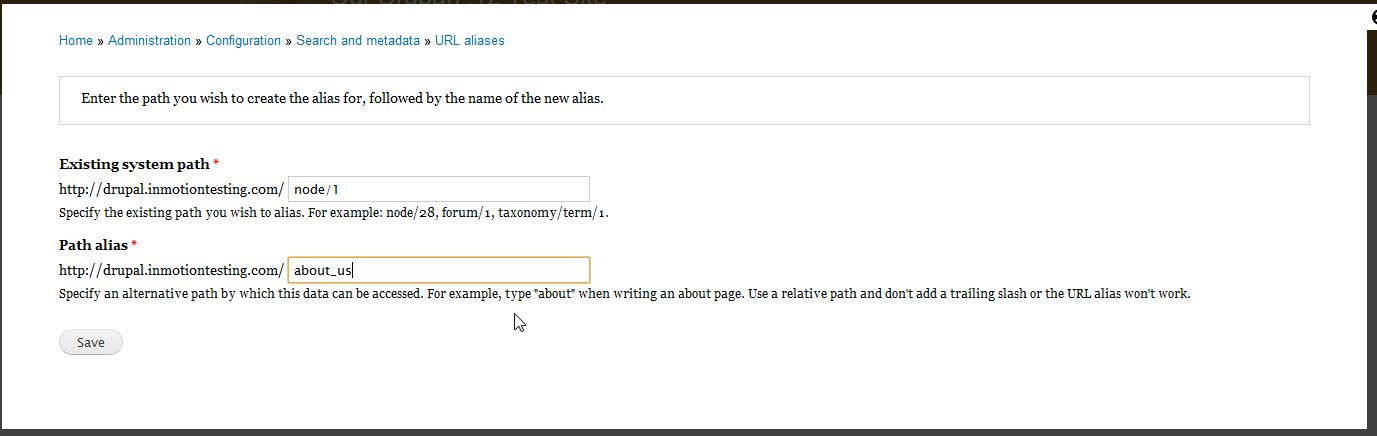
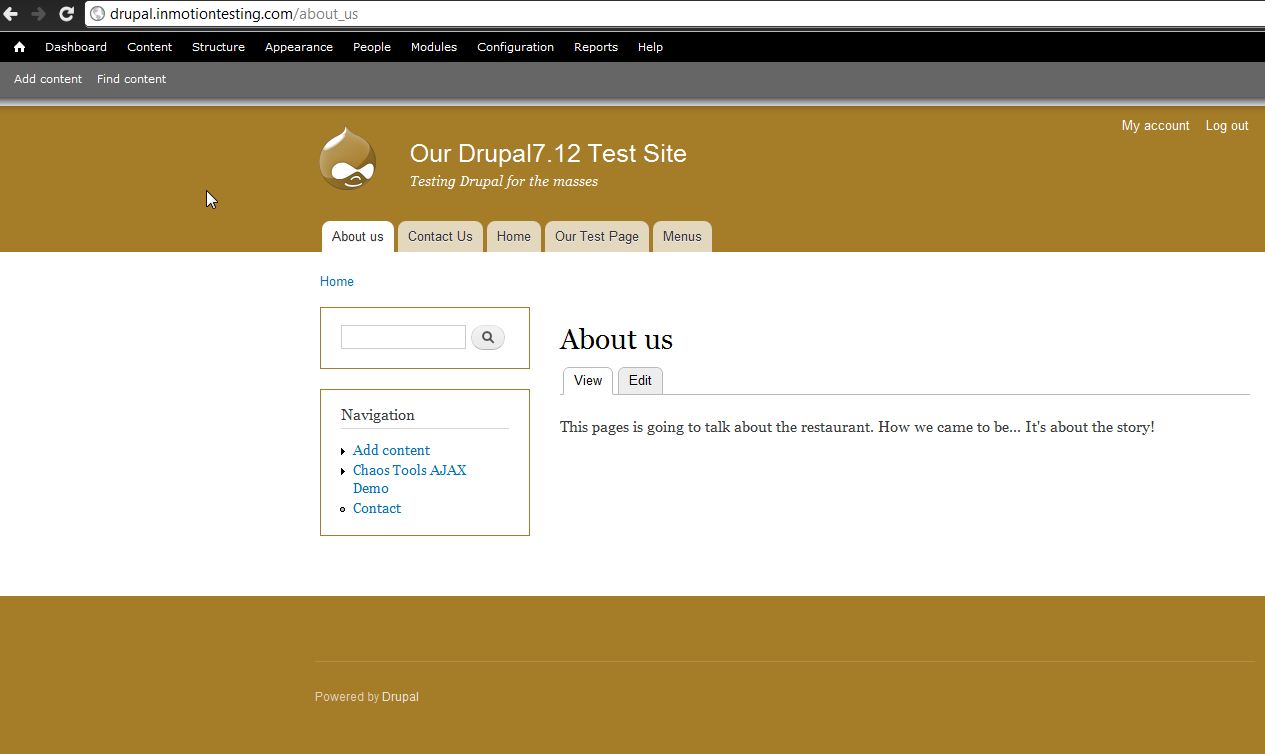
- Click SaveNow, when you visit the page, you’ll see the URL change to the Alias instead. You will want to repeat this for each page you want to set up an alias for.



If you need further assistance please feel free to ask a question on our support center.