In this tutorial we will show you how to publish a FrontPage website using FTP. This will allow you to continue publishing your website after FrontPage Extensions have been disabled on the server. Microsoft stopped supporting FrontPage in 2006, and we have done our best to allow it to still be used with our servers. At this time FrontPage extensions can open a server up to certain vulnerabilities, which helped us decide to discontinue its use with our hosting environment. For more information, please read our full guide “Death of FrontPage Extensions.”
Publishing FrontPage with FTP
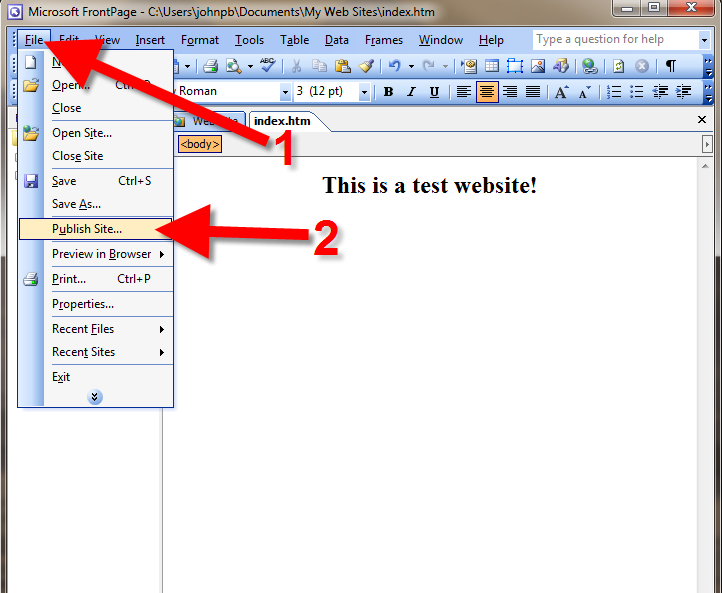
- In Frontpage, click File, then click Publish Site…
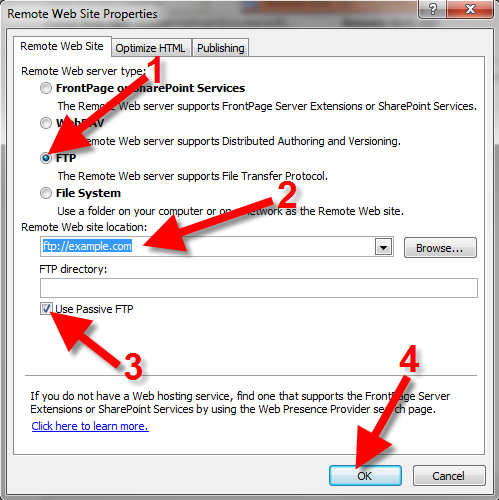
- Choose FTP, then enter your FTP hostname in the Remote Web site location field. (In my tests I entered: ftp://example.com). Click the Use Passive FTP option, then the OK button.
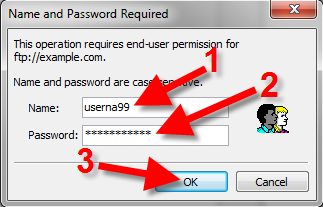
- A Name and Password Required box will pop up. Enter your FTP username in the Name field. Then put your FTP password in the Password field, and click the OK button.
- You will then see your Local and Remote web site files listed. Highlight the local files you want to publish, then drag and drop them into the remote folder for your website.
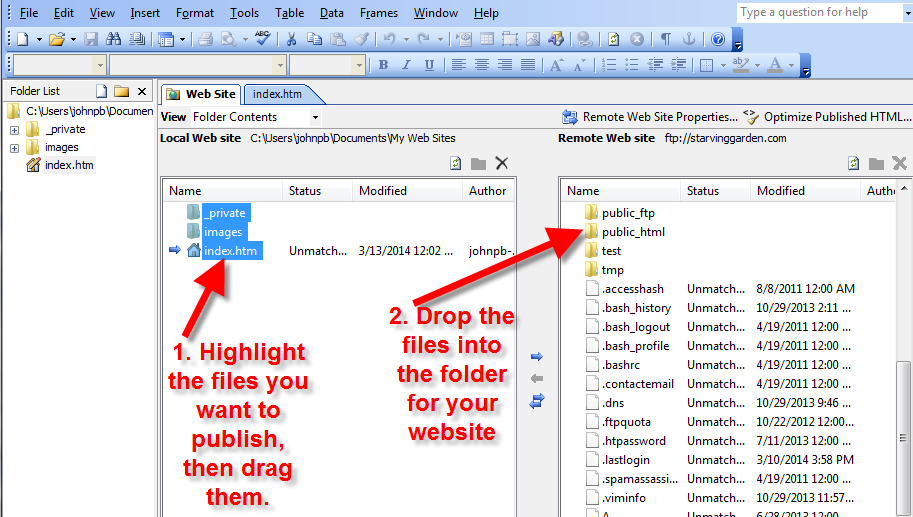
Your site will then be uploaded. It is finished when you see your website files on the right side of the window, in the remote Web Site listing. Test your website at this time; if you don’t see the changes refresh the page, or clear your browser’s cache.




Congratulations, now you know how to publish your FrontPage website using FTP!