Are you missing an email that was sent from your WordPress website? Luckily, WP Mail logging lets you easily view and resend any emails that originated from your WordPress site. As we continue our series on the WP Mail Logging plugin, we will now show you how to resend a WordPress email. This is a good option if the recipient cannot find the original email or it was accidentally deleted by an email filter.
Resend WordPress Email
- Log into your WordPress Dashboard.
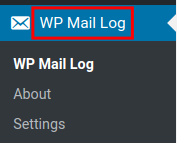
Click the WP Mail Log link in the navigation menu.
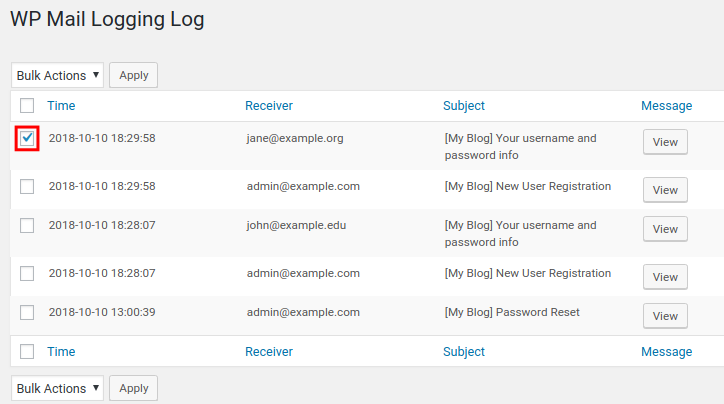
You will then see a list of emails sent from your WordPress site. Check the box next to the email you want to resend.
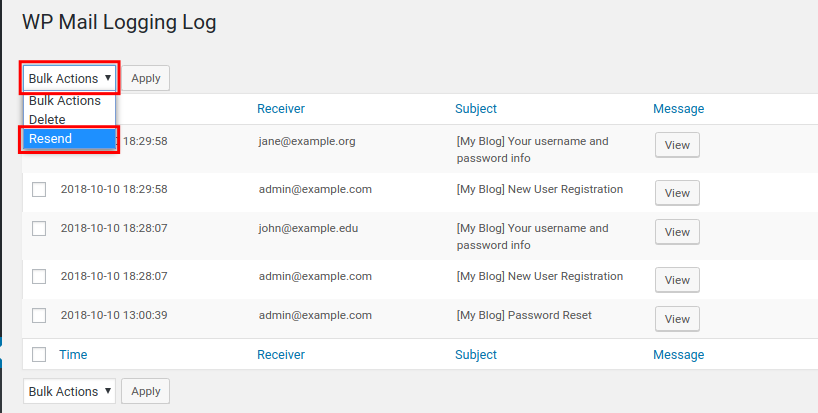
Click the Bulk Actions drop-down box then choose the Resend option.
-
Click the Apply button to resend the email.



Congratulations, now you know how to resend a WordPress email using WP Mail Logging plugin! In the next guide, we will show you how to delete an email from your mail logs.