In this tutorial:
In this tutorial we will show you how to install MailPoet 3 in WordPress with SMTP settings. This lets you easily use newsletters, mailing lists and contact forms in your WordPress Dashboard. MailPoet also includes tools for managing subscribers, automating emails, and gathering statistics. First, we will install the MailPoet 3 plugin, then show you how to setup the SMTP settings.
Installing Mailpoet 3
- Log into your WordPress Dashboard.
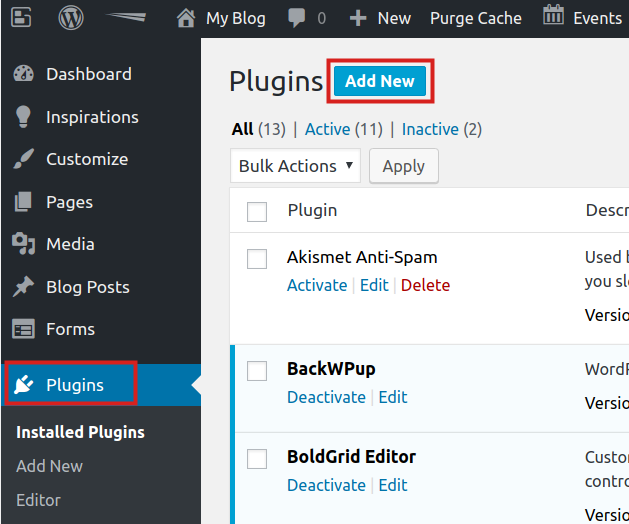
Click Plugins then Add New.
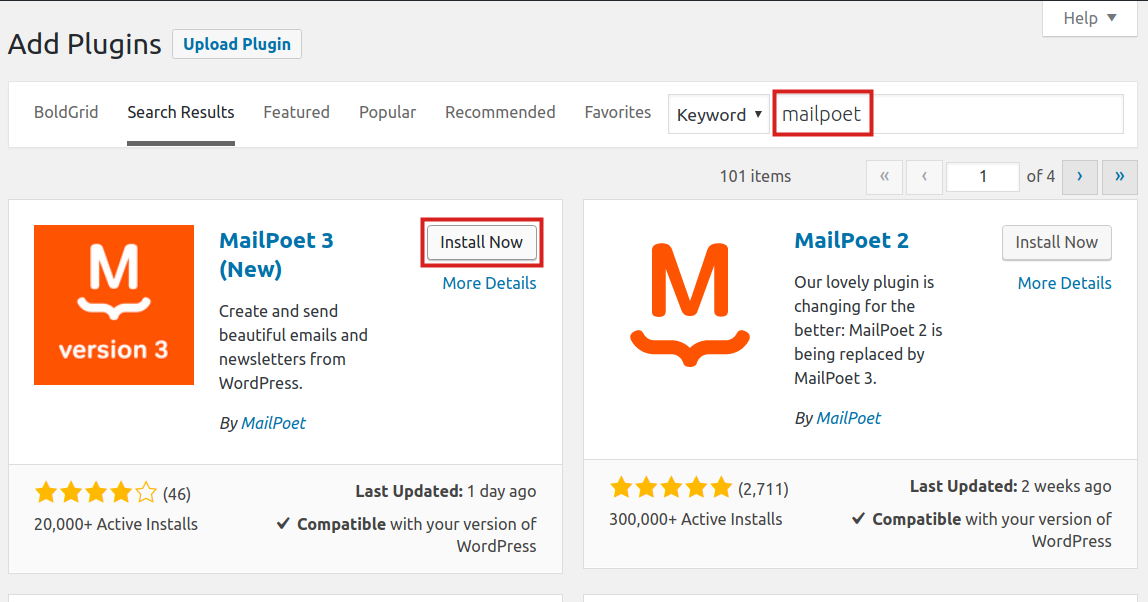
Type ‘mailpoet‘ in the search box, then click the Install Now button next to MailPoet 3.
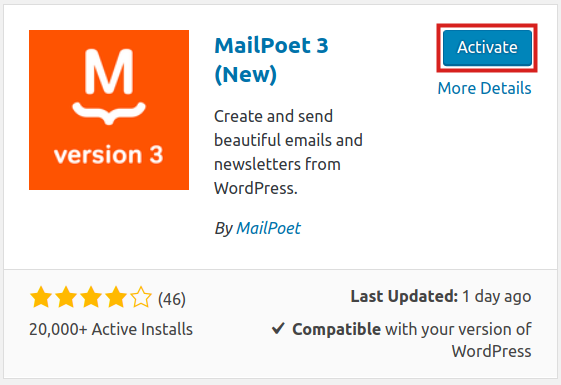
Once it has been installed, click the Activate button to enable it.



MailPoet SMTP Setup
Now that you have installed the MailPoet plugin, we will show you how to configure the SMTP settings.
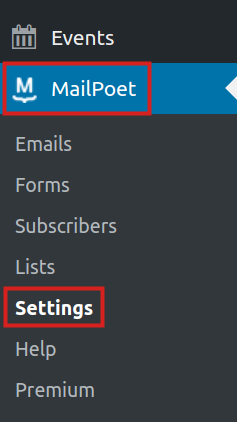
In the WordPress Dashboard click MailPoet, then Settings.
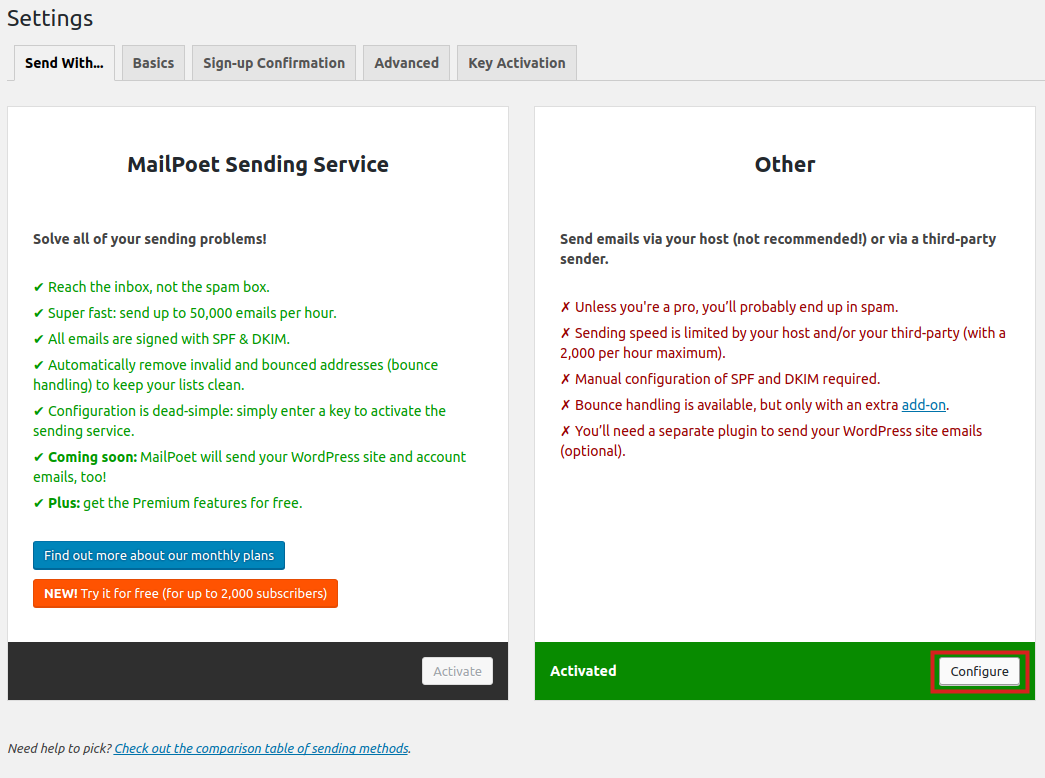
You should then be on the Send With… page. In the Other section, click the Configure button.
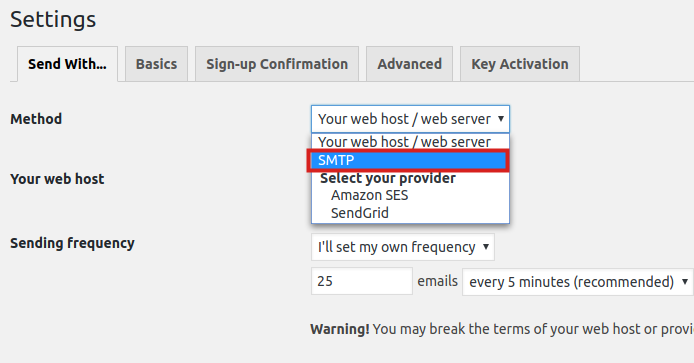
Click the drop-down box next to Method and choose SMTP.
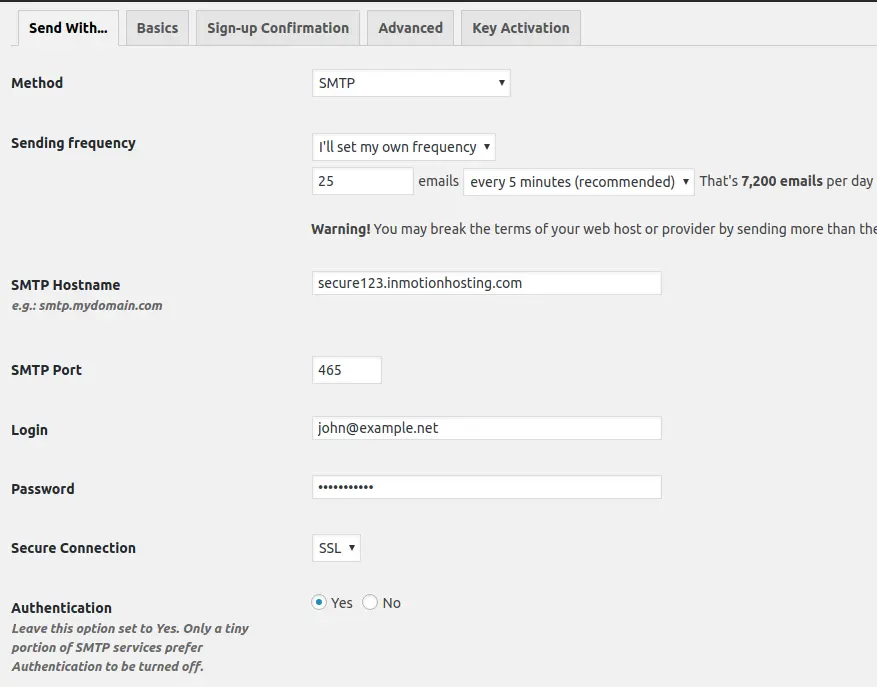
You will then see the SMTP setting fields, fill them in as needed. Below is an description of the secure settings to use:
SMTP Hostname Enter your secure Outgoing Server (SMTP) hostname. Such as: secure123.inmotionhosting.com SMTP Port Enter the Secure SMTP port: 465 Login Enter your full email address here. Such as: [email protected] Password Enter the password for your email address. Secure Connection Choose: SSL Authentication Select: Yes 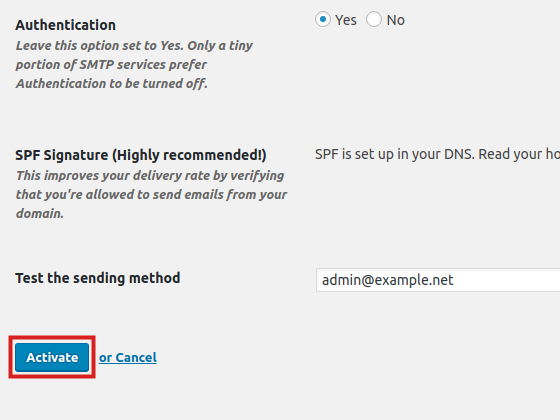
Once you have entered your outgoing SMTP settings, click the Activate button to save them.





Congratulations, now you know how to install MailPoet 3 in WordPress with SMTP settings!