
DaDa Mail is a free mailing list manager that includes some important features to help you effectively manage sending out newsletters, and emails to distribution lists. If you’re at this tutorial you’ve probably already researched what it does and are ready to install it.
Let’s start to install DaDa Mail 4.8.0. First, you will need to download the FREE version for their website: DaDa Mail Download
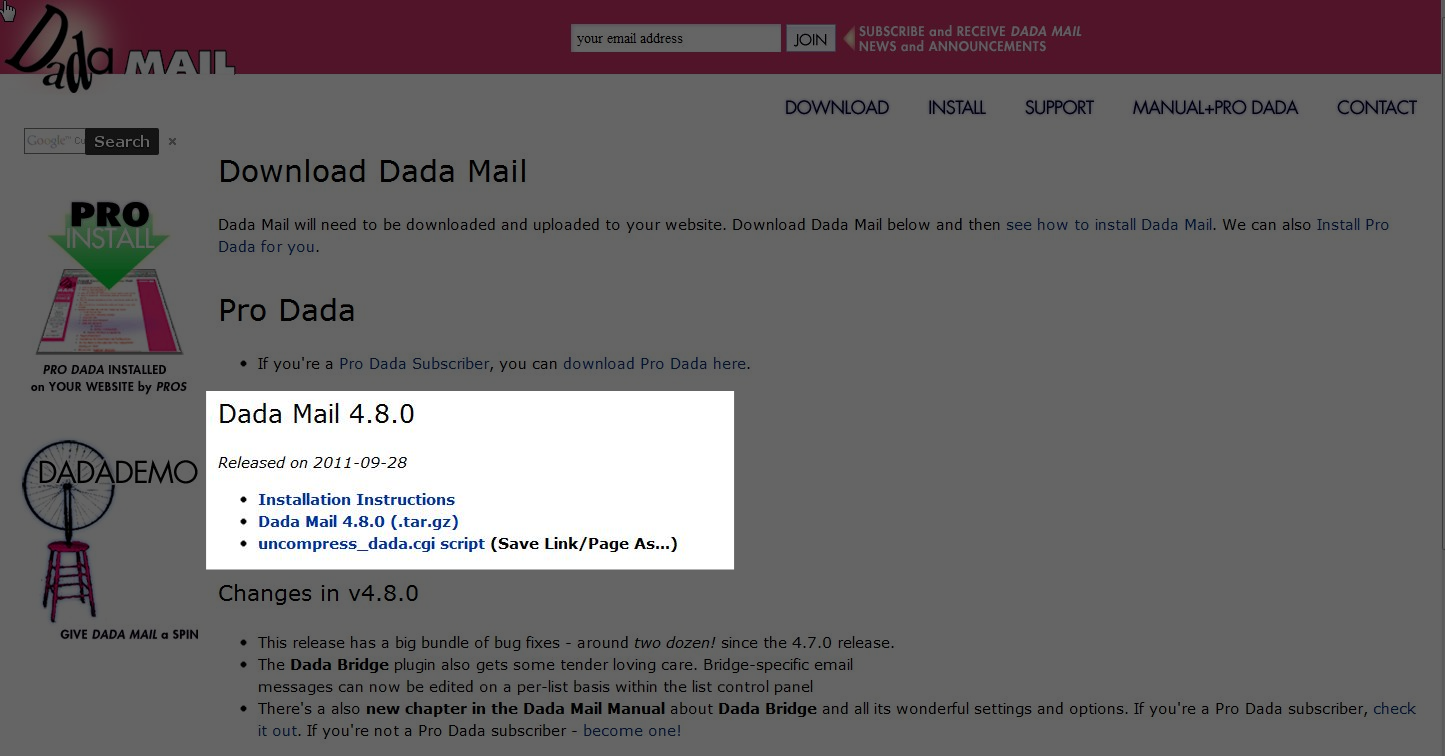
In the highlighted picture above, you’ll need to download the DaDa Mail 5.8.0 (.tar.gz) folder by clicking on it. Next, you will need to upload the “dada-4_8_0.tar.gz” distro to your cgi-bin folder in your public_html folder. You can do this using file manager in your cPanel.
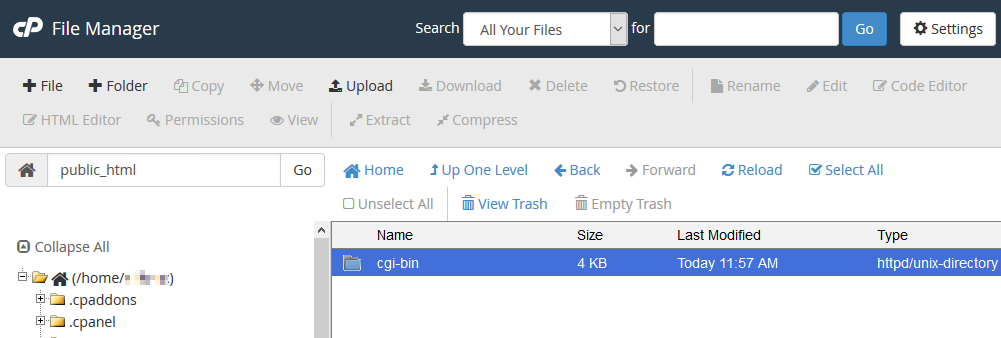
Upload the file using File Manager in cPanel and make sure you are uploading the the cgi-bin folder:
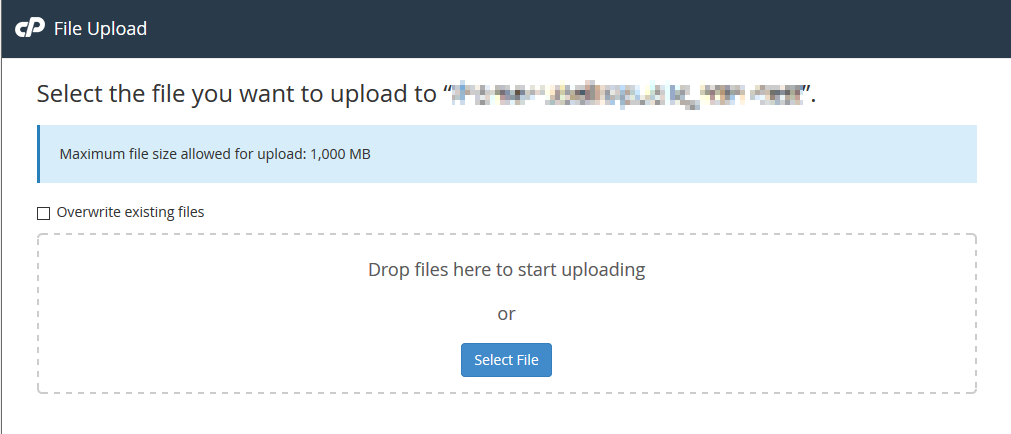
Upload the “uncompress_dada.cgi” script to your cgi-bin. You will find this on the same page as where you downloaded the compressed file you just uploaded. You will need to right click on the file and select (Save Page/Link As…). Once you have saved it, upload it to the cgi-bin folder.
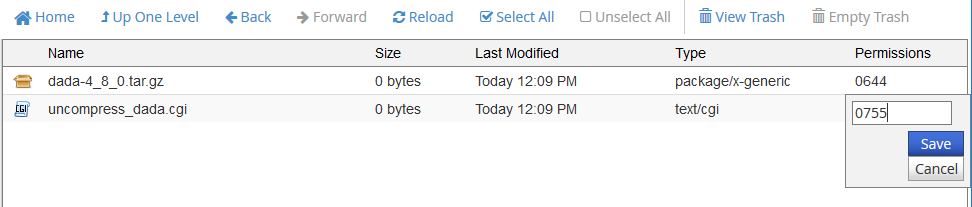
Now, change the file permissions of the “uncompress_dada.cgi” file to “0755” and save the new permissions.
Now, go to your website and visit the “uncompress_dada.cgi” script in your web browser.
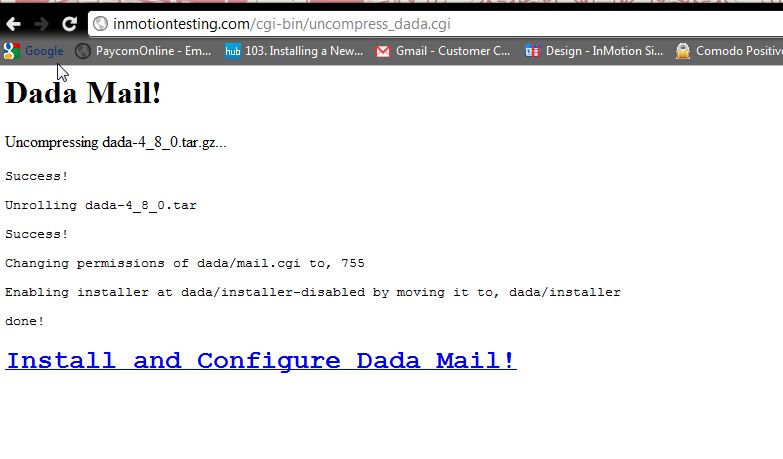
Once you visit the install script in your web browser you will see the screen above. Click on the link to Install and Configure DaDa Mail!
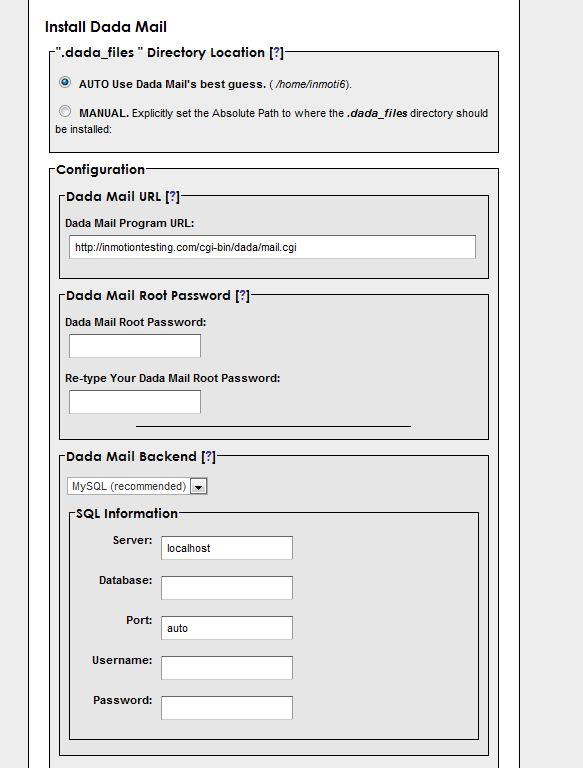
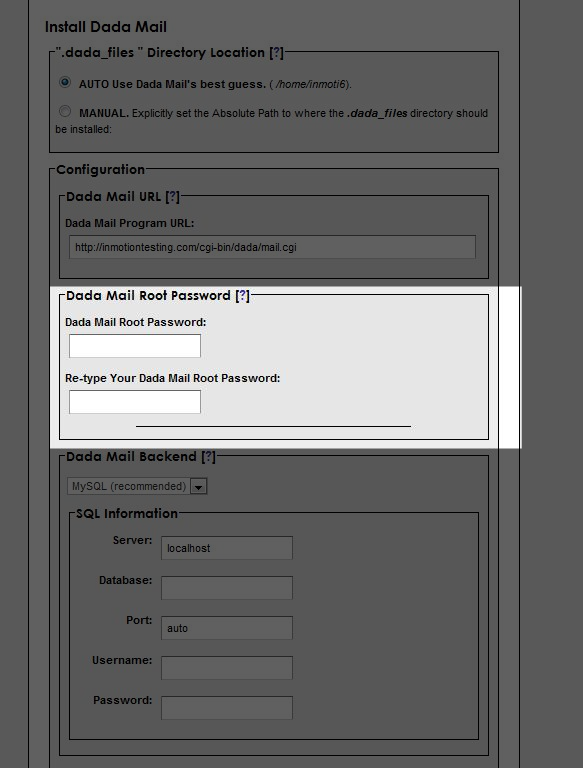
You will need to fill out the installation configurations. Don’t worry if it seems overwhelming, we’ll walk you through the process. The first step is to decide on a root password. We recommend NOT using common dictionary words , and use a combination of letters, numbers, and symbols.
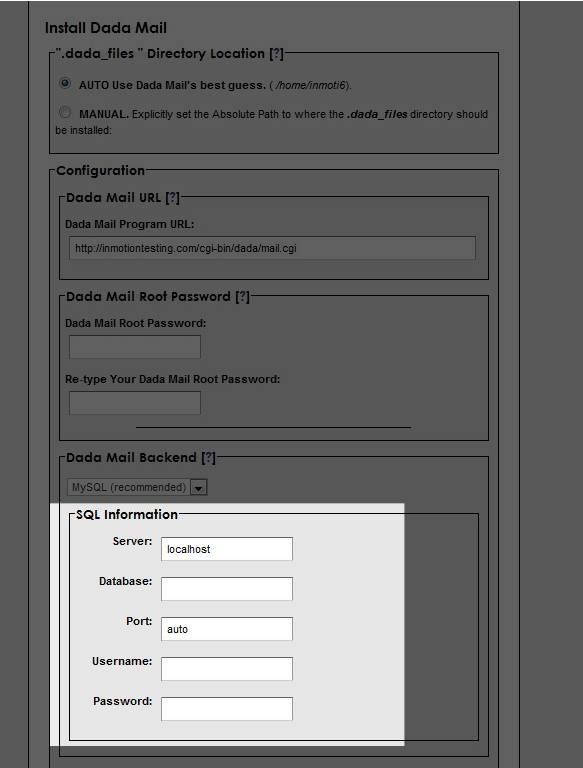
Once you have created your Root password for dada mail you will need to add the SQL information. If you have not already created a database and assigned a user to it for use with your mailing list please do so now. If you are not sure how to do it, please read out article on creating databases. Fill in the SQL information with your database name, username, and password.
Once this is done, this is the last required field to fill in. Other plugins and options are available. If you want to use them, you can. Just make sure to check the boxes next to the settings you wish to enable. Click Configure DaDa Mail!

Next, you will need to “clean up” your installation. Follow the directions on the next screen, like in the screenshot below:
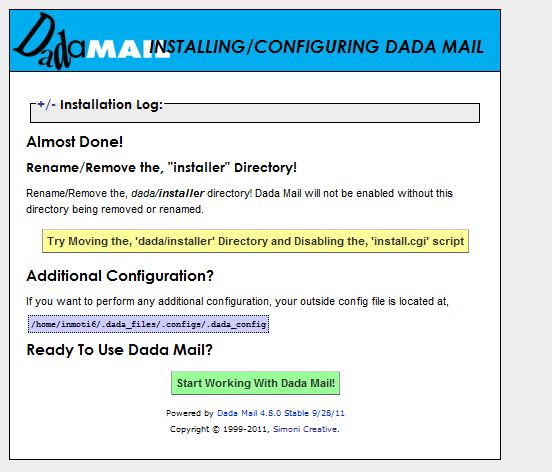
Once you have renamed the dada/installer directory, you are finished! Now, click on Start Working With DaDa Mail!