If you need to filter or block multiple IP addresses, it can sometimes be much quicker and more efficient to block an IP range. In this article, we will show you how you can block an entire range of IPs from sending mail to your email addresses using cPanel and regular expressions.
What is an IP range?
An IP range is exactly that. It is simply a group of IP addresses between one address and another. For example, many consumer routers will assign IP addresses between 192.168.1.101 and 192.168.1.150. The group of IP addresses between, and including these two addresses, would be an IP range.
 Log into cPanel
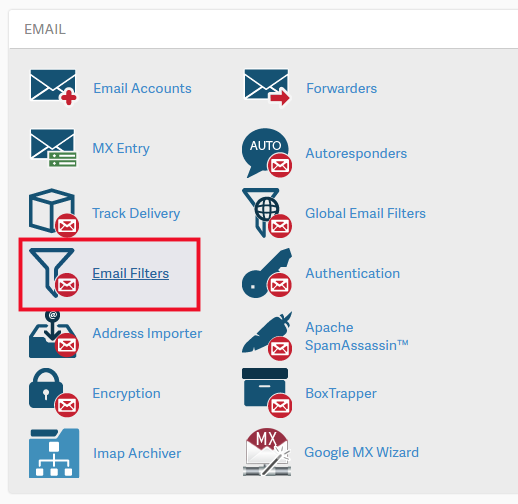 Under Email choose Email Filters
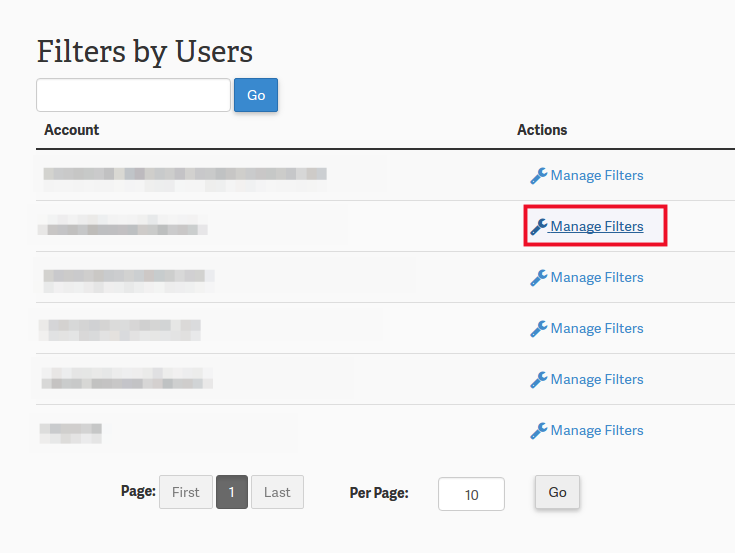 For the example email account choose Manage Filters
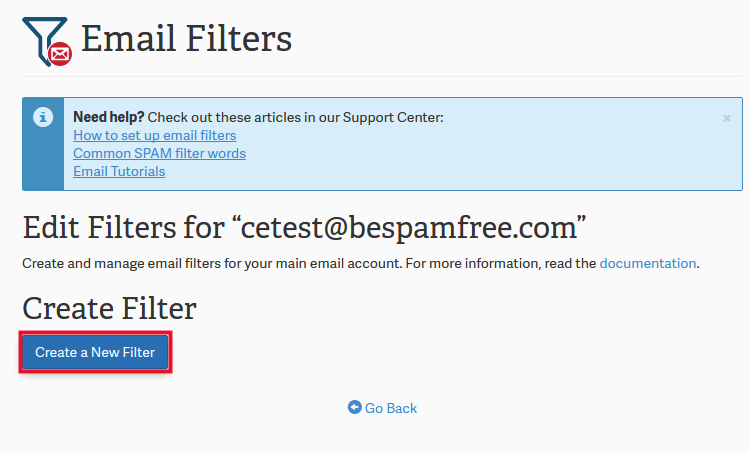 Click Create a New Filter
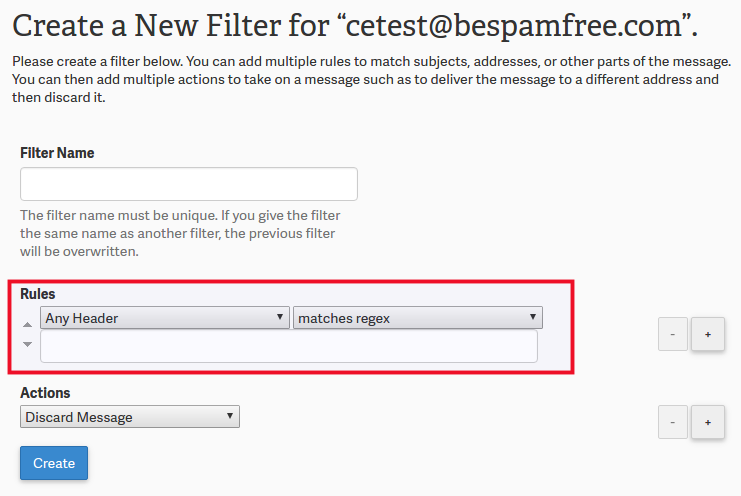 Fill in the dropdown fields. For the From field, choose Any header. For the second dropdown, choose Matches regex
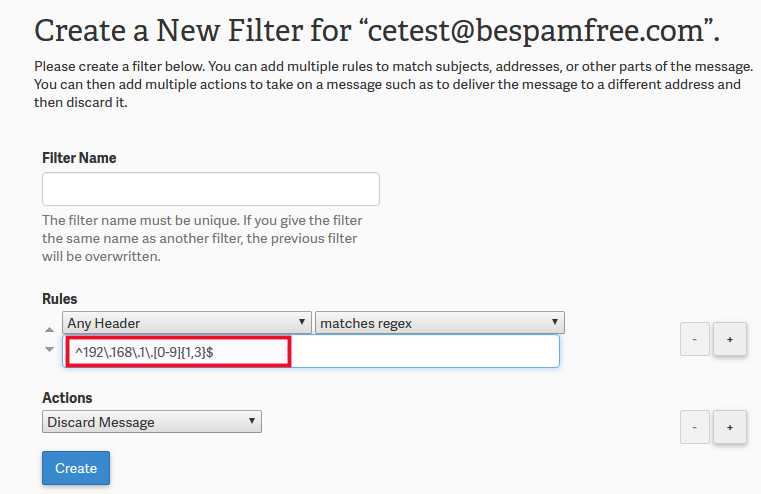 Here you will add your rule, which will look similar to this:
^192\.168\.1\.[0-9]{1,3}$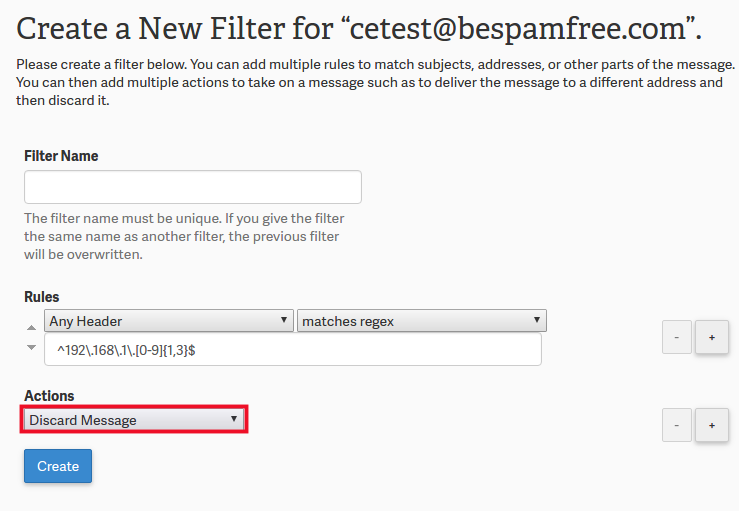 Choose an action for this filter. (You will most likely want to Discard the message, but you can also filter it to a folder.)
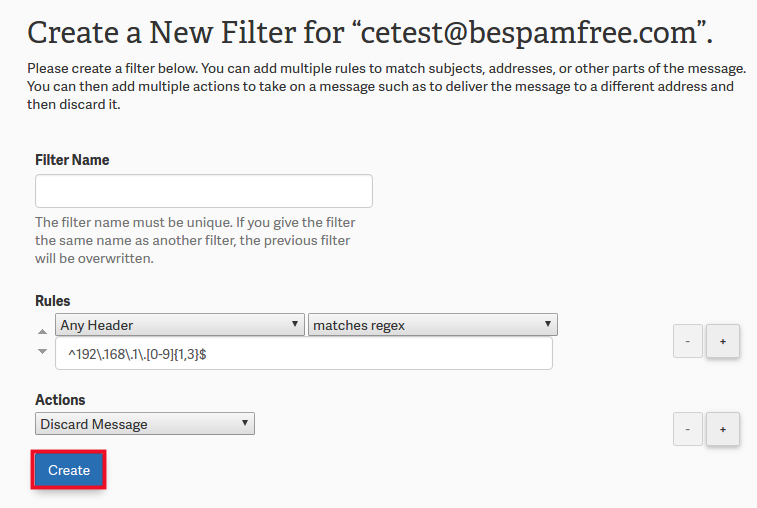 Click Create
Well done on completion of this tutorial. You now know how to filter an IP range.