
In this article we’ll discuss how you can copy all incoming and outgoing mail that your VPS or dedicated server handles to a designated email address for review.
This can come in handy if you need to keep email data archived for a set period of time in accordance to certain regulations your industry might have to follow. Or you simply want to see the messages of your users to ensure they are not spamming from your server or sending out information they shouldn’t be.
This will require that you have root access to your server in order to follow these steps. If you do not have root access, and would like this done for you please contact our support department.
- Login to your server via SSH as the root user.
- Backup your Exim system filter file with the following command:
cp -frp /etc/cpanel_exim_system_filter{,-BAK} - Edit the /etc/cpanel_exim_system_filter file with the vim editor:
vim /etc/cpanel_exim_system_filter - The top 28 or so lines of this file are all commented out with a #symbol in front of each line. The section you’ll want to add your mail copying rule to is under this section of that:
## -=-=-=-=-=-=-=-=-=-=-=-=-=-=-=-=-=-=-=-=-=-=-=-=-=-=-=-=-=-=-

## If you haven't worked with exim filters before, read

## the install notes at the end of this file.

## The install notes are not a replacement for the exim documentation

## -=-=-=-=-=-=-=-=-=-=-=-=-=-=-=-=-=-=-=-=-=-=-=-=-=-=-=-=-=-=-
Below that last line, insert the following replacing [email protected] with the email address you want mail copied to:unseen deliver [email protected]In order to accomplish this, first hit i to enter into INSERT mode in vim.
Then type in your text, and hit esc to exit INSERT mode.
Now you can simply type in :wq to enter COMMAND mode, and then write the file and quit.
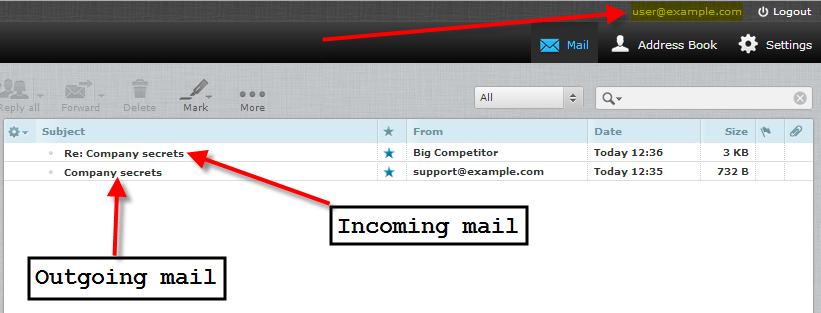
Now let’s say you had someone at your company send out some company secrets from your [email protected]address to one of your big competitors.
Now you can simply check the email for your [email protected] account that you setup the unseen deliver mail copy rule for, and see both the outgoing and incoming messages that happened.

You should now know how to copy all of your incoming and outgoing mail to a specified email address for either archiving or reviewing.
Please realize that if you have a lot of email accounts and activity, this could lead to a large amount of disk space being used for all of the email copies. So you will want to remove them from the server if it gets to be too many.