
If you’re a person who likes to modify what your iPhone does when you swipe right or left in the Mail app, then you’re in luck! Though this option has been available since iOS 8, it’s not something that everyone thinks about changing when using their iPhone. It’s an easy change and you may find that it helps to speed up your mail managing experience. Follow the steps below to learn how to make changes to your swipe actions.
Looking for a new home for your business website? Check out InMotion’s VPS Hosting solutions! You’ll find secure, scalable servers that will meet your performance and budget needs.
Changing the Swipe Options
You will need to be in the Settings section of your iPhone, so navigate to that screen.
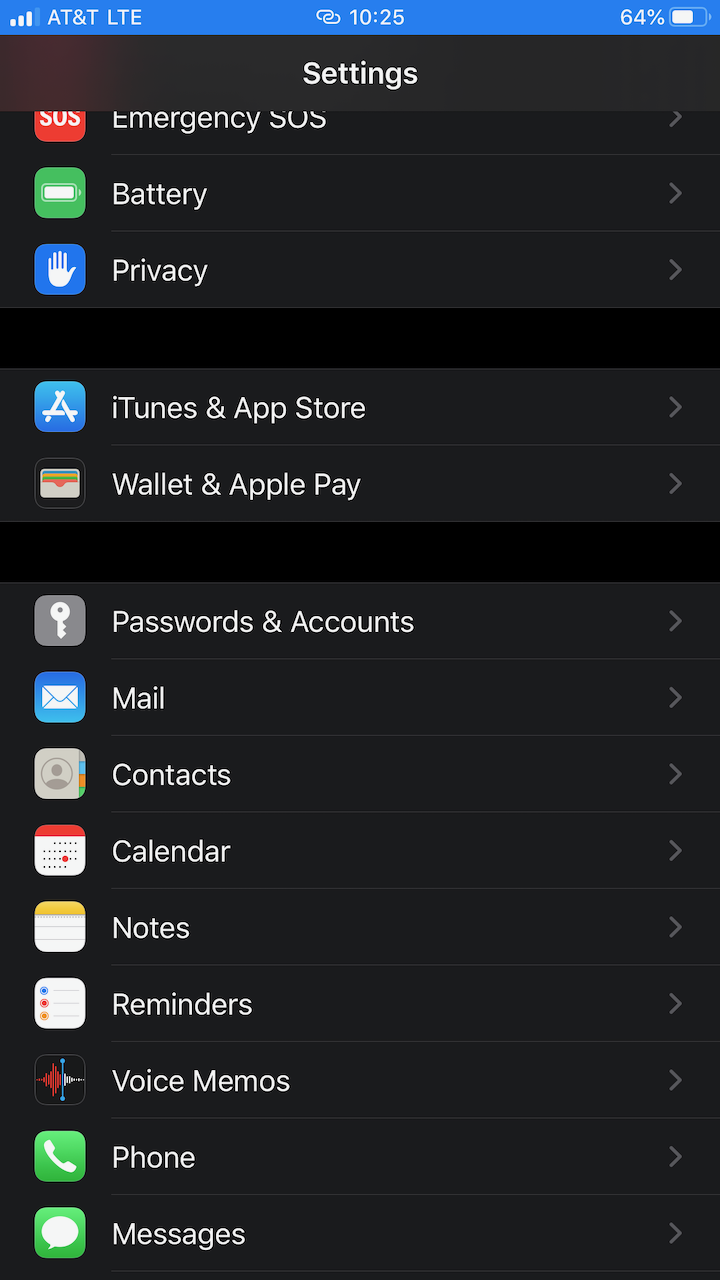
Step 1. In the Settings section, scroll down until you find Mail. Tap on Mail to open it.
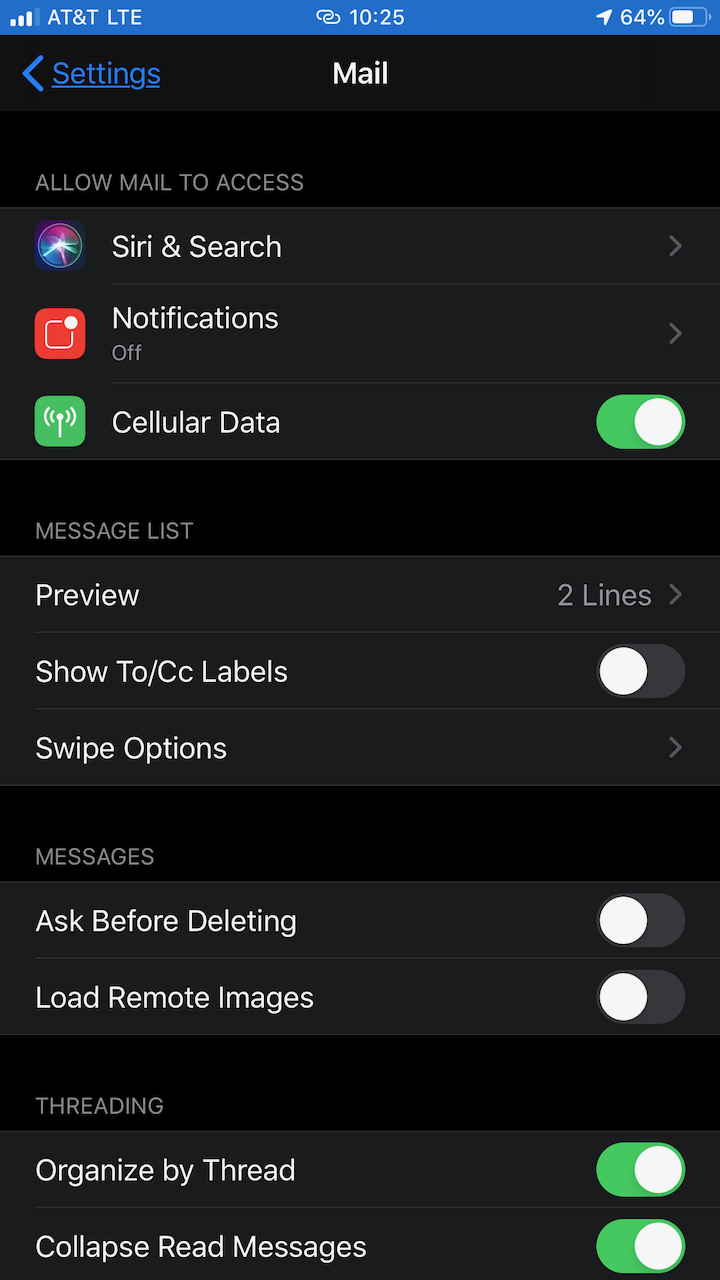
Step 2. Tap on Swipe Options. It will be under the Message List section.
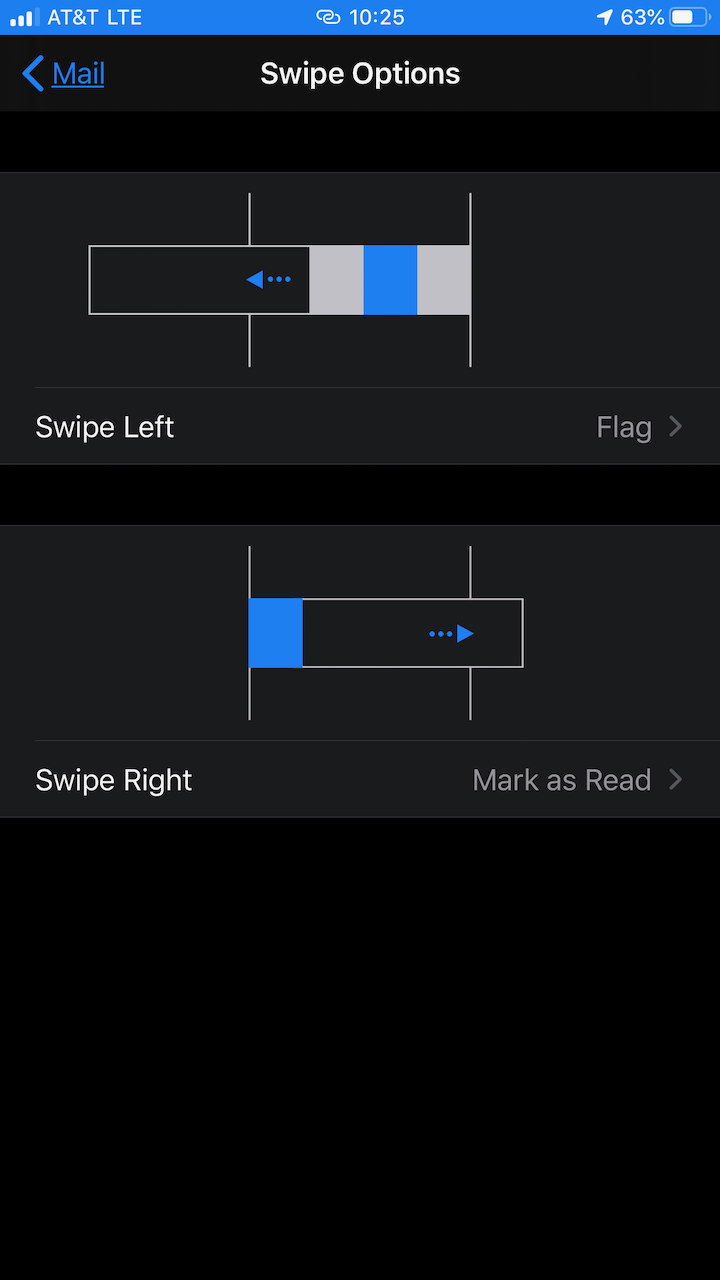
Step 3. Select the swipe action that you want to modify. In the screenshots that follow you will see that the Swipe Left action is already set to Flag, and the Swipe Right action is set to Mark as Read.
Step 4. Note that the actions available to either action is not the same. Check out the screenshots below to see the available options (as of iOS 13.1.2).
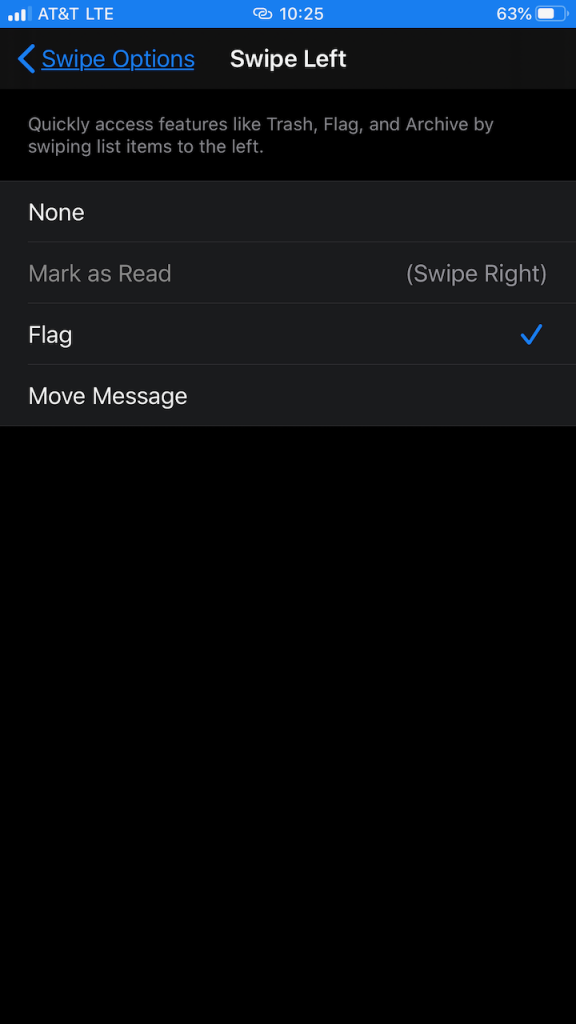
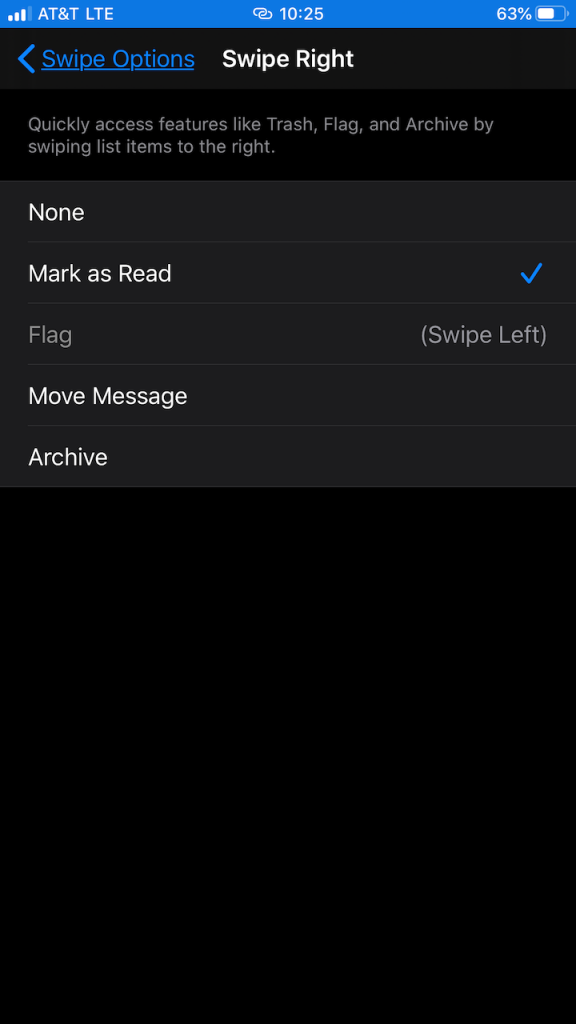
You will the new action checked when you select it from the list. Each change is automatically saved.
Congratulations! You now know how to make changes to the swipe actions in the Apple iOS Mail client. For more information on Apple Mail, please see our iPhone articles on the InMotion Hosting Support Center website.