
There might come a time when you’ve setup your mail client to check email on the server via POP3 or IMAP and you decide you want to switch to the other protocol. Unfortunately, you can’t simply flip a switch to do this, but you can re-create your email account in your mail client to use the protocol of your choice.
Difference between POP3 vs IMAP
When you need to check your email on the server, there are 2 different protocols POP3 or IMAP available to use. Depending on how you utilize your email, one way might be more preferable to the other for you.
POP3 vs IMAP

With POP3 (Post Office Protocol) this would be the same as simply going into the post office, removing everything in your post office box and taking it home with you. You retain the physical copies of all of your mail that has been sent to you, and the post office (server) doesn’t have to deal with them further.

With IMAP (Internet Mail Access Protocol) instead of simply taking everything out of your box and home with you every time. You instead grab a copy of each message, and the original stays in the post office box (server). This is convenient if you have multiple devices such as a desktop, laptop, smartphone, and tablet all trying to check mail from the same account.
Switch from IMAP to POP3
Switching an IMAP account to POP3 would allow you to alleviate the server from managing your emails, and instead they would be stored locally on your computer. You would just need to create a new POP3 account in your mail client, then drag any messages off the server from the IMAP account you wish to download.
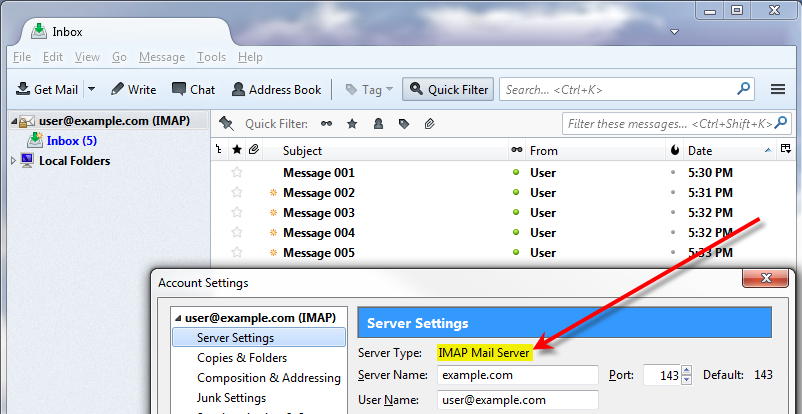
- Here you can see in Thunderbird that I have a [email protected] account currently setup to use an IMAP Mail Server.
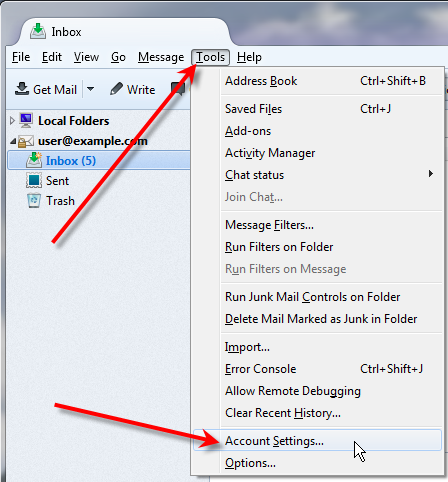
- In Thunderbird navigate to Tools > Account Settings.
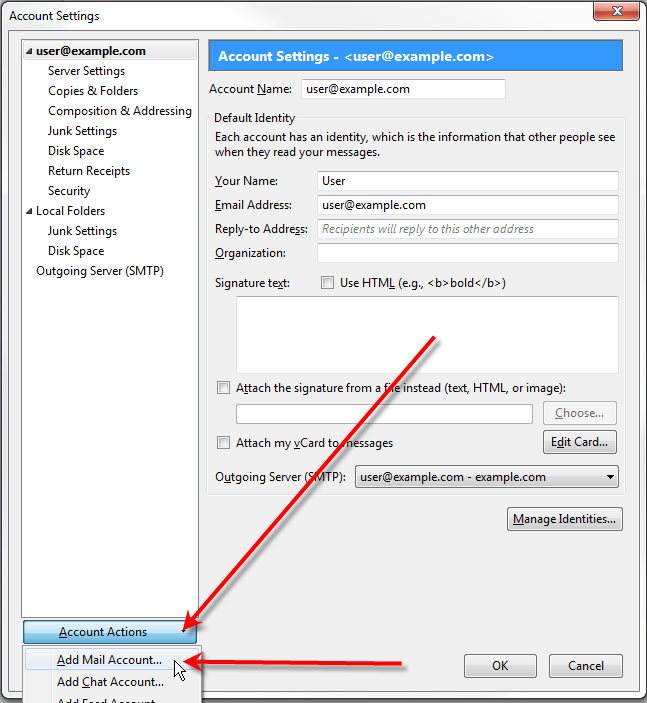
- Click on Account Actions and then Add Mail Account…
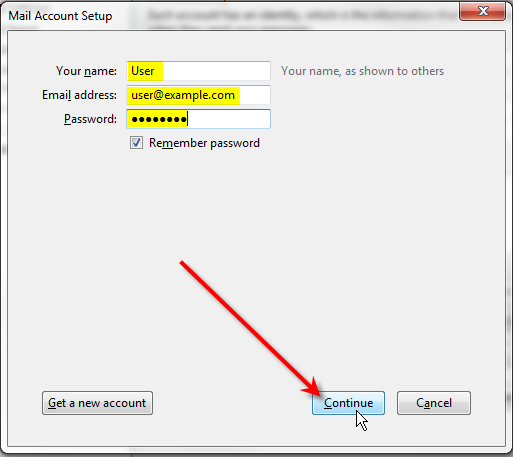
- Fill in your email account settings, then click Continue.
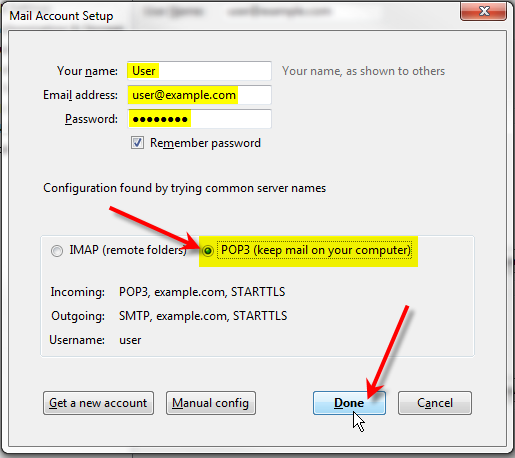
- Now select POP3 (keep mail on your computer) and click Done.
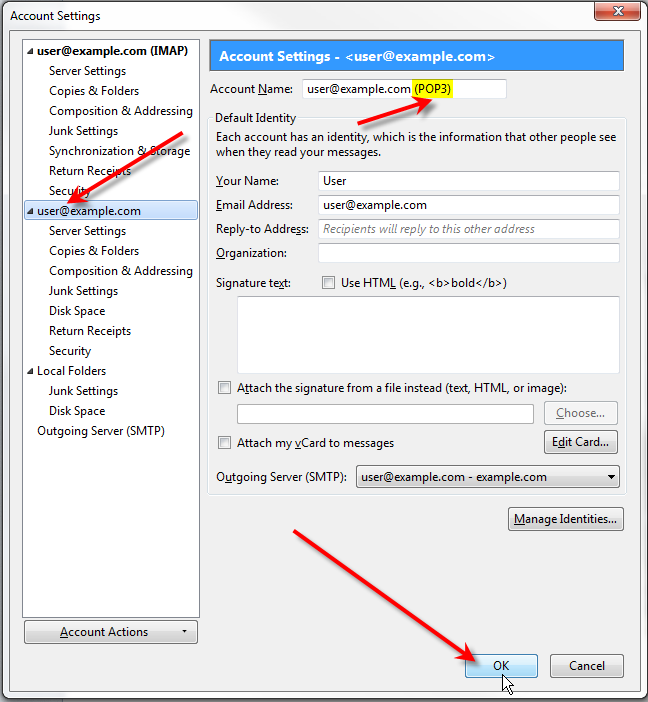
- Now back on the Account Settings window, click on the newly created [email protected] account, and update the Account Name to append (POP3) on the end, so we know which account is which easily, then click OK.
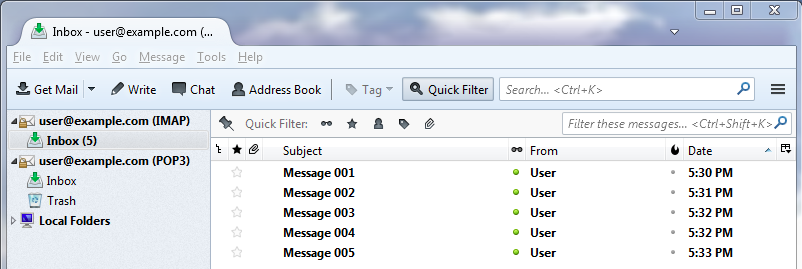
- At this point you can now see that our original IMAP account has 5 messages in it, and these are stored on the server.
If you attempt to login to webmail at this point, you’ll see these same messages stored there.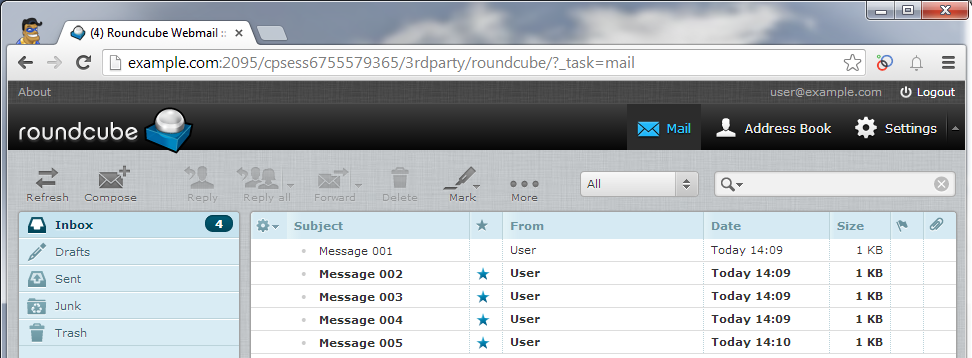
- You can select one of the messages from your IMAP account, then hit Ctrl-A to select all messages, then drag them into your POP3 account to move these messages off the server.

Now if you login to webmail, you’ll see all those messages have been removed from the server.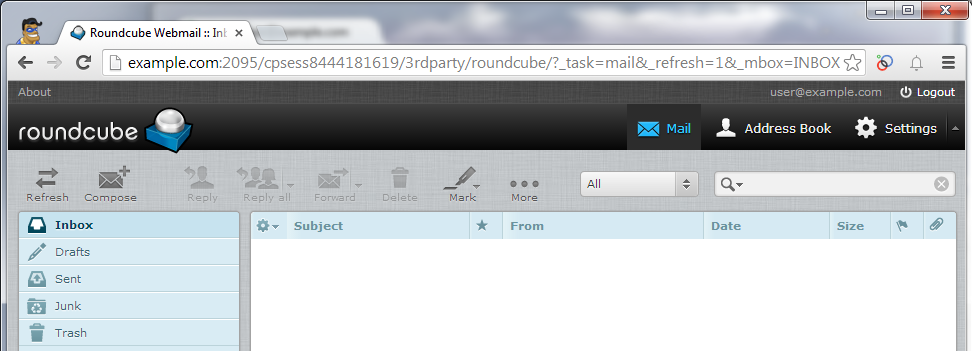
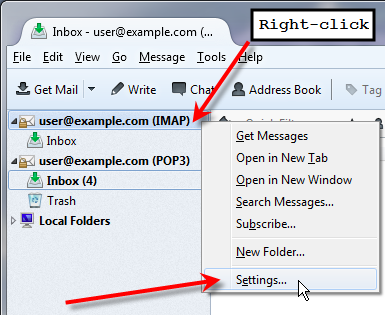
- Now you’ll want to remove your IMAP account from Thunderbird to ensure that it doesn’t keep trying to make a duplicate connection to the server, since your POP3 account is already going to connect and retrieve your email. Right-click on the IMAP account and click on Settings…
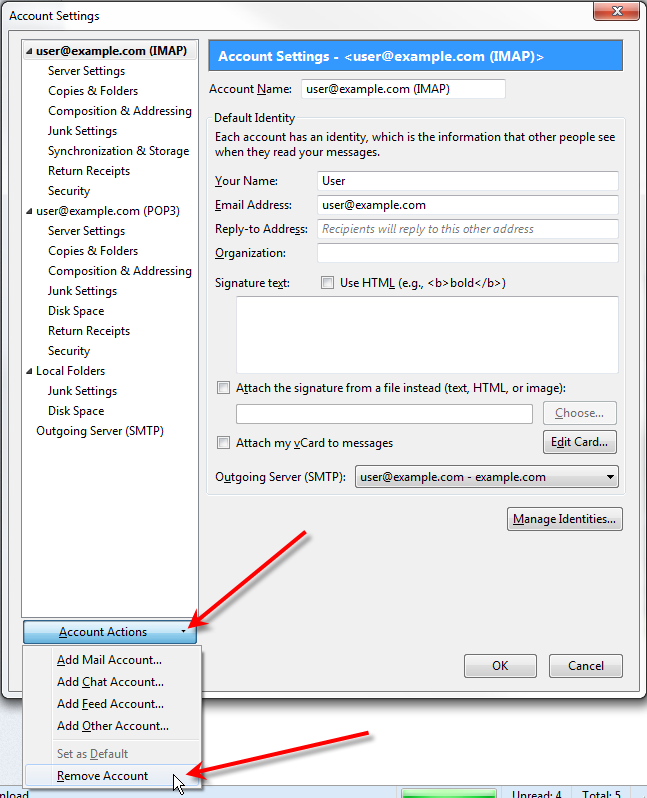
- On the Account Settings window, click on Account Actions and then Remove Account.
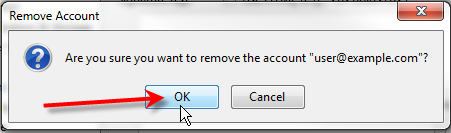
- You’ll get a confirmation window pop-up asking if you’re sure you want to remove the account, just click OK.
Switch from POP3 to IMAP
Switching a POP3 account to IMAP allows you to keep messages on the server, and to synchronize them to multiple IMAP clients. You just need to create a new IMAP account in your mail client, then drag any messages from your old POP3 account into the IMAP account if you’d like to retain them and remove the POP3 account.
- Here you can see in Thunderbird that I have a [email protected] account currently setup to use a POP Mail Server or POP3.
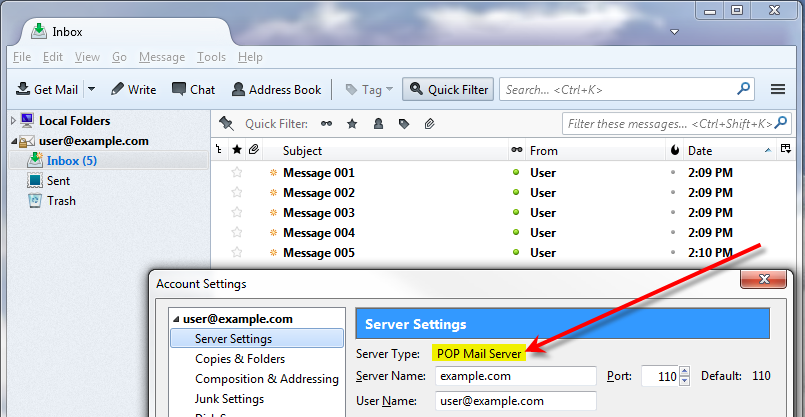
- In Thunderbird navigate to Tools > Account Settings.
- Click on Account Actions and then Add Mail Account…
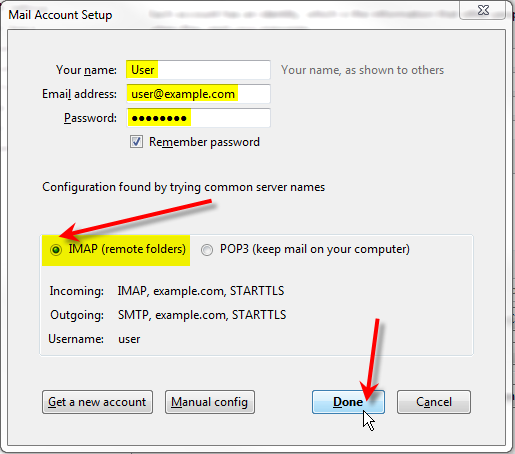
- Fill in your email account settings, then click Continue.
- Now select IMAP (remote folders) and click Done.
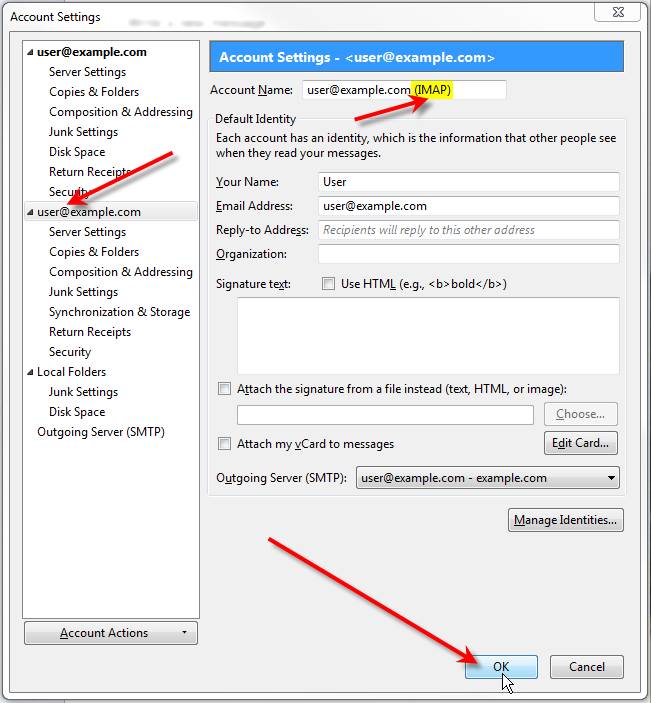
- Now back on the Account Settings window, click on the newly created [email protected] account, and update the Account Name to append (IMAP) on the end, so we know which account is which easily, then click OK.
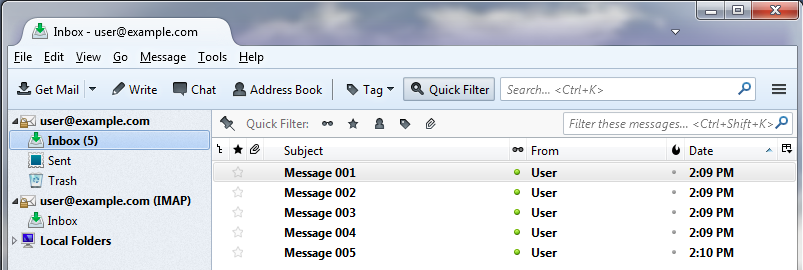
- At this point you can now see that our original POP3 account has 5 messages in it, and these are stored on the local computer itself.
If you attempt to login to webmail at this point, you’ll see there are no messages stored on the server for this account. This is because they are all stored locally in your mail client. - You can select one of the messages from your POP3 account, then hit Ctrl-A to select all messages, then drag them into your IMAP account to move these messages to the server.
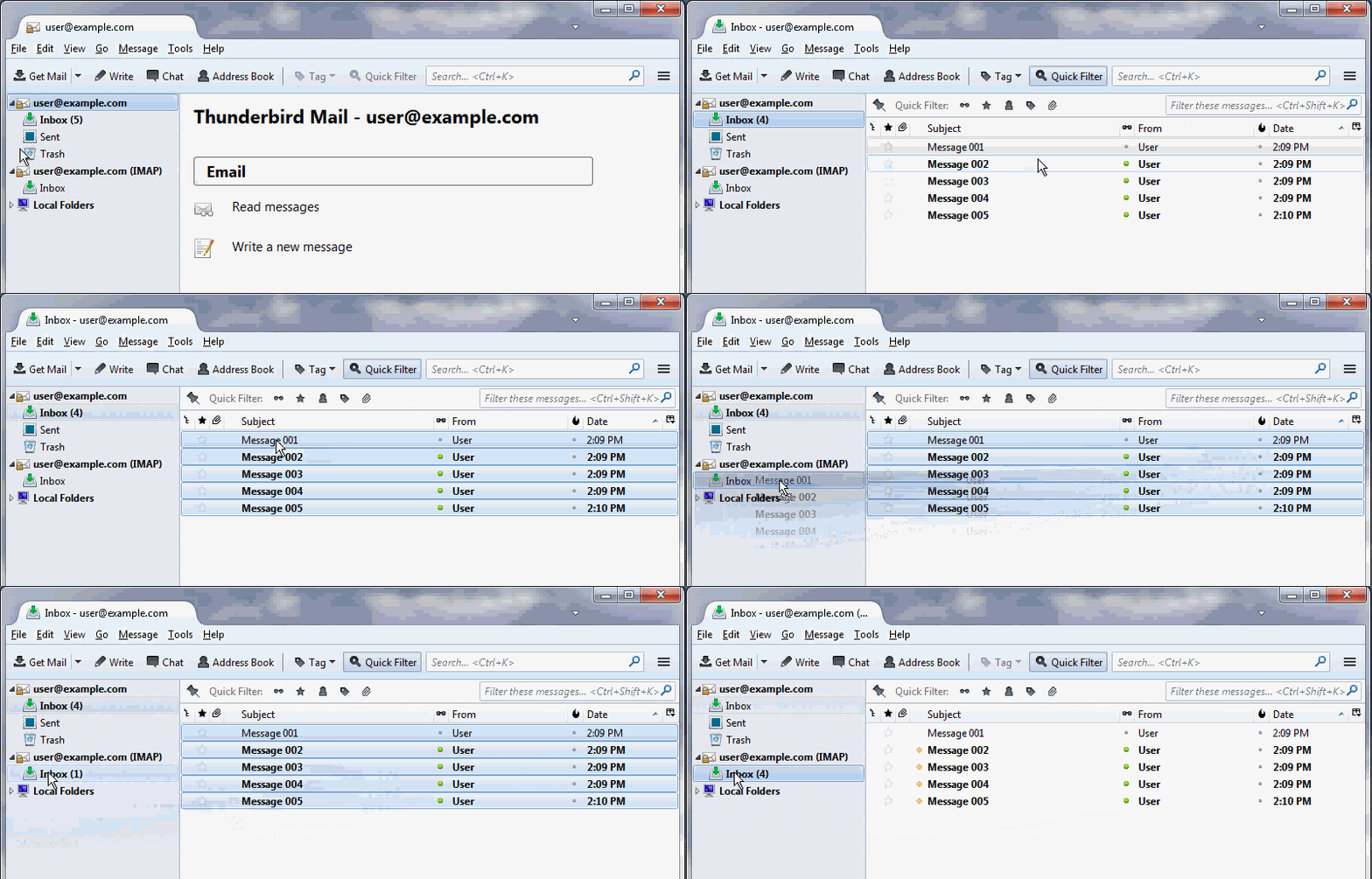
Now if you login to webmail, you’ll see all those messages you just moved on the server-side. They can now be syncronized to any IMAP client such as your phone without the messages being removed from the server. - Next you’ll want to remove your POP3 account from Thunderbird otherwise the messages in your IMAP account will keep being removed from the server and pulled back into the POP3 account. Right-click on the POP3 account and click on Settings…
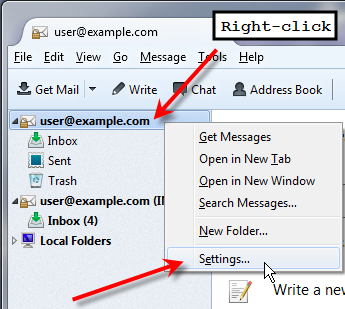
- On the Account Settings window, click on Account Actions and then Remove Account. You’ll get a confirmation window pop-up asking if you’re sure you want to remove the account, just click OK.
You should now have the knowledge and know-how to switch your mail client from using either POP3 or IMAP as your preferred email retrieving protocol.
Reliable Shared Hosting for Growing Businesses
Get the performance your business website demands with NVMe SSD storage, industry-standard cPanel management, and direct access to hosting experts whenever you need assistance.
 Free Website Migration 24/7 Human Support 100% Money-Back Guarantee