As we continue our series on the Storefront theme, we will now show you how to customize the store notice for your WooCommerce site. Store notices can be used to display information on the bottom of your website. This is can be helpful for announcing important information such as website issues or special sales. First, we will show you how to enable the store notice. Then, we will show you how to customize the text in the store notice.
How to Customize Store Notice
-
- Log into your WordPress Dashboard.
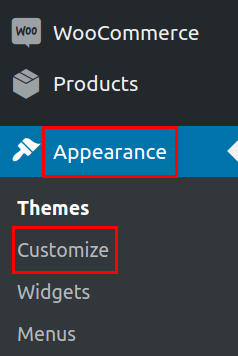
In your navigation menu click Appearance then Customize.
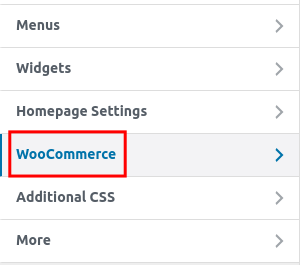
In the customizer menu choose the WooCommerce link.
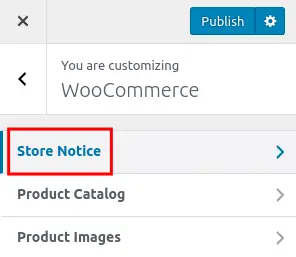
Click the Store Notice option.
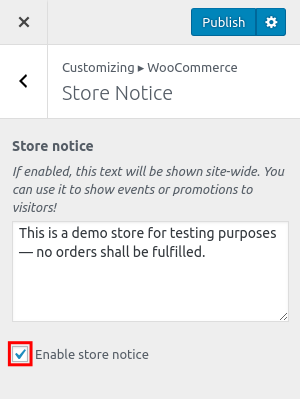
You will then be on the Store Notice settings page. Check the box to Enable store notice.

You will then see the default Store Notice in blue on the bottom of your site.
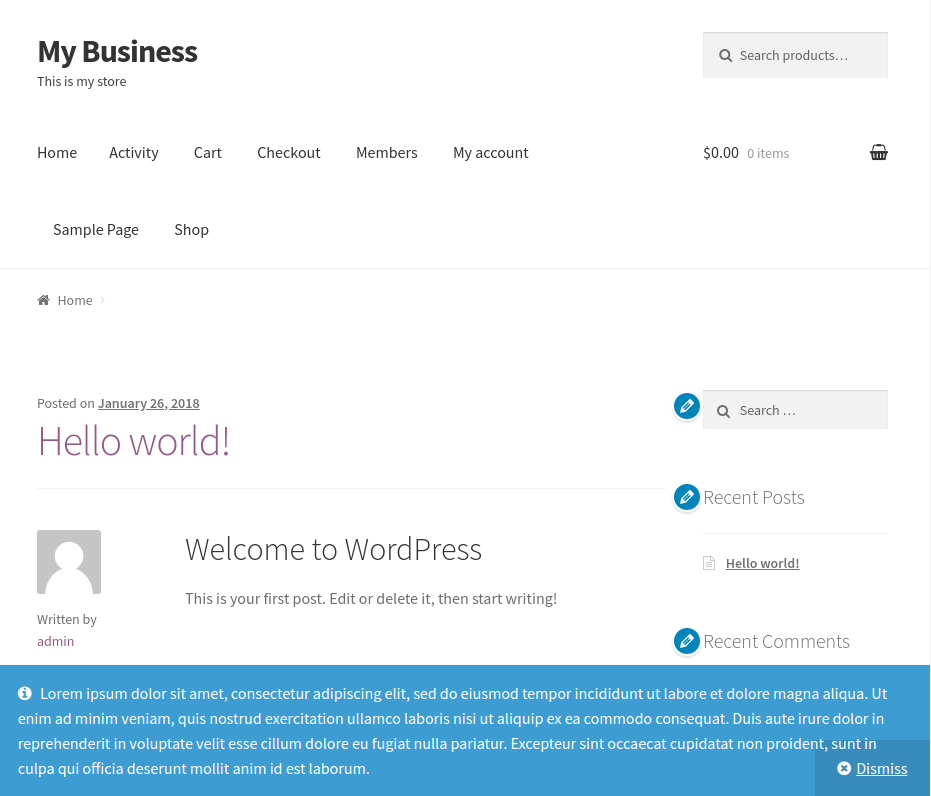
Edit the text field in the Customizer to change the store notice message. The updated notice will display immediately.






.
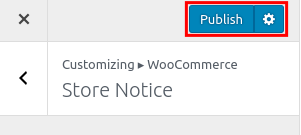
Click the Publish button to save your changes.

Congratulations, now you know how to customize the store notice for your WooCommerce site!
