

Though we’re interacting more and more online every day, some elements of the physical world can and should follow us to our digital spaces. For businesses, this includes adding business hours to your WordPress site.
Even if your doors aren’t physically open, business hours can tell your audience when you’re available for communication and set realistic expectations for turn around time for business/customer conversations.
For example, if you own a bakery and accept online orders, customers will have more patience after submitting an order if they see business hours on your website versus having no business hours displayed.
Especially if they submit the order later in the day, your business hours will tell them that they will probably hear from you the next business day. It takes out the wonder and helps build trust and rapport — which will hopefully lead to securing a sale.
You can easily add business hours to WordPress by using the Opening Hours plugin. Continuing reading to learn more about:
- Installing Opening Hours Plugin for WordPress
- Creating Business Hours with the Opening Hours Plugin
- Adding Business Hours to Your WordPress Site
Enjoy fast, secure hosting optimized for your WordPress website with our WordPress Hosting plans.
Installing the Opening Hours Plugin for WordPress
- Log into your WordPress dashboard.
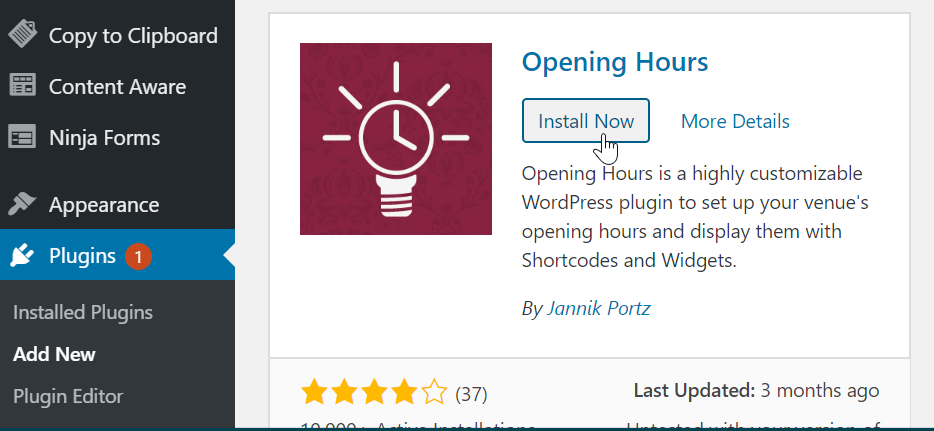
- Navigate to Plugins > Add New and search for Opening Hours.
- Click Install then Activate on Opening Hours.
- Congratulations, Opening Hours has been installed!
Creating Business Hours with the Opening Hours Plugin
The Opening Hours plugin gives you the ability to not only show regular business hours but holiday and irregular hours as well. This functionality is increasingly important as businesses work to perfect flexibility in an ever-changing world.
- After the plugin has been activated, navigate to Opening Hours in the left-hand menu in your dashboard.
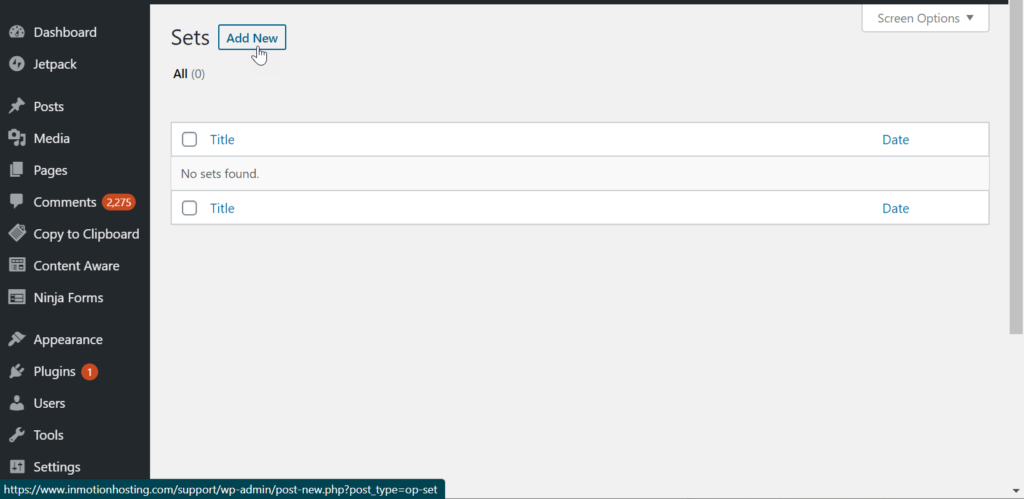
- Click Add New.
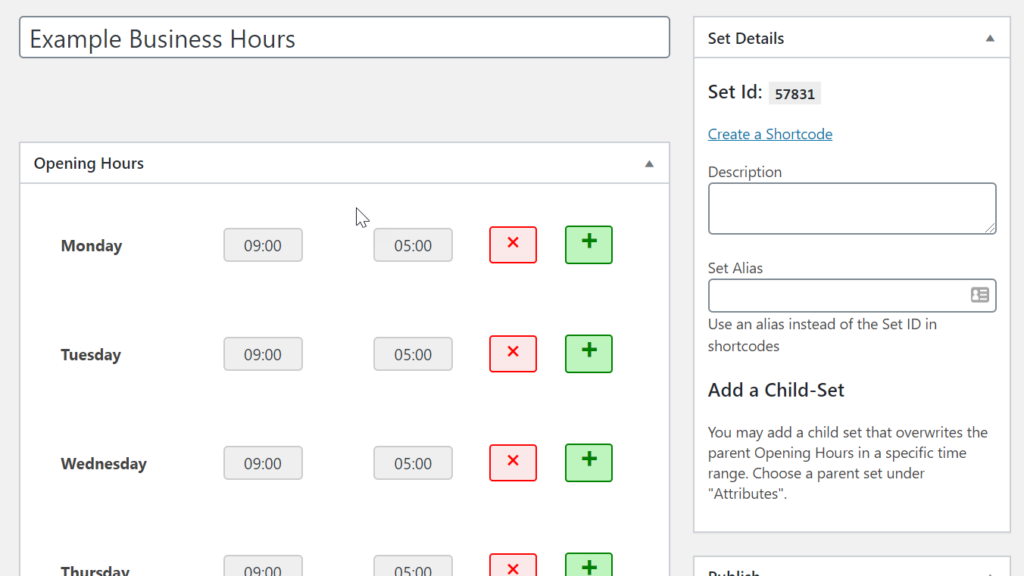
- Enter a title into the Add title field.
- Under Opening Hours, add your business hours. You can remove days by clicking the red X and add additional hours to a day using the green +.
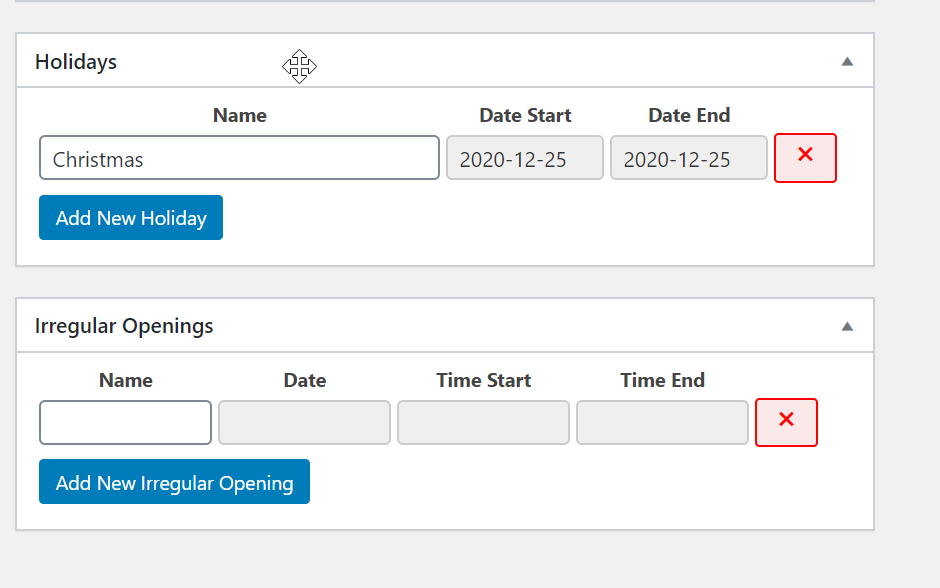
- Under Holidays, add the dates when your business will be closed.
- Under Irregular Openings, add days/hours for temporary availability that will display for a certain amount of time.
- Once you’ve finished adding your hours, click Publish to save your work. If you ever need to update this business hours entry, you can do so by navigating Opening Hours and then clicking on the entry to edit it (similar to how you would edit a page or post).
Adding Business Hours to Your WordPress Site
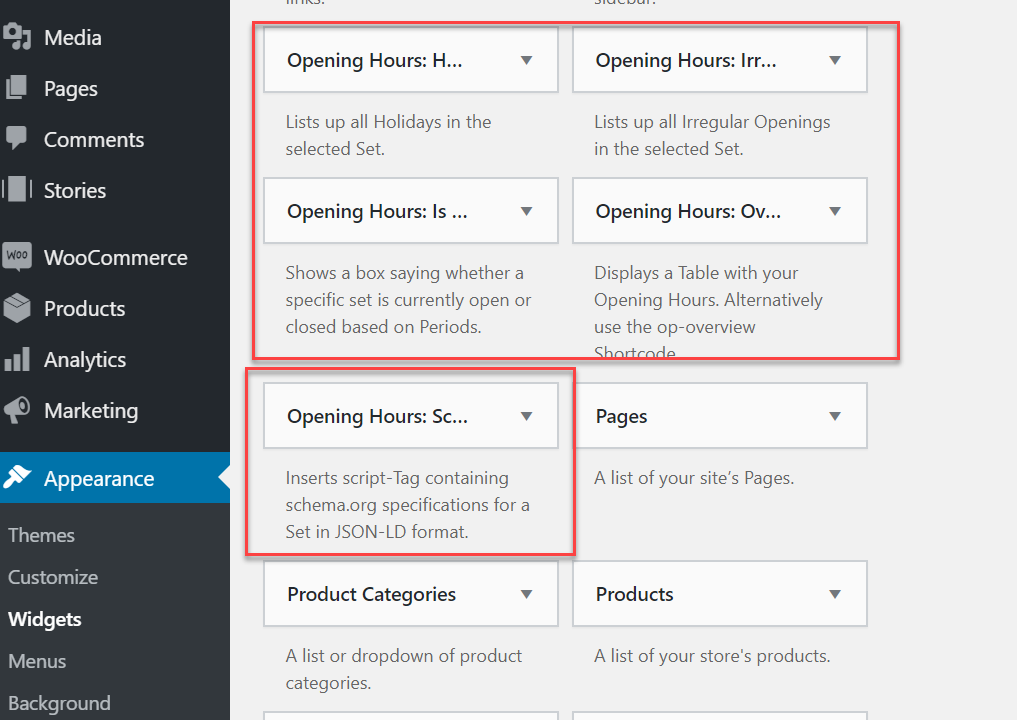
Once you’ve created a business hours entry using the Opening Hours plugin, you can easily add the hours to your website via a shortcode or using the Opening Hours widgets in the widget area. Unless there is a specific area you want to show your business hours, the easiest option is to simply use and add a widget to the header or footer of your website.
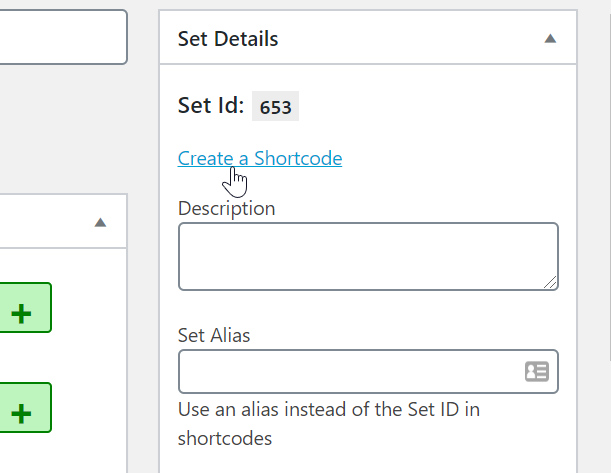
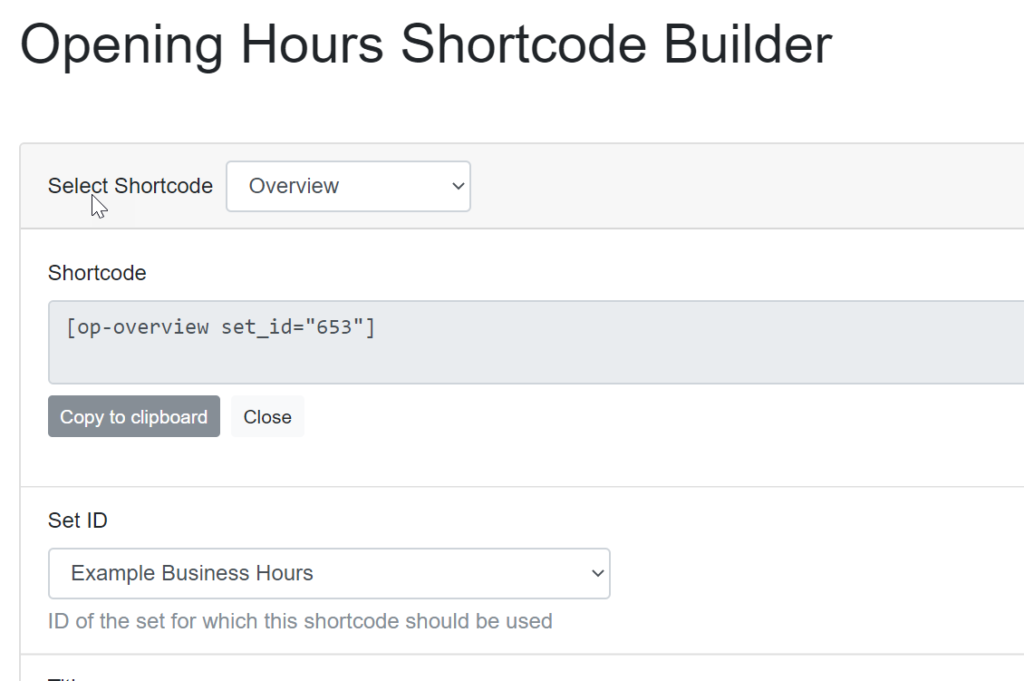
- To add the created business hours to your website, click Create a Shortcode under Set Details or use the newly added widgets in Appearance > Widgets.
- If you choose the shortcode, a pop up will appear with your shortcode and you can enable or disable certain display options like including the weekend and holidays. After you make your selections, copy the code and paste it into a page or post.
- If you choose to use the widgets under Appearance > Widgets, simply drag and drop one of the opening hour widgets (you can choose to show all options or just a particular set of hours like irregular hours) into a widget area. Configure the settings of the widget you choose, then click Save.
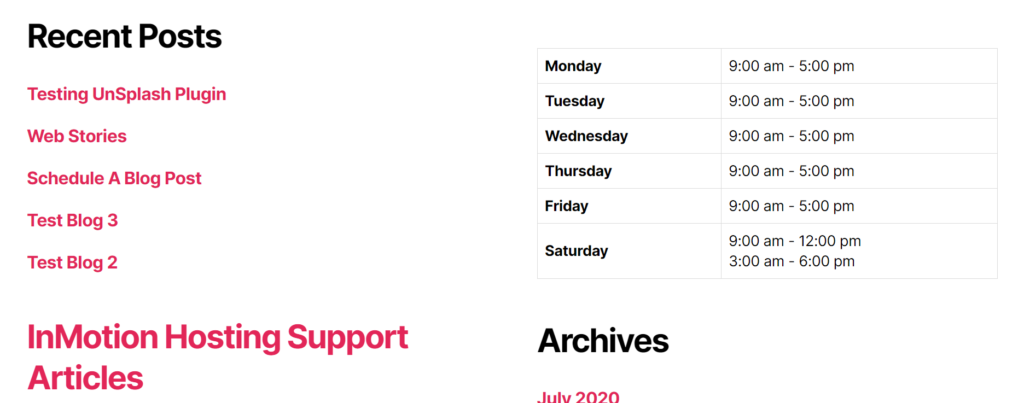
- Navigate to your site to view your business hours!
If you’d rather add your business hours with Jetpack, check out Using the Business Hours Block from Jetpack.
Become a master of WordPress plugins! Protect, optimize, secure, and expand the functionality of your website easily with the help of WordPress plugins!
