

One of the best WordPress donation plugins is GiveWP. Available as both a free and a paid plugin, its many tools make collecting and recording online donations a breeze. It’s also extremely user-friendly, allowing you to navigate its features like a pro.
Below we’ll walk you through installing, configuring, and using the GiveWP donation plugin. Continue reading to learn how to get started with GiveWP.
- Install the GiveWP Donation Plugin
- Create a Set Donation Form in GiveWP
- Create a Custom Donation Form in GiveWP
Install the GiveWP Donation Plugin

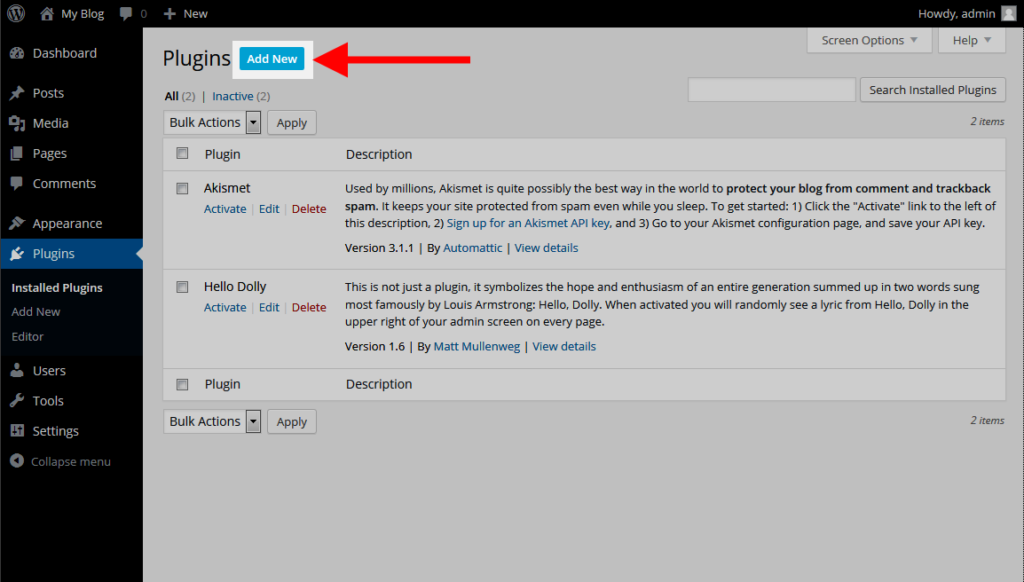
- Log into your WordPress dashboard.
- Navigate to Plugins > New.
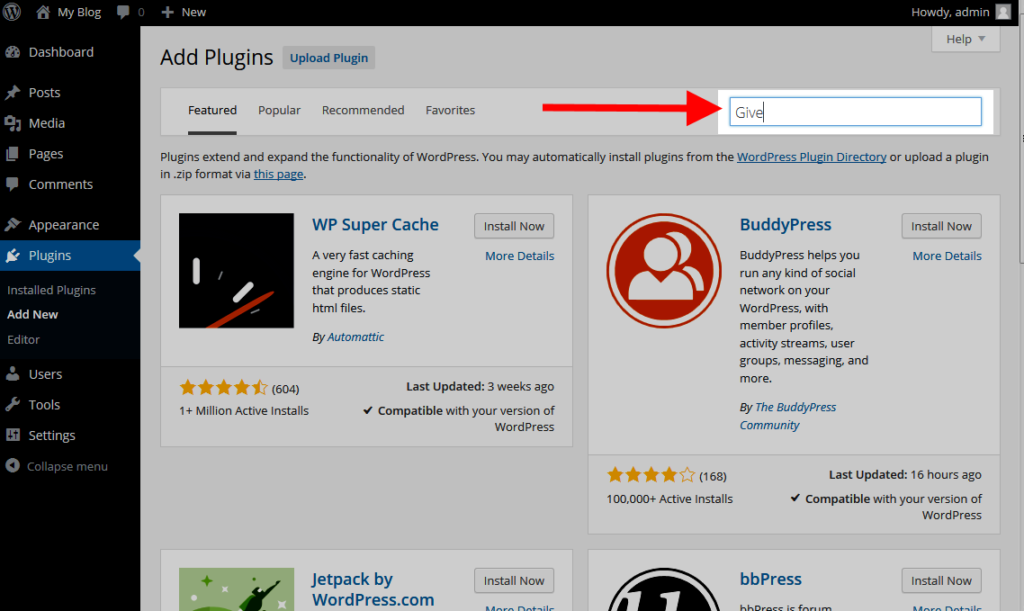
- Type “Give” in the search bar and press Enter.
- Click Install Now > Activate.
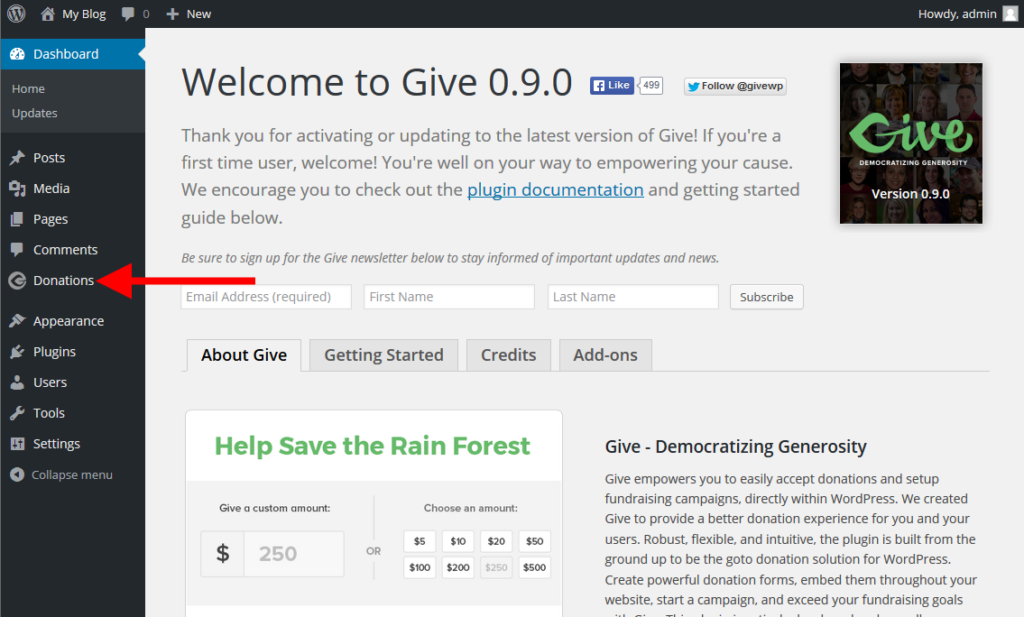
- After activating, you should be taken to a welcome page. You should see an option in the left-hand sidebar menu named “Donations”. This is where you go for further configuration.

Create a Set Donation Form in GiveWP
Once the GiveWP plugin is installed and activated, it’s time to create a form. You can create many different forms based on the donation needed. First, we’ll walk through creating a set donation form.
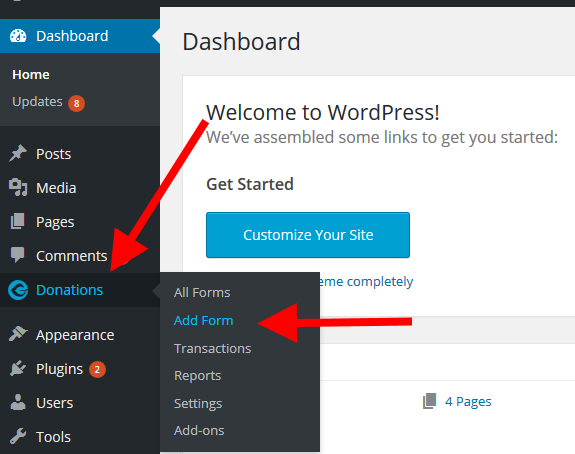
- Navigate to Donations > Add Form.
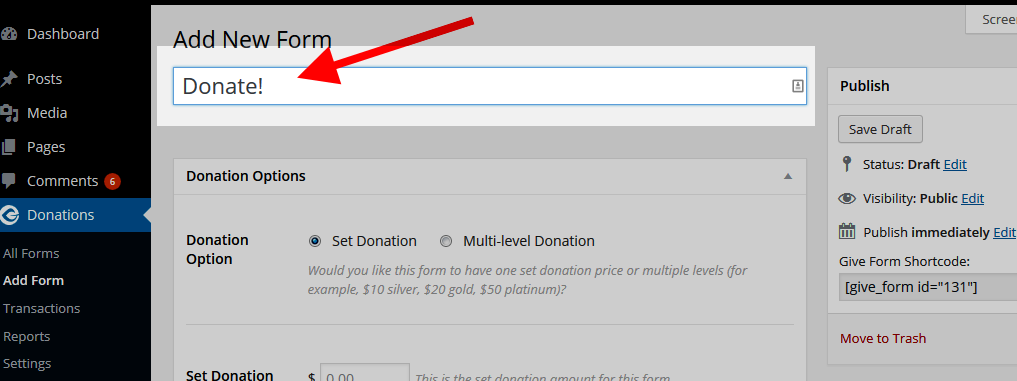
- On the Add New Form page, give your form a name. Make sure it is meaningful as it will appear on the finished form page.
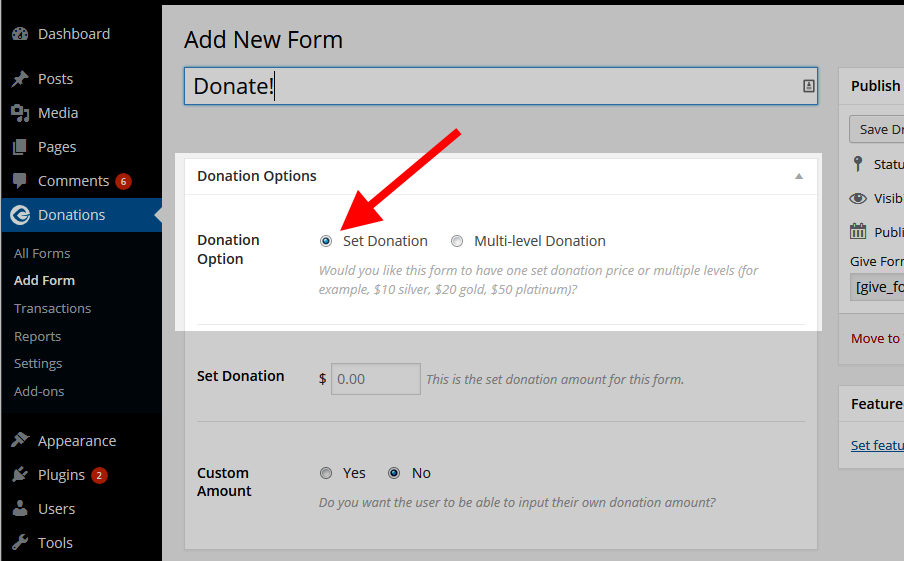
- Make sure your Donation Option is set to Set Donation.
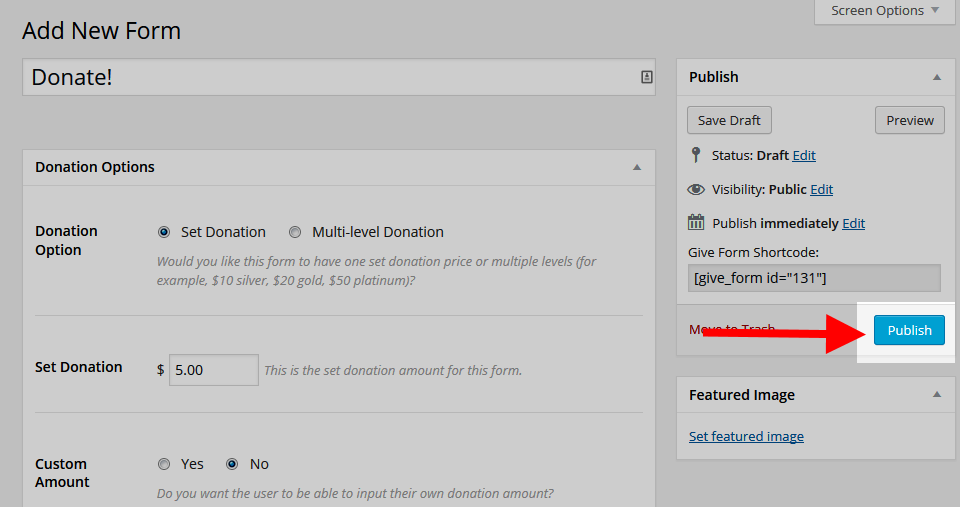
- Now set the amount in the Set Donation field. In our example, we entered $5.00.
- Leave everything else as is and click Publish.
- Next, let’s add the form to a new page. Click on Pages > Add New.
- Enter the name of your page.
- Select Add Donation Form or select the Give editor block if you’re using Gutenberg.
- Select your desired form from the dropdown.
- Click Insert Form.
- Click on Publish.
- You may also need to add the page to your navigation menu before it displays on your site.

Create a Custom Donation Form in GiveWP
A set donation form may not be best for your organization. You may want to allow your donors to customize their donation amount. This is can be easily done from within the GiveWP plugin settings. Follow the instructions below to learn how:
- Navigate to Donations > Add Form.
- On the Add New Form page, give your form a name. Make sure it is meaningful as it will appear on the finished form page.
- Make sure your Donation Option is set to Set Donation.
- If you like, you can set a suggested donation amount. Enter that in the Set Donation field. In our example, we entered $5.00. This $5.00 will display on the form automatically but the donator will be able to change this if they desire.
- For Custom Amount option, set the radio button to Yes.
- For Custom Amount Text, enter text to label the custom donation field.
- Leave everything else as is and click Publish.
- Next, let’s add the form to a new page. Click on Pages > Add New.
- Enter the name of your page.
- Select Add Donation Form or select the Give editor block if you’re using Gutenberg.
- Select your desired form from the dropdown.
- Click Insert Form.
- Click on Publish.
- You may also need to add the page to your navigation menu before it displays on your site.
Become a master of WordPress plugins! Protect, optimize, secure, and expand the functionality of your website easily with the help of WordPress plugins!
