WordPress by default may not have the wp-content/uploads folder secured with an index page in it. When the wp-content/uploads folder has no index page, the contents of the folder can be viewed through the browser. This article will explain how to install and configure the Secure Folder wp-content/uploads plugin for WordPress.
Installing the Secure Folder wp-acontent/uploads plugin
- Log into the WordPress Dashboard.
- Go to the plugins and Click Add New. Search for security in the search bar.
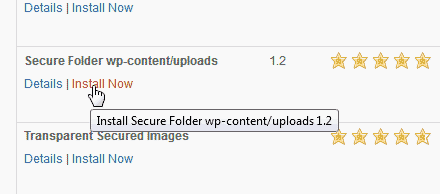
Find the “Secure Folder wp-content/upload plugin” and click Install Now.
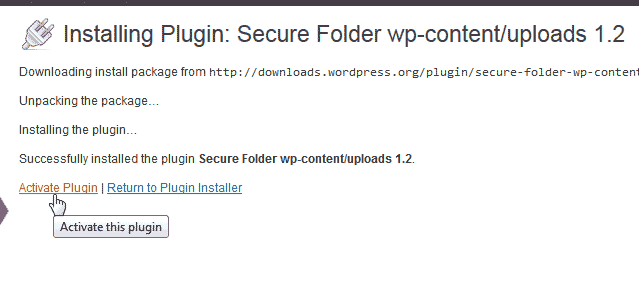
Click Activate plugin.
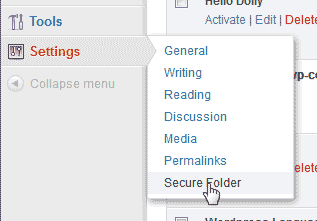
Now that the plugin is installed, go to Settings > Secure Folder to go to the Secure Folder Plugin Dashboard.
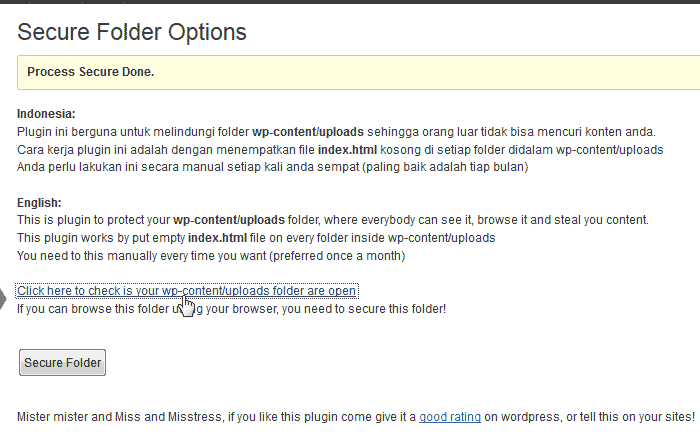
Click the link that says, “Click here to check is your wp-content/uploads folder are open“.
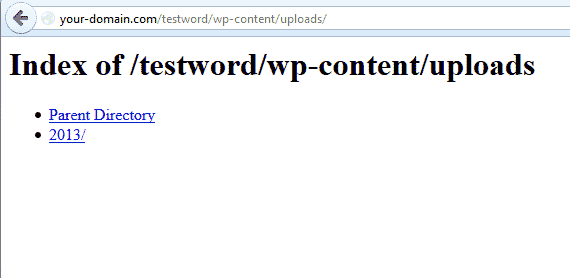
If you see an “Index of ” page display you will need to run the Secure Folder script.
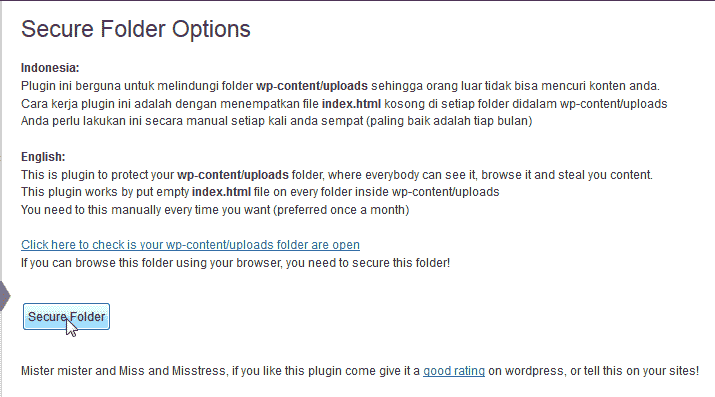
Go back to the Secure Folder Plugin in your WordPress Dashboard. Click Secure Folder.
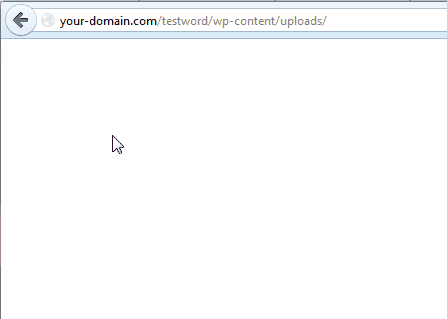
If the wp-content/uploads file shows a blank screen then the folder is secured.







