
One of the most common things you’ll find in web-based articles are links that jump from one location in an article to another location of that same article. These links are known as anchor links. Follow the tutorial below to learn how to add anchor links in a WordPress post or page.
If you are looking for a new home for your WordPress site, then look no further than InMotion’s WordPress Hosting. You’ll find server solutions that are secure, optimized and priced to meet your budget needs.
How to Add Anchor Links with Gutenberg
There are a few different ways to create anchor links in a WordPress post or page. We are going to be focusing primarily on how to add anchor links with Gutenberg, the default editor in WordPress.
As of WordPress version 5.0, the integrated default editor is Gutenberg. This tutorial will show you how to add the links using the Visual Editor.
- Log into the WordPress Administrator Dashboard
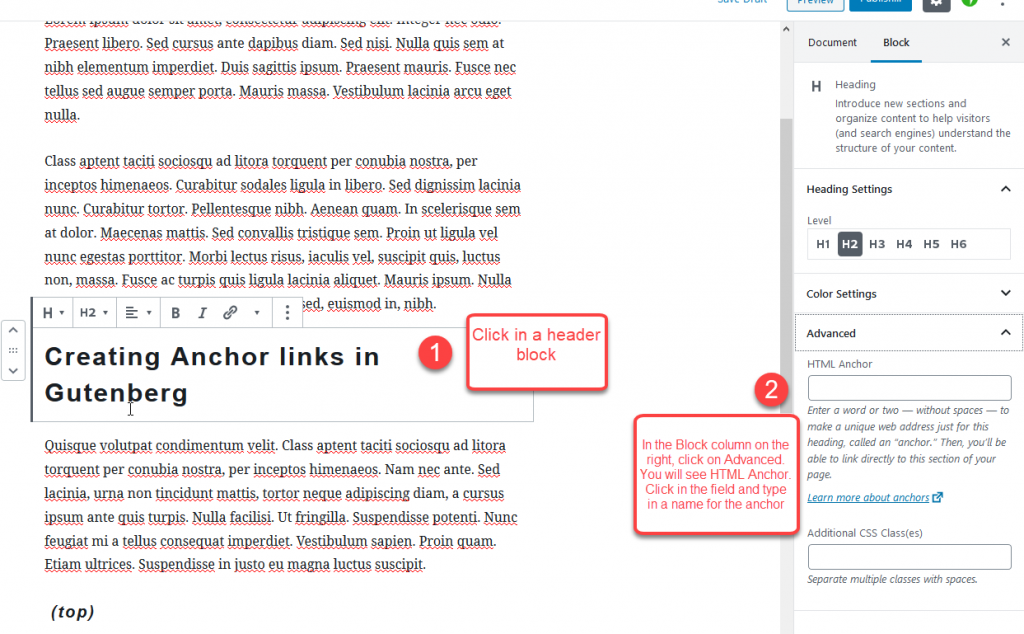
- Click on a header within your WordPress Post or Page, or add a header block.
- When you select a header, you will see the menu in the right column change. If not, then make sure you’re in the block editor. Click on the gear icon to see the right-hand column if it’s not viewable.
- Click on Advanced in the Block menu at right.
- You will then see the label and field for HTML Anchor. Click in the empty field to name the anchor. Don’t add spaces in the name. Make sure to remember what you added, as you’ll need it when you create the anchor link.
The screenshot below shows how to create the HTML anchor by clicking on a header in your post or page
Creating a link to the Anchor
Once you have created the anchor, then you need to either select the text where you will create a hyperlink that will jump to your anchor link.
- To create the anchor link, you will need to select (or create) text in the document. Highlight the text, then click on the link icon at the header block in your post or page.
- Once you click on the link, the add URL dialogue window will appear. First, type a “#” sign in the black window for the URL. Then add the anchor link that you created earlier. In our example, the link would be: #create-anchor-link
- Click on Save Draft or Publish to save your work. You can view the post or use Preview to check the link.
This screenshot shows how to create a link that will jump back to your HTML anchor.

Learn more about the new WordPress editor, Gutenberg, and the capabilities of the separate Gutenberg plugin with our helpful Gutenberg tutorials.