As we continue our series on the Storefront theme, we will now show you how to customize the background of your Storefront theme in WordPress. This allows you to use a background image or specific color and can help you further brand your WooCommerce website.
Customize Background
- Log into your WordPress Dashboard.
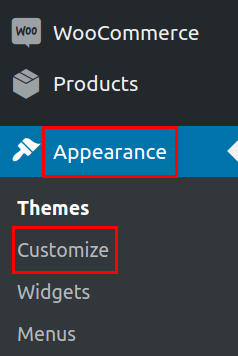
In your navigation menu click Appearance then Customize.
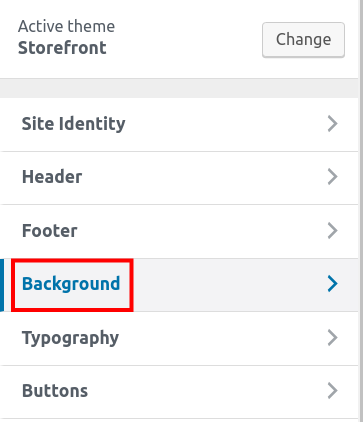
In the Customizer click the Background link.
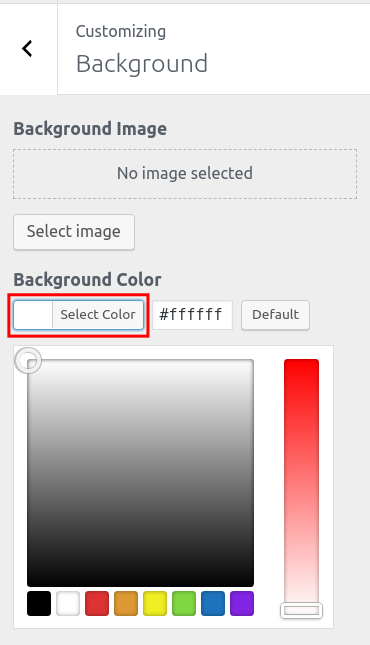
If you want to use a background color click the Select Color button, then choose your color.
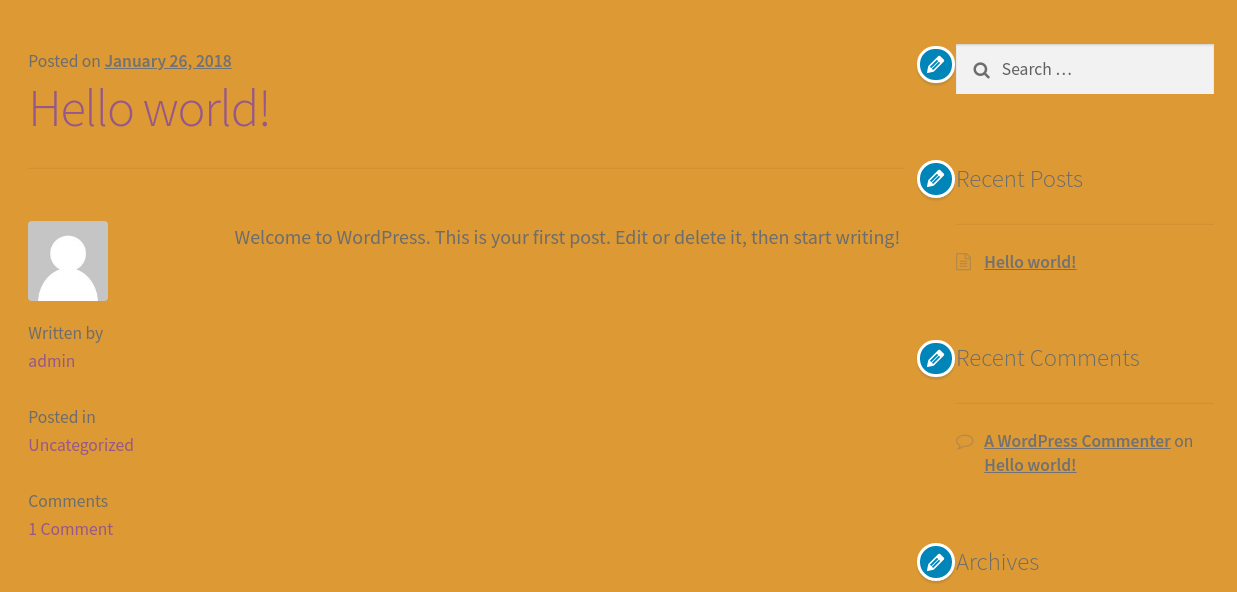
The new background color will display immediately.
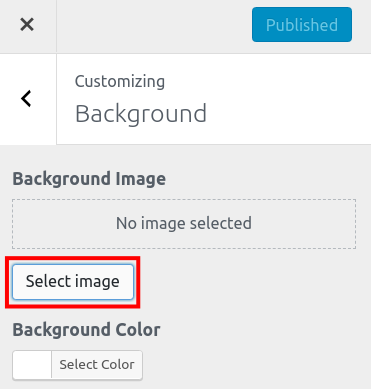
If you want to use a background image click the Select image button under Background Image.
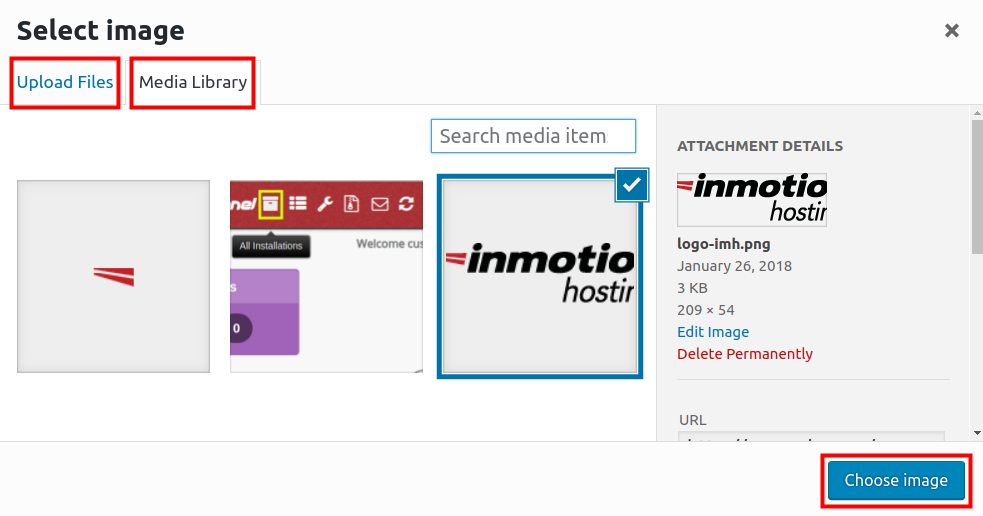
Upload an image or select it from your Media Library if you have uploaded it previously. Then click the Choose image button.
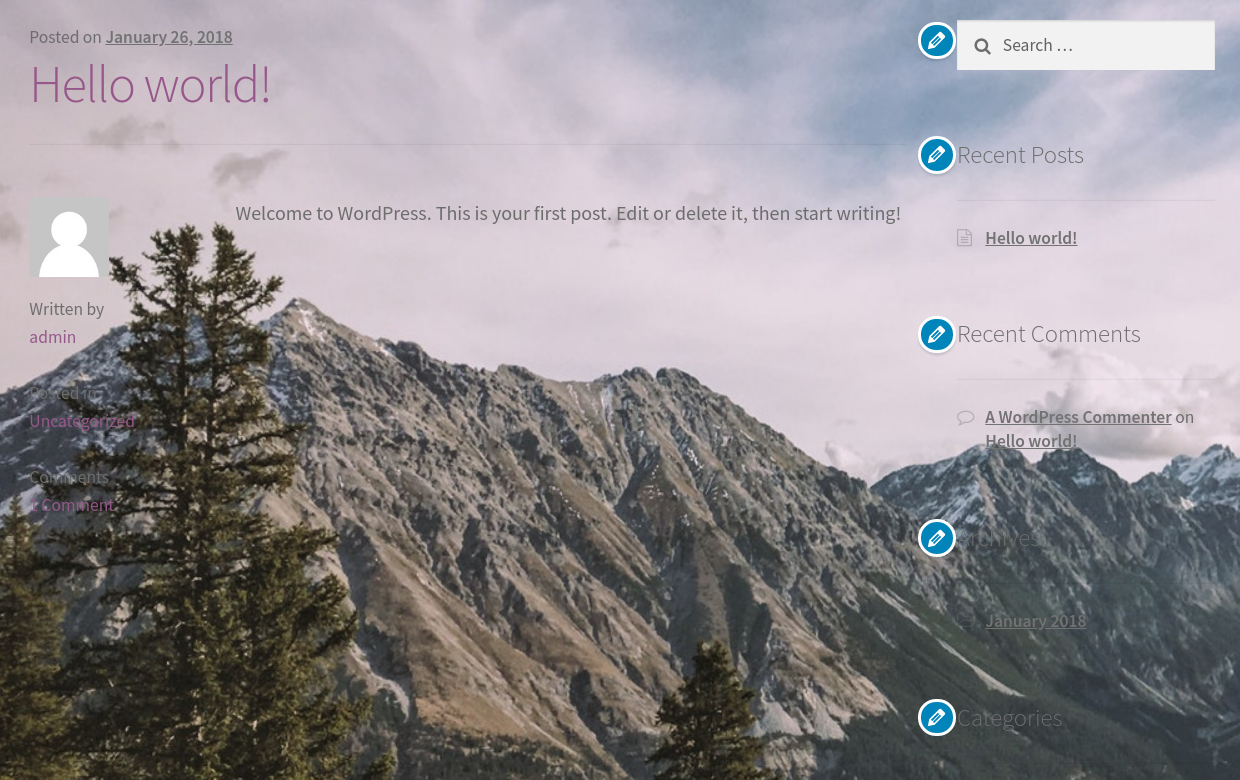
Your new background will display immediately.
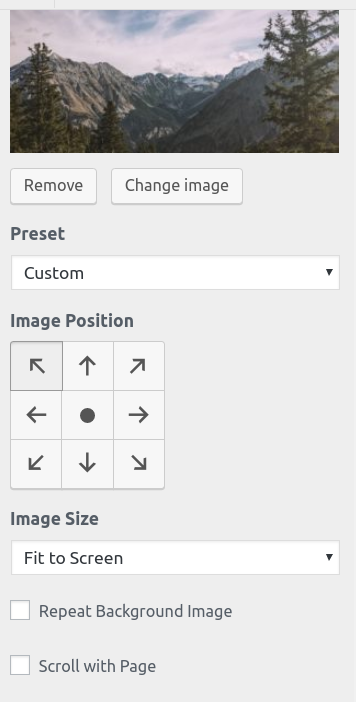
You will also see additional settings available. Below is a description of the options.
Option Description Preset The background image will Repeat by default but you can choose to have it Fill Screen, Fit to Screen, or set it to Custom if you want to change the image position. Image Position Use the arrows to move the background image where you want it. Image Size Here you can choose if you want the image to display in the Original size, Fit to Screen, or Fill Screen. Repeat Background Image Check this for the image to repeat in the background. Scroll with Page Check this for the image to scroll up and down with the page, instead of staying displayed in the background. 
Click the Publish button to save your changes.









Congratulations, now you know how to customize the background of your Storefront theme in WordPress! In the next guide, we will show you how to Customize your Typography in the Storefront theme.
