

What is Gutenberg? Gutenberg is the new block-based editor that has been implemented and integrated into the WordPress interface.
Included in all WordPress versions 5.0 and higher, Gutenberg changes the way you create and edit your pages and posts by providing an easy to use block editor.
Continue reading to learn:

What is Gutenberg?
Gutenberg is a block-based editor that allows you to quickly create content for your WordPress site. The advantage of using blocks is that you can focus on creating content and reposition content by simply dragging and dropping.
Let’s learn how to navigate to Gutenberg in your WordPress dashboard.
- Login to your WordPress Administrator
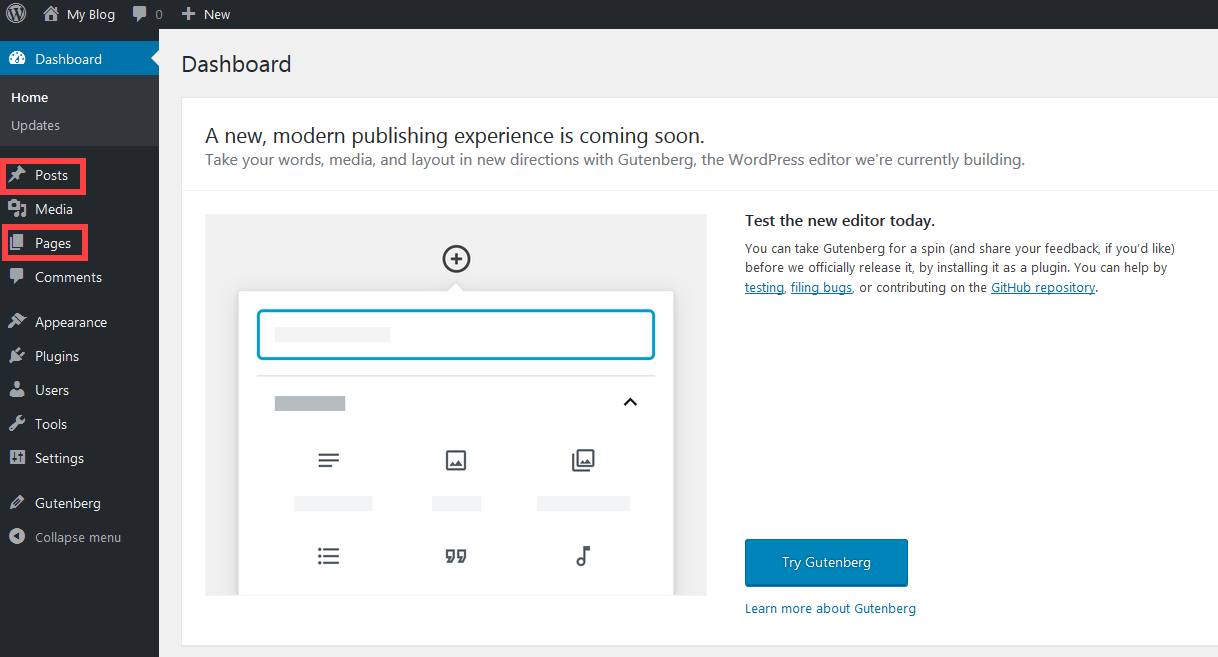
Click on either Posts or Pages.
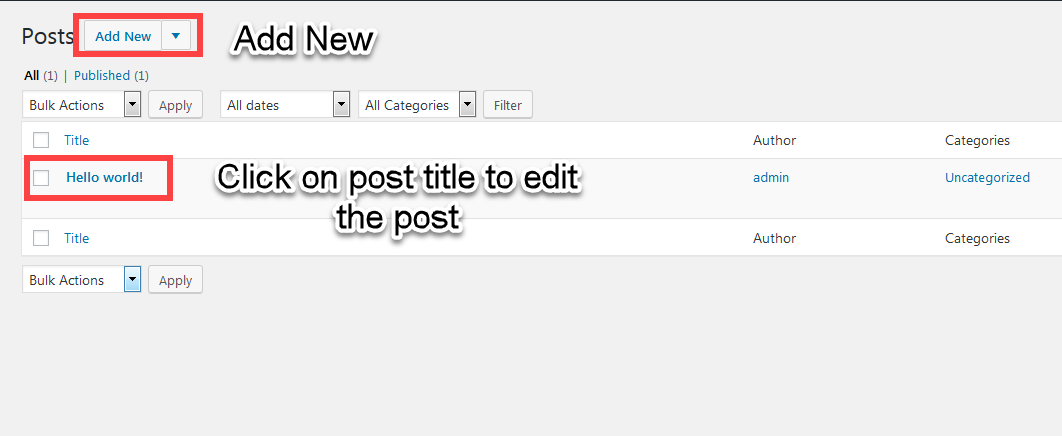
Click to edit an existing post or click on Add new to add a new post. The screen that you see next is the Gutenberg editor.
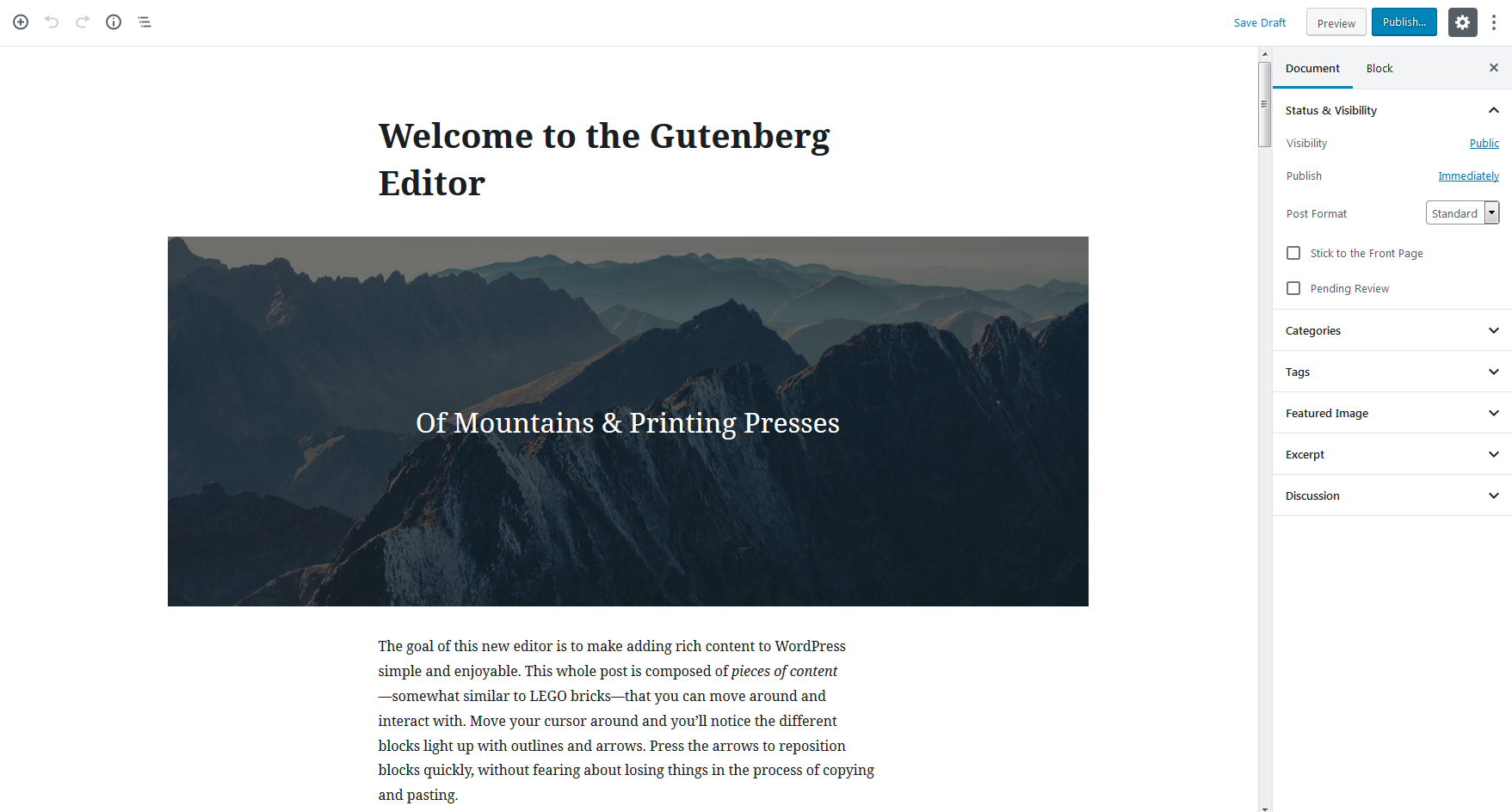
Each time you create or edit a new page or post, you will be placed into the Gutenberg Editor by default.
Navigating Gutenberg
Once you’re in the dashboard, scroll down the left side and then click on the Gutenberg link in the main menu. This will bring up the demo page that we will be using for this tutorial.
Top Bar of the Gutenberg Editor
Once you’re in the demo page you’ll see the following:
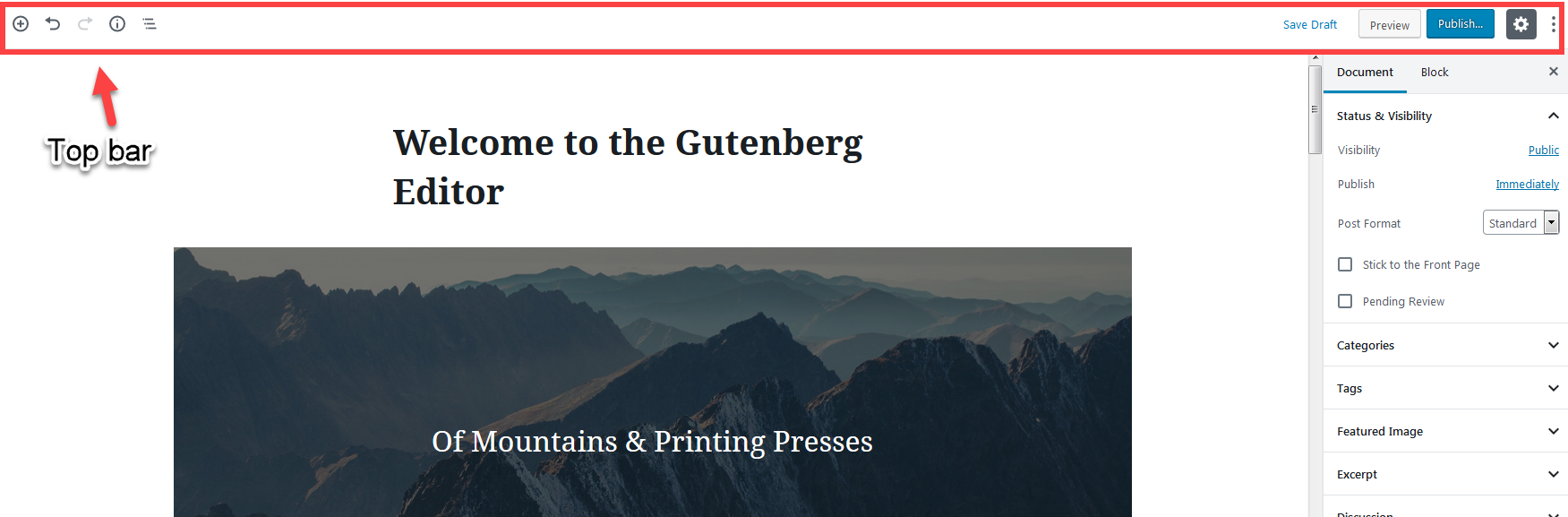
In the top left-hand corner you will see the following options for Add a block, Undo/Redo an action, Content structure, and Block navigation.
In the top right corner, the options represented by the links and buttons are: Save Draft, Preview, Publish, Show/hide settings, and Further tools and options. Here’s what they look like:
| Image | Option title | Option description |
|---|---|---|

| Add block | Adds a new block to your content |

| Undo/redo | Removes an action or redoes and action |

| Content structure | Gives you info on your post/page |

| Block navigation | Gives you a way to move through the blocks in your post/page |

| Save Draft | Saves a draft of your post/page |

| Preview | Provides a preview for your post or page |

| Publish | Publishes your Post or page so that it is live |

| Show/Hide settings | Shows or hides settings column in the editor |

| Further Tools/options | Shows further tools and options |
The next section we are describing is the content portion of the editor. This is also the location where the blocks appear.
The Content Section – Where the Blocks Appear in the Gutenberg Editor
When you create content in Gutenberg, it is placed in blocks. New content always starts with a title. Check out the screenshot below to see how blocks appear:
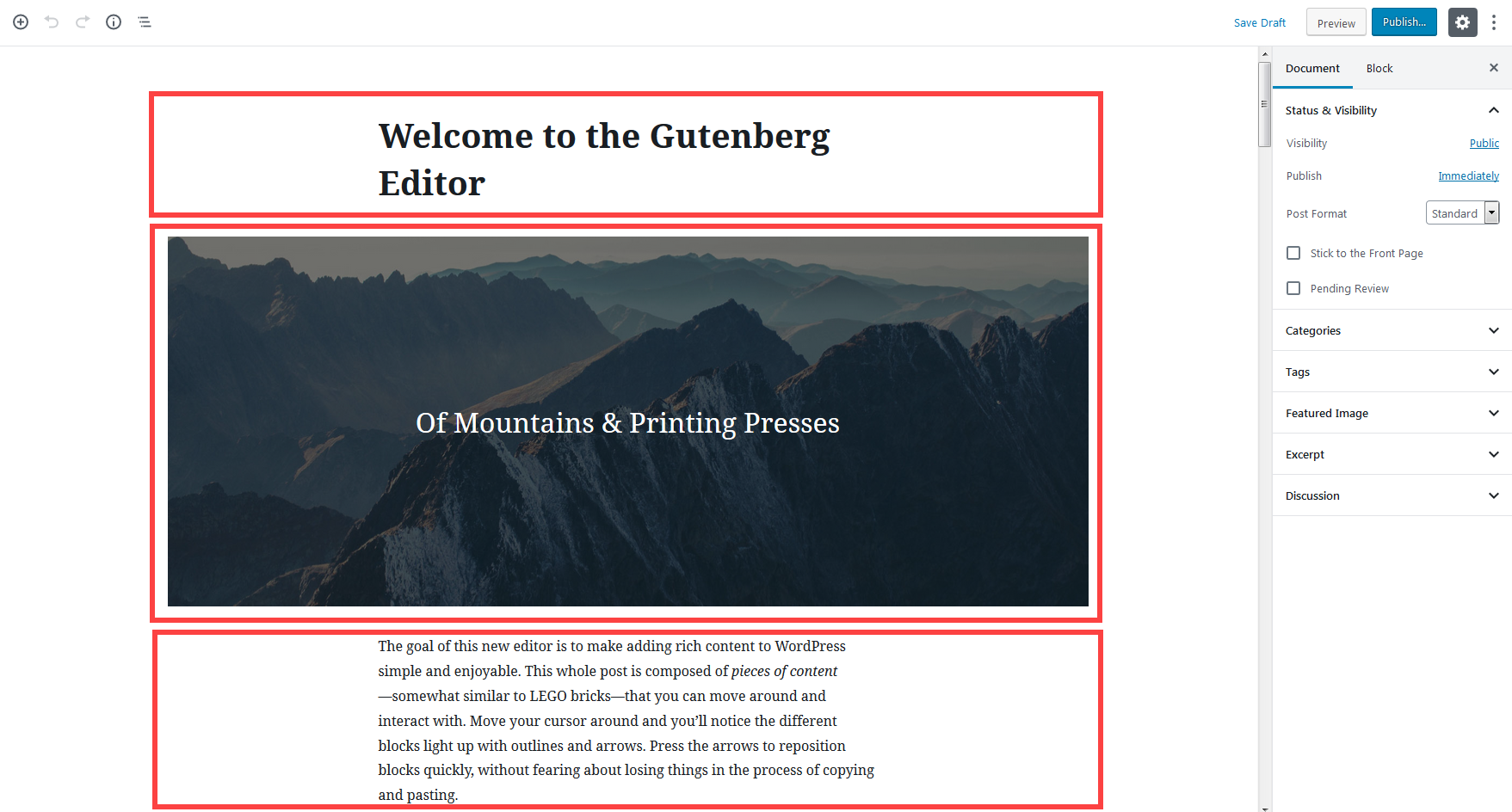
Each of the highlighted sections in the screen capture above shows a block. When you hover over each section, you will see options appear within the block like this:
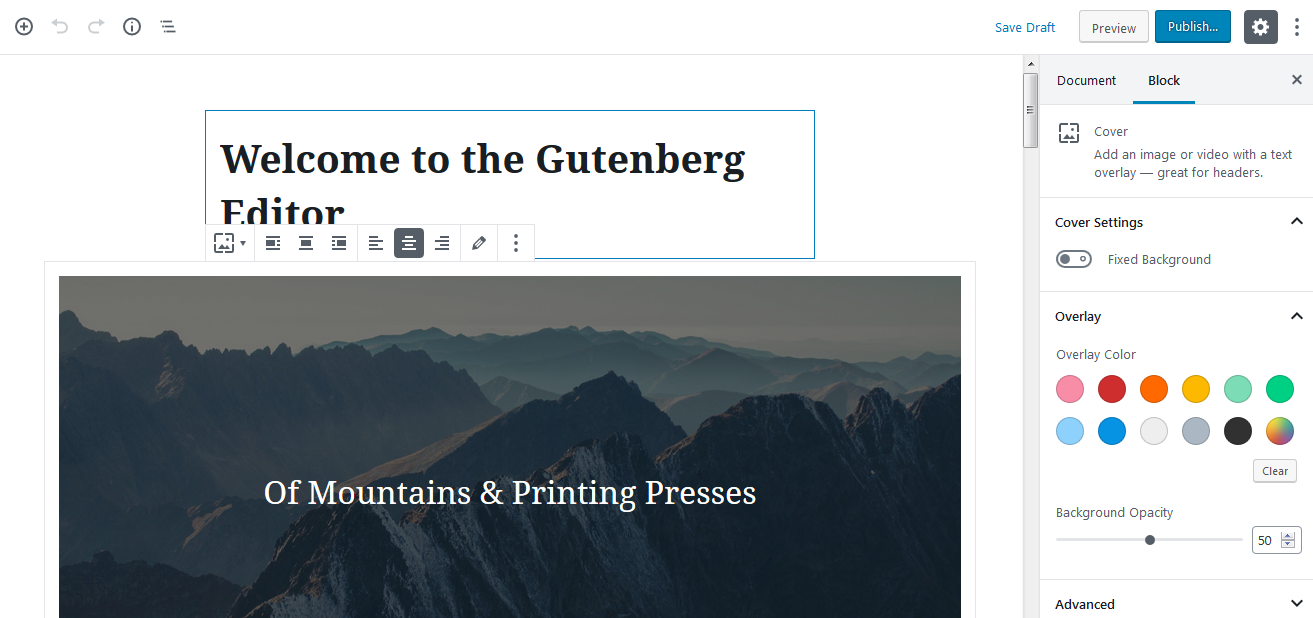
The Options Column
Also, notice the column on the right when a block is selected. Each block that you highlight will correlate with the options shown in the column. The options column on the right provides different details that you can change within the block.
For example, if you have selected a paragraph block then you can change font size, color settings, and other settings that affect the formatting of the block. The right column can be toggled to be displayed or not displayed by clicking on the gear icon in the top right corner.
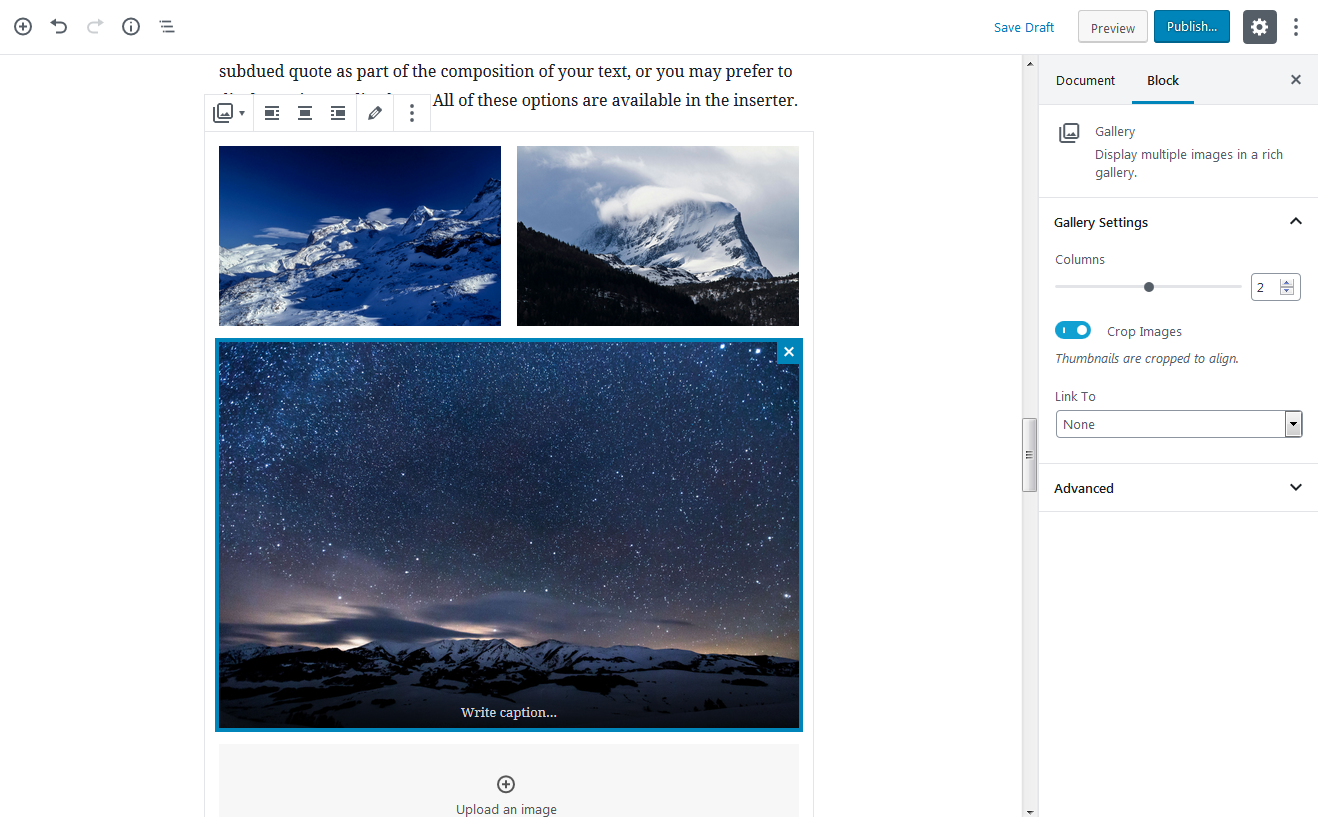
The Gutenberg editor was designed to make it easier for adding content to your WordPress sites. You no longer have to add shortcodes and manipulating sections of your content is as simple as dragging a block from one location to another.
You should now be familiar with the interface of the Gutenberg editor and as you make use of it, you will begin to appreciate the editing power that it brings.
For more WordPress tips and tricks, check out our WordPress Education Channel!
Learn more about the new WordPress editor, Gutenberg, and the capabilities of the separate Gutenberg plugin with our helpful Gutenberg tutorials.